
If you have decided you’d like to update an iPhone or iPad to iOS 9, you can install iOS 9.0.1 manually using firmware and iTunes. The manual firmware method is more advanced, making it perhaps best for specific reasons, like to resolve the frustratingly unresponsive “Slide to Upgrade” screen, to fix the Software Update Failed error, due to storage space limitations on the target device, because sometimes it’s just easier due to bandwidth constraints, or because you’re updating multiple of the same devices. Whatever the case, we’ll walk you through the entire process.
Note this will perform a software update to install iOS 9.0.1, it does not perform a clean install or a device reset.
You’ll need the following in order to update an iPhone, iPad, or iPod touch to iOS 9 with firmware:
- Download iOS 9.0.1 IPSW firmware from here, or download iOS 9 IPSW firmware for your device here, be sure to pick the exact model you wish to update
- iTunes 12.3 is strongly recommended due to bundled iOS 9 support, though iTunes 12.2 apparently works too
- USB / lightning cable for the iOS device, and a computer running the latest version of iTunes
Note that you can use iOS 9.0.1, or iOS 9.0 and then update to iOS 9.0.1 after installation is complete. For most users, you’ll want to use iOS 9.0.1 IPSW simply because it’s easier.
It doesn’t matter if iTunes is on a Mac with OS X or a Windows PC, the instructions are almost exactly the same.
Do note this firmware based method is intended for advanced users. The average iPhone, iPad, or iPod touch owner should install the iOS 9 software update through the Settings app in iOS, or through iTunes as usual. Using a firmware file offers little benefit to the average user and simply complicates an otherwise easy update process.
Updating to iOS 9 Manually with Firmware and iTunes
This will update a device running a prior version of iOS to iOS 9, as described here it will perform a software update, it does not restore or reset the device. Nonetheless, always backup before beginning a software update.
- Place the downloaded iOS 9.0.1 firmware file or downloaded iOS 9 firmware file somewhere easy to locate, like the desktop
- Launch iTunes after you have the latest version
- Connect the iPhone, iPad, or iPod touch to the computer with a USB cable
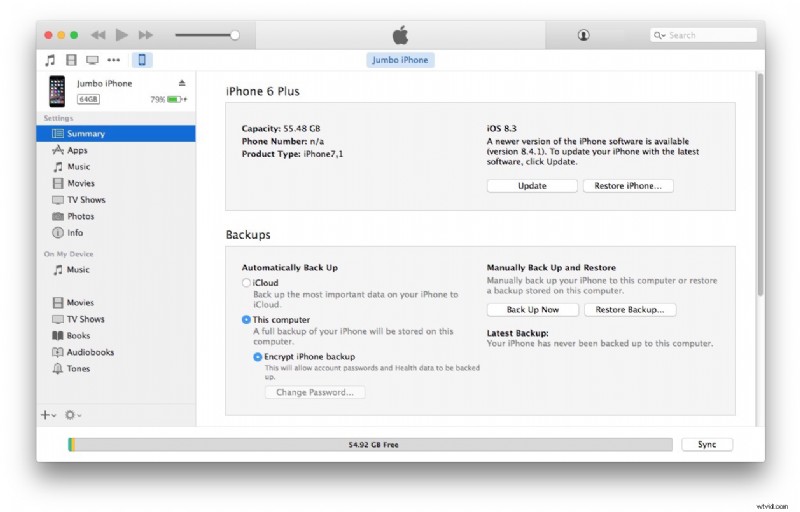
- Select the device in iTunes
- Under the Backups section, either choose iCloud, or choose “Back up to this computer” and select ‘Encrypt iPhone backup’ , then click “Back Up Now” – don’t skip backing up! When finished backing up, continue
- Now you must choose to use an IPSW file by entering an alternate update method:
- For Mac: OPTION + Click on the “Update” button
- For Windows: SHIFT + Click on the ‘Update’ button
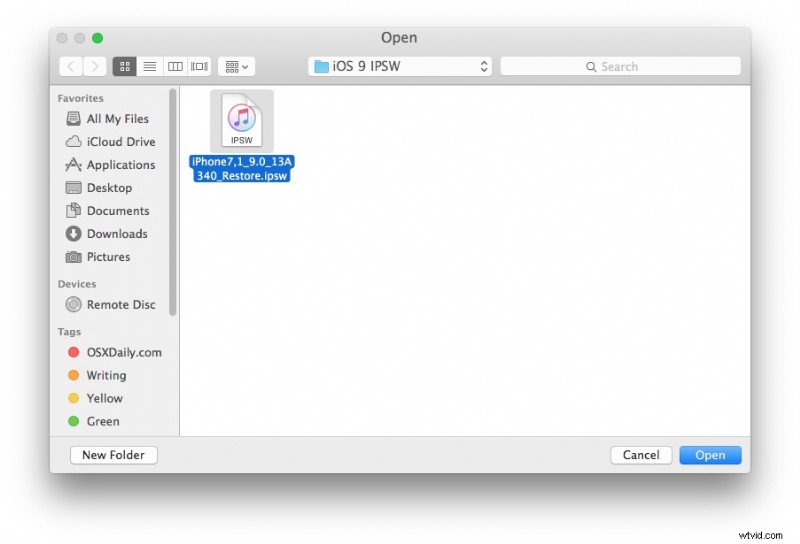
- Navigate in the file system to the IPSW file you downloaded and select it
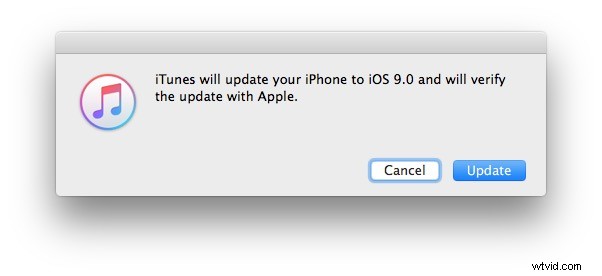
- Confirm that you want to update to iOS 9 by clicking on ‘Update’
- Let the process complete, this can take a little while


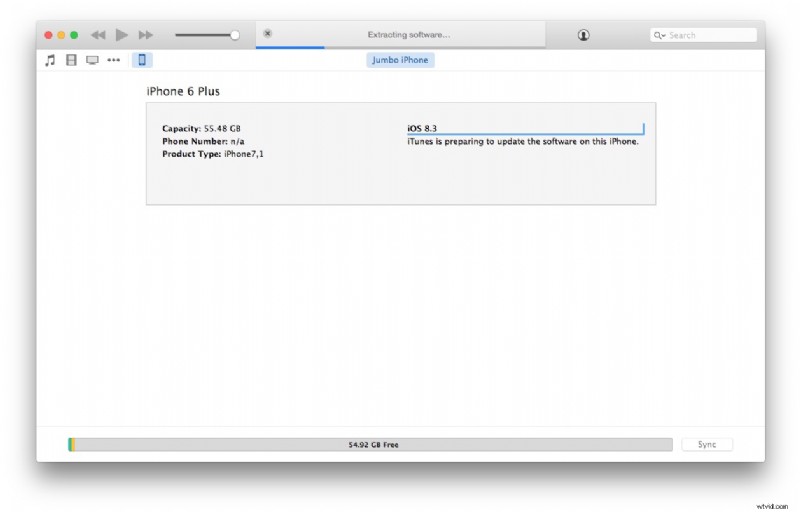
iTunes will show a progress bar as it extracts the software from the IPSW file, updates the iPhone / iPad / iPod touch, and then reboots. DO NOT INTERFERE with the device when it is being updated, doing so may mess up the update.
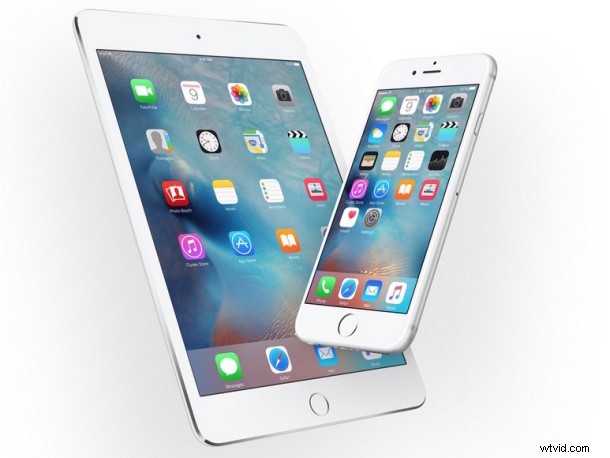
When finished, the iPhone, iPad, or iPod touch will reboot itself automatically and enter the iOS 9 setup screens. You’ll be prompted to pick a six digit passcode, setup Hey Siri, and asked a few other questions. Run through the simple setup, and you’ll be presented with your device that is freshly updated to iOS 9. Enjoy!