
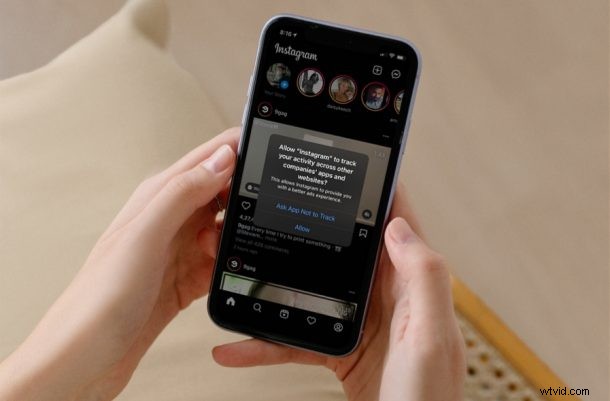
Are you getting unwanted pop-ups asking about tracking when you open apps after updating to modern iOS and iPadOS versions? While this is normal and intentional, it can also be kind fo annoying. The good news is that these tracking request pop-ups show up just once and you can block them permanently too, if desired.
From iOS 14.5 onward, Apple introduced a feature called App Tracking Transparency, and a few major app developers aren’t particularly happy about it. It basically gives users the choice of whether the apps they use can access and share their data or not. You get this choice when you launch an app for the first time on an iPhone or iPad now. Whether you’re a privacy buff who wants to block all apps from tracking you or you just don’t care about this option enough, you may find these pop-ups annoying.
Therefore, if you’re looking to avoid these pop-ups altogether, you’ll need to locate and disable the global toggle for the app tracking feature. Let’s check out blocking these unwanted app tracking pop-ups on your iPhone & iPad.
How to Prevent Unwanted App Tracking Pop-Ups on iPhone & iPad
Note that you’ll only find this particular option if your device is running iOS 14.5/iPadOS 14.5 or later.
- Head over to “Settings” from the home screen of your iPhone or iPad.
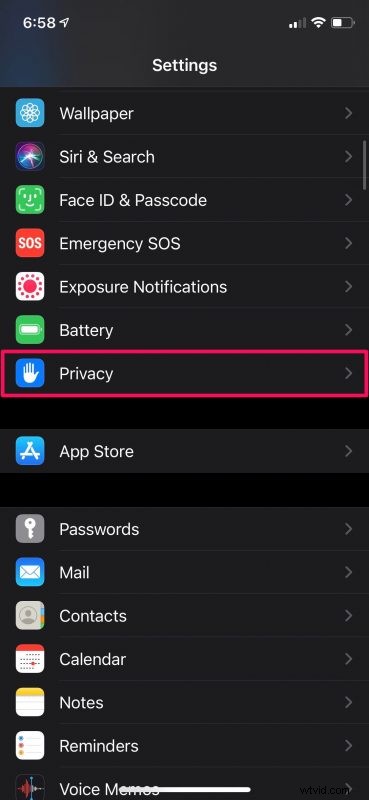
- In the settings menu, scroll down and tap on “Privacy” to view your privacy-related settings.
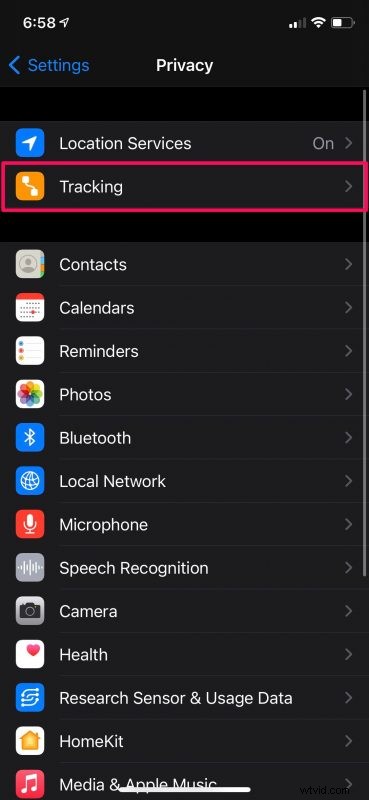
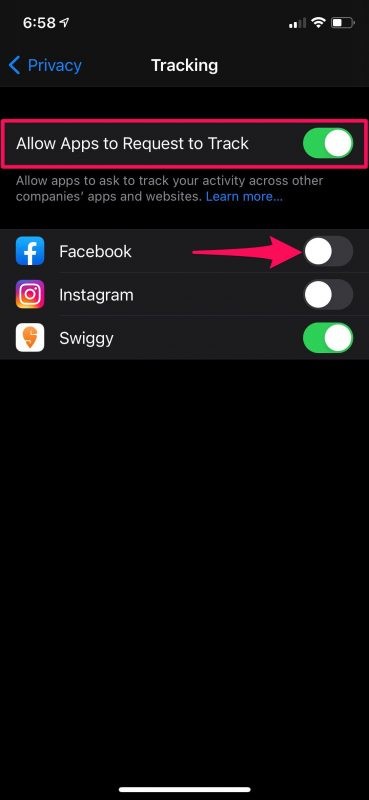
- Here, you’ll find thee Tracking setting right below Location Services, as shown in the screenshot below.
- Now, you’ll see the global toggle for allowing apps to request to track which is enabled by default. Just tap once on the toggle to disable it and block all apps from requesting to track you. Right below, you’ll also see similar toggles for apps installed on your device that you can use to block these app pop-ups individually.
- If you’ve previously allowed an app to track you, an additional prompt will show up on your screen asking you whether you want to allow the app to continue tracking or ask the app to stop tracking instead. Choose the second option to block the app from tracking your data and you’re good to go.
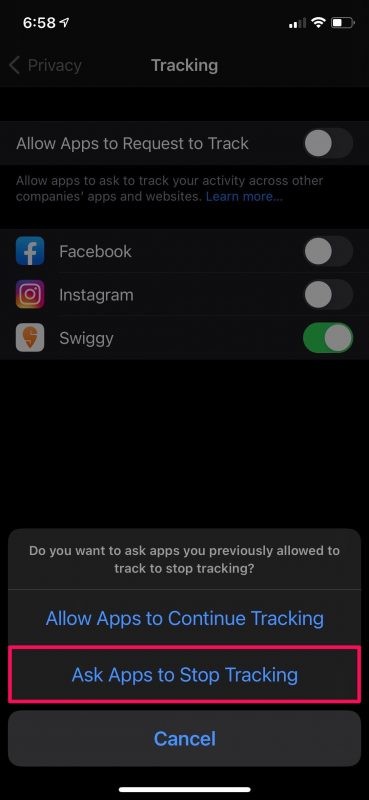
You’ll no longer see these pop-ups when you open apps for the first time.
As annoying as these pop-ups may be, it’s an extremely important tool that gives you the power over the data you share with the apps installed on your iPhone and iPad. Once again, we’d like to point out that these pop-ups only show up one time. You’ll never see it again in the same app as long as you selected one of the two options.
This is just one of the many features that iOS 14.5 brings to the table. For starters, you can now unlock your iPhone with your Apple Watch while wearing a face mask. This update also brings support for third-party accessories in the Find My app, along with new AirTags. You can now set a preferred music streaming service for Siri. The Apple Music app has been updated with city charts and options to share song lyrics with your contacts or post them as Instagram stories.
Hopefully, you were able to avoid all these annoying privacy pop-ups by blocking all apps from being able to track your data at once. What are your overall thoughts on iOS 14.5 software update? Do share your experiences with us, voice out your personal opinions, and leave your valuable feedback in the comments section down below.