

The News app on iPhone and iPad includes a large number of publications, some of which you may be interested in, and likely some that you have less interest in reading, or maybe even some news you don’t want to see at all.
Fortunately it’s really easy to adjust the News app in iOS to block or hide a news source, so if you’re tired of seeing stories from a particular outlet or a trashy tabloid source you can hide them and clean up your News app feed a bit. This offers a simple way to customize the News app to better suit your preferences, and to hide all stories and publications from media outlets you either aren’t interested in or just don’t like.
How to Hide a News Source in Apple News in iOS
To hide all stories or posts from a news channel or news source in the News app on the iPhone or iPad, you must dislike or hide the news channel itself. This is easy, here’s how it works:
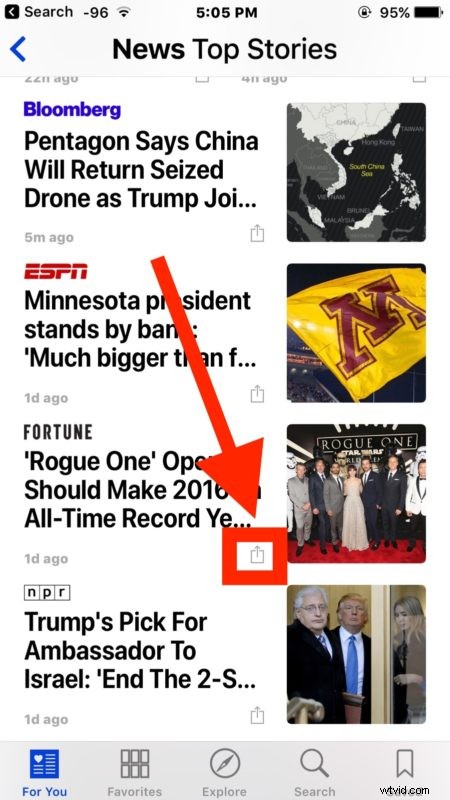
- Open the “News” app and go to either For You, Explore, or Search
- Locate the news source you want to hide or block
- Tap on the little sharing icon for the specific article / source, it looks like a box with an arrow flying out of the top of it
- Scroll through the options and choose “Mute Channel” (or “Dislike Channel”)
- Repeat with other news sources you want to hide and remove as needed
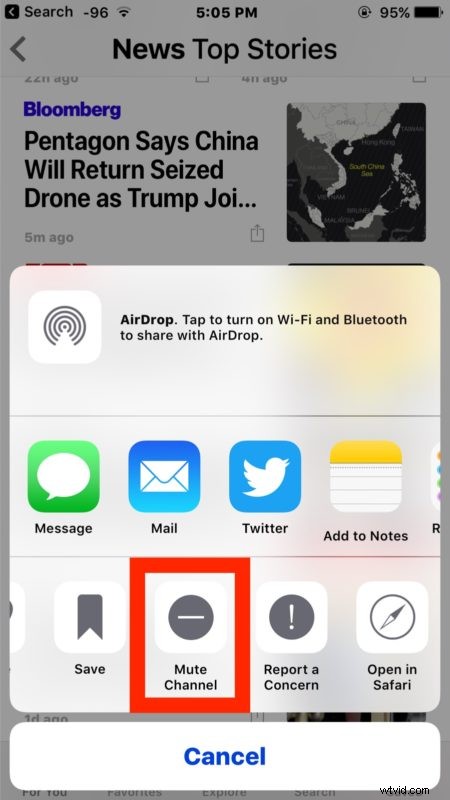
Whether or not you can “Dislike Channel” or “Mute Channel” in News app depends on which version of iOS you have installed on the iPad or iPhone. However it is worded, you can hide stories from any News channel this way.
This offers a way to clean up and adjust the Apple News curated feed a bit to better suit your preferences, and it makes it easy to hide some of the junkier sources found in News.
The Apple News app is sort of embedded throughout iOS now, showing up on your iOS widget lock screen, Spotlight search, and the prominent out you can also remove News headlines from the Spotlight search screen in iOS or just delete the News app completely now that you can easily remove default apps on an iPhone or iPad.