
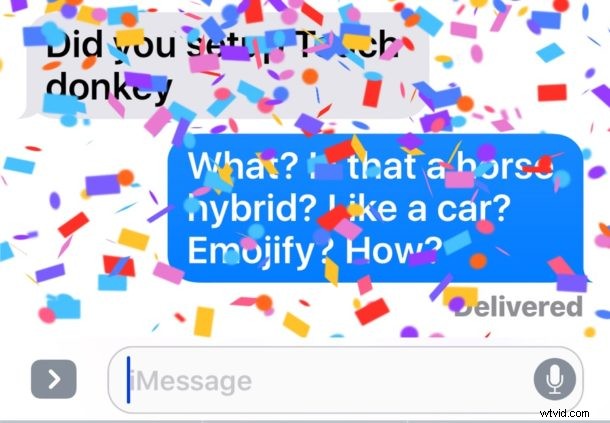
The modern releases of iOS allow you to see and send fun iMessage effects while retaining the Reduce Motion setting to remove the sometimes nauseating zoom effects found elsewhere throughout the iPhone and iPad user interface.
Previously if you enabled Reduce Motion you would also cause iMessage effects to not work, but now you can have your iMessage Effects cake and eat your Reduce Motion too.
How to Enable Messages Effects with Reduce Motion Turned On in iOS
This is an easy settings adjustment to make that requires a modern version of iOS, anything past 10.1 will have the ability to enable both Reduce Motion and iMessage effects.
- Open the “Settings” app and go to “General” and then to “Accessibility”
- Choose “Reduce Motion” and toggle it on as usual
- Look for the setting directly below that says “Auto-play Message Effects” and toggle that to the ON position as well
- Return to Messages app and send your message effects as usual
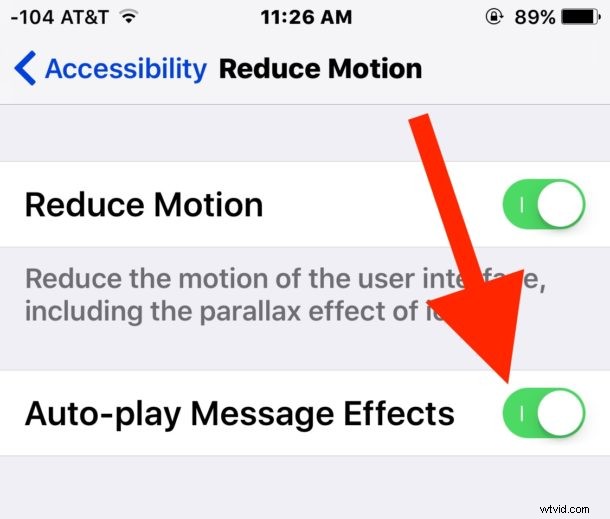
If you do not see these dual settings then you will need to update iOS first.
Remember, using Reduce Motion enables a transition effect in iOS in lieu of the zips and zooms that inspire motion sickness in some people, and the transitions also tend to be faster which can offer a perceived performance boost to iPhone and iPad as well.
Of course you can also choose to disable the iMessage effects through toggling the “Auto-play Message Effects” setting OFF instead, so if you aren’t thrilled with the message effects at all it’s easy to turn them off, regardless of how you prefer your broader iOS transitions and animations to appear.