
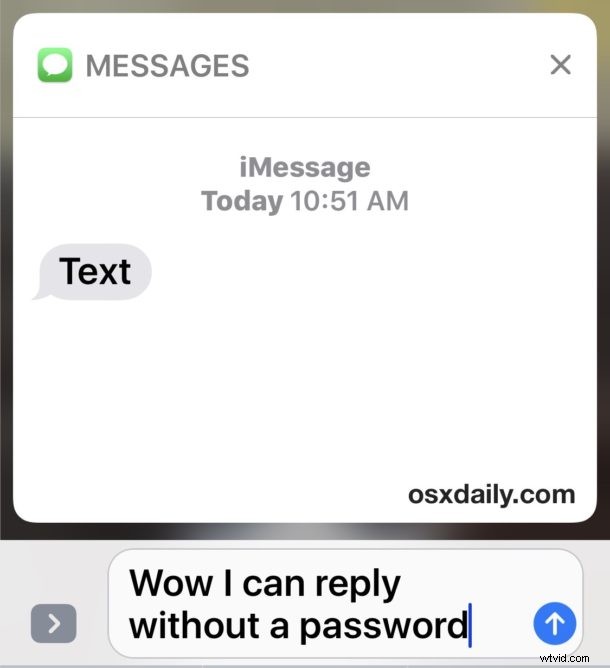
The latest versions of iOS allow users to read and reply to Messages directly from the lock screen, without having to authenticate with a passcode or Touch ID on the device. This allows for iPhone and iPad users to quickly reply to inbound messages, but it can also lead to some potential privacy issues that may not be desirable for everyone.
With a settings adjustment, you can disable the ability to reply to messages from the lock screen in iOS, thereby requiring a passcode or Touch ID first, much like replying to lock screen messages worked in prior versions of iOS system software.
How to Disable Reply to Message from Lock Screen of iPhone or iPad
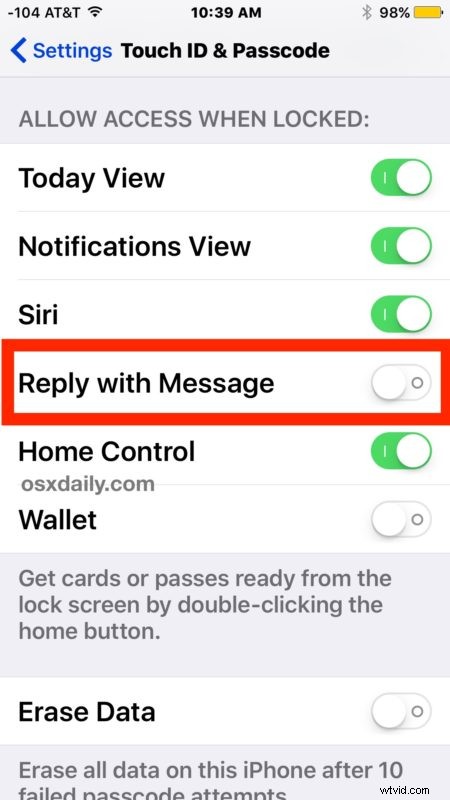
- Open the “Settings” app on the iPhone or iPad and go to ‘Touch ID & Passcode’, then enter the passcode as usual
- Scroll down and locate “Reply with Message” under the Allow Access When Locked section, and toggle the switch to the OFF position
- Exit Settings as usual, the device will no longer be able to reply to a message from the lock screen without authenticating
Whether or not you like this feature likely depends on your individual privacy and security needs, and whether or not your iPhone or iPad is exclusively in your own possession or if it’s widely available for others to view and see. For example, some parents may wish to turn off the feature so that their curious young ones don’t inadvertently reply to a message on their behalf, while someone who has their iPhone glued to their pocket may not have as much concern about someone other then themselves replying to any messages without a login process.

Some users may wish to go further and also hide the iMessage previews from showing on the lock screen of iPhone or iPad as well, which adds an additional layer of privacy by preventing anyone from being able to see what some of the inbound message content is.
If you decide you like this feature and want it back, it’s easy to reverse course and turn the setting back on again.

The ability to quickly reply to messages from the lock screen without authenticating the device is just one of many new changes brought to the lock screen of iOS 10 devices, including the removal of Slide to Unlock in lieu of pressing Home, the all new widget lock screen, and the raise to wake feature. Many of these changes are adjustable to better suit your individual preferences, so if you like one feature but not another, go ahead and make settings changes as appropriate for your use case.