
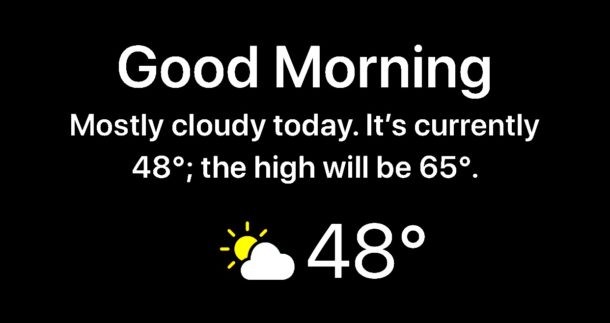
The iPhone has an optional secret weather widget for the devices locked screen that can be enabled through an unlikely feature; Do Not Disturb mode. With this feature in use, you’ll see the days current temperature, weather conditions, and the forecast when you glance at your iPhone screen as you start the day. It’s a great feature, but if you haven’t stumbled into it yourself then don’t be surprised as it is fairly hidden and not labeled to indicate that a weather widget will display on the lock screen.
Available for iPhone only, in order to enable and use the Weather Widget at the iPhone Lock Screen you will need iOS 12 or later on the phone, and you’ll have to use both the Do Not Disturb with Bedtime Mode features, as well as allow the Weather app to have location services access.
How to Enable Weather on Lock Screen for iPhone with iOS 13 / iOS 12
Want to see the weather on your iPhone lock screen when you start your day? Here’s how to get this working:
- Open the “Settings” app on the iPhone
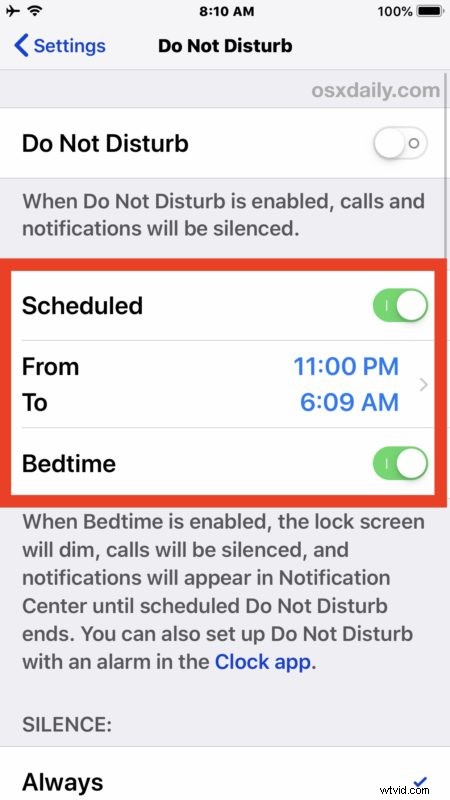
- Choose “Do Not Disturb” from the Settings options
- Tap to enable both “Scheduled” and “Bedtime”
- Adjust the Scheduled “From” and “To” times to suit your individual sleep and wake schedule, the ‘To’ time will be when the weather widget appears on the iPhone screen until it is unlocked
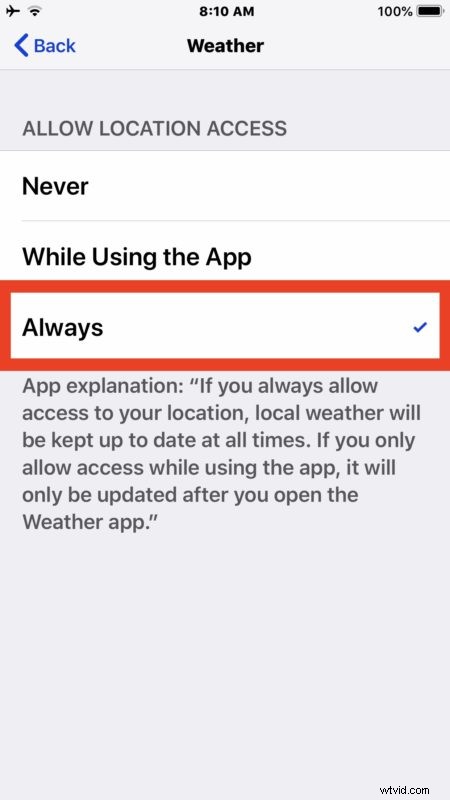
- Now go back to the main Settings screen and go to “Privacy” and then to “Location Services”
- Locate the “Weather” app in the Location Services screen and choose “Always” for Weather location access allowance
- Exit out of Settings
Optional but recommended: it’s a good idea to use Emergency Bypass on important contacts so they can bypass Do Not Disturb Mode when it’s enabled on your iPhone if need be, essentially that allows select contacts to get through to your device even if you have Do Not Disturb enabled on the iPhone, and it’s great to setup for family members, a spouse, partner, close friend, your boss (just kidding), or any other person or contact number where it is critical to reach you.
Once scheduled Do Not Disturb and Bedtime Mode are enabled on the iPhone, you will have access to the weather widget at the lock screen when you wake the device in the morning.
Once you unlock the iPhone for the first time on a given day, the weather widget disappears for that day until the following day. You can also dismiss the weather widget from iPhone lock screen by tapping on the “Dismiss” button.
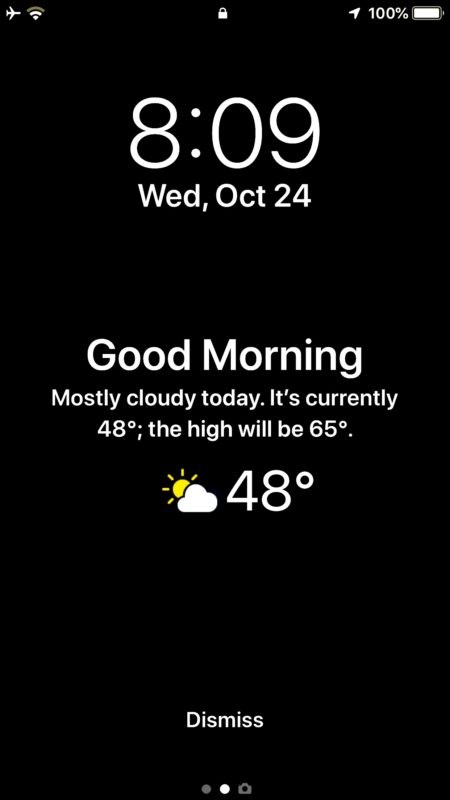
The weather widget will continuously show up on the lock screen of the iPhone as long as Do Not Disturb on a schedule and Bedtime Mode are enabled.
If you look at the iPhone display during the scheduled Do Not Disturb During Bedtime period, you will see a little message on the iPhone screen stating the following: “DO NOT DISTURB DURING BEDTIME – Calls will be silenced and notifications will appear in Notification Center.” along with a little moon and ZzZ icon to indicate that the feature is enabled. This serves as a reminder that the feature is on, and when the scheduled Do Not Disturb time ends is when you’ll see the weather displayed on the device lock screen.
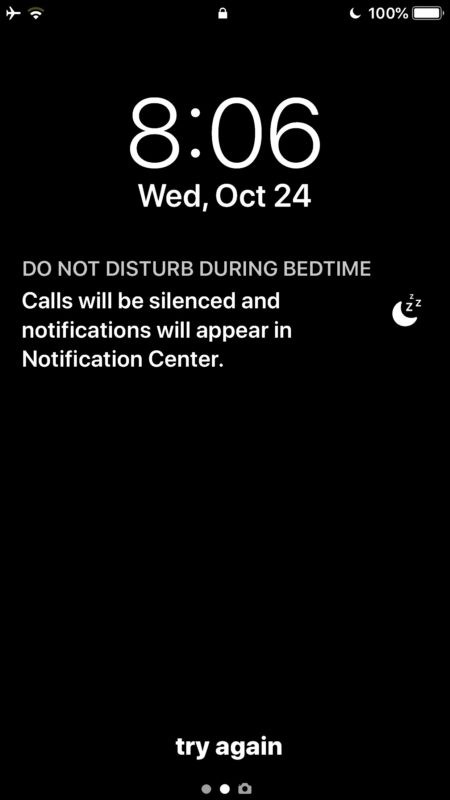
Looking for the little moon icon in the status bar is also helpful, as sometimes users can find that they have somehow inadvertently enabled Do Not Disturb which causes an iPhone to not ring or make any sounds when it’s on, and the simplest way to confirm that is to look for the little crescent moon icon.
Do Not Disturb During Bedtime and scheduling Do Not Disturb Mode in iOS are just two of a variety of helpful tricks with Do Not Disturb mode in the Apple device landscape. Another great feature to use is Do Not Disturb While Driving on iPhone, and on the Mac you can give yourself some peace and quiet while you work by using Do Not Disturb to prevent alerts and notifications from pestering your Mac as you stay productive.
It would be great if the weather widget on the lock screen was just a simple settings option that could be toggled on or off generally in iOS for iPhone and iPad for that matter, and visible all the time at the lock screen without using Do Not Disturb mode, but for now that’s not an option (and it may never be). So if you want to see weather on your locked iPhone screen, it’ll be in the mornings only (or whenever you start your day), and as described in this article.
If you know of any other helpful tips or tricks similar to this one, or you have any thoughts on this particular topic of the locks screen weather widget, share with us in the comments below!