
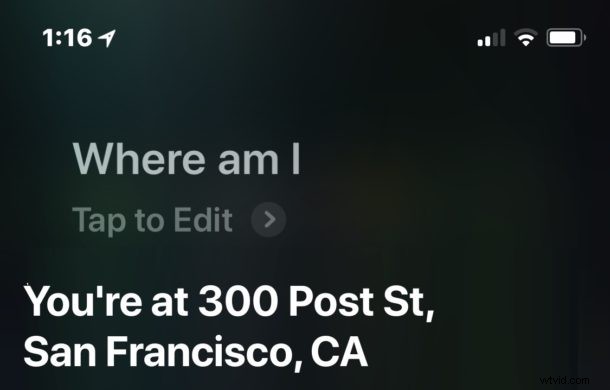
Have you ever been so lost that you don’t even know where you are? Your iPhone and Siri can help!
Perhaps you were following someones bad directions to a destination and got wildly lost, maybe you’re in a new city and took a few too many wrong turns, or maybe you were the passenger in a vehicle that went to a destination you’re unsure of – whatever the reason, if you don’t know where you are and find yourself lost, then you can rely on your iPhone and Siri to find out exactly where you are located, including the address and precise GPS coordinates!
Finding out exactly where you are is super easy with Siri and the iPhone, it’s just a matter of asking the right questions.
Summon Siri on iPhone and Ask “Where Am I?” to Get Current Location Instantly
To use this great location discovery trick, you just need to bring up Siri and ask “where am I?”.
Summoning Siri is different on different iPhone devices:
- If the iPhone does not have a Home button, then pressing and holding the Power button instead will bring up Siri. That would apply to newer iPhone models like the iPhone XR, iPhone XS, iPhone XS Max, and iPhone X.
- If the iPhone has a Home button, then pressing and holding the Home button will bring up Siri. That would apply to iPhone models ike the iPhone 8 Plus, iPhone 8, iPhone 7, iPhone 6, iPhone SE, iPhone 5S, etc.
You could also use Hey Siri voice activation to initiate the Siri request.
However you access Siri does not matter, it’s asking Siri “where am I” that will give you your current location on the iPhone, including an interest if applicable, a marker on a map, an ability to share the current location, and even GPS coordinates for the current location.
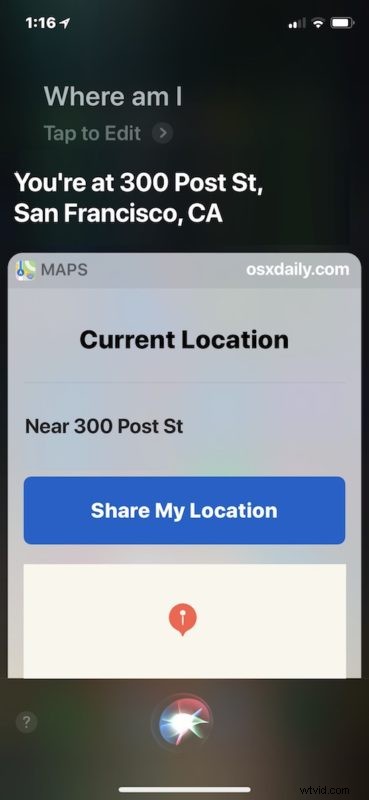
The Location sharing function allows you to quickly send someone else your current location, in a similar manner that sharing the current location is possible from Messages on the iPhone too.
Getting GPS coordinates this way is convenient as well, just scroll a bit further down after you ask Siri and you’ll find the GPS coordinates, though you can also access and retrieve current GPS coordinates from the iPhone Compass app as discussed here.
A nice follow-up question for this Siri command is to ask for directions home, assuming you want to go home anyway, and this of course assumes you have set your personal Contact information for Siri in iOS. Setting that personal info is recommended so that Siri can give you turn-by-turn directions to your place of residence, from wherever you are located, and also so that if you misplace and iPhone someone could ask Siri who the iPhone owner is and hopefully help return it to you.
This is just one of many questions and commands available for Siri, and if you find yourself lost, it may be one of the most helpful.
And yes if you were wondering, this trick works on other Siri devices as well, but it’s arguably the most useful (and most accurate) to get your current location with an iPhone which is why that is the focus here.