
 While iPhone users of Google Maps have been able to get directions around cities with transit options for quite some time, the feature has recently come to the bundled Apple Maps app as well. This means if you’re in a global city or metro area with a mass transit system, whether trains, subways, street cars, busses, etc, that you can find easy directions to get around, right on the iPhone.
Getting transit directions is excellent for travelers and those unfamiliar with navigating to and from a particular location, and it works quite well. Combine with walking directions and you should be able to navigate around just about any city out there.
This may be obvious, but for transit directions to work in Apple Maps, the city must actually have a functioning mass transit system, and you’ll find the ability to get transit directions missing in many US cities where there isn’t really the infrastructure in place to not have to rely on a car. Nonetheless, in regions that do have it, the directions are simple and detailed, telling you exactly which subway, train, or rail car to get on, where it is, how often it arrives, and where to get off. Who needs a taxi or Uber, right?
How to Get Public Transit Directions in Apple Maps for iOS
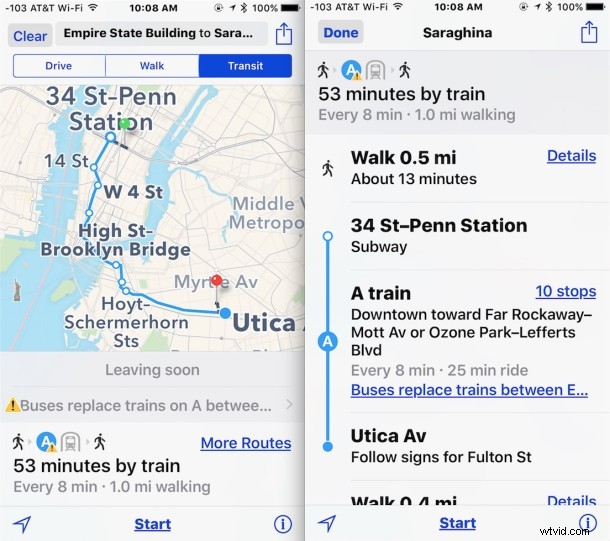
In the example here, we’ll take the train in New York City from the Empire State Building to a pizza restaurant in Brooklyn, because if you’re in NYC you should obviously eat some pizza.
- Open the Apple Maps app as usual, and using the search bar enter your intended destination location, or using the navigational map select the destination desired
- Search as usual but tap the “Transit” tab near the top of the screen to load transit directions, utilizing trains, subways, streetcars, and busses to get to the desired location
- Tap “Start” to get directions directly provided to you like turn-by-turn, or tap on the route as seen at the bottom to see the precise directions in a list
Note that transit directions don’t necessarily work in every city, and obviously there’s a large amount of cities in the USA with no transit system at all, so if you’re trying to get directions in those locations you won’t find any results.
Give it a try the next time you’re traveling around, whether in a new city or a familiar one.