
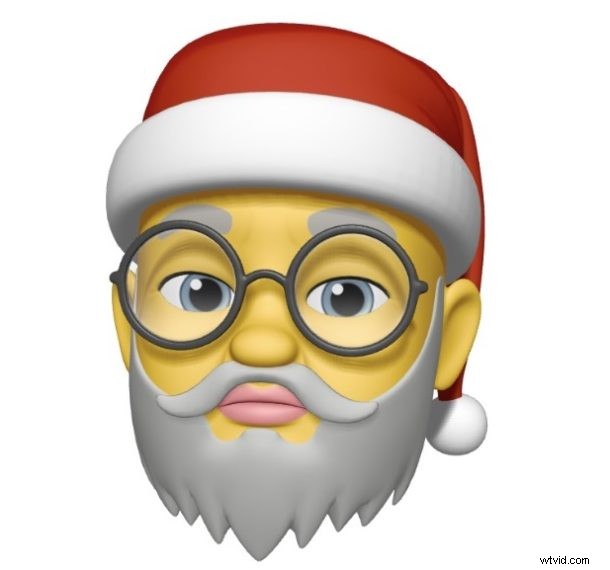
Tis the Season! If you have previously created a custom Memoji on the iPhone, perhaps you want to spruce it up for the holiday season and toss a fancy Santa hat on your Memoji creation. Or maybe you want to create a brand new custom Memoji of your own uniquely special Santa Claus for your own magical Christmas purposes. Whatever the reason, it’s Christmas time, and you can put a Santa hat on a Memoji.
The Santa hat is always visible in the Memoji creation tool under head ware, but it’s not red by default and it’s kind of hard to identify as a Santa hat because of that. Not to worry if you overlooked it, we’ll show you how to get your fancy Memoji Santa hat going on.
How to Put a Santa Hat on Memoji on iPhone
If you want to put a Santa hat on a Memoji (and who doesn’t) you’re in the right place:
- Open the Messages app on iPhone, then open a message thread with a person you want to send your Santa hat Memoji to
- Tap on the Monkey Animoji icon in the Messages app bar (tap the Apps button if it’s not visible)
- Choose any existing custom Memoji, if you have not made a custom Memoji yet you can learn how to make a Memoji here
- Tap the three dots button (…), then tap on “Edit” (or Duplicate if you want to make a copy)
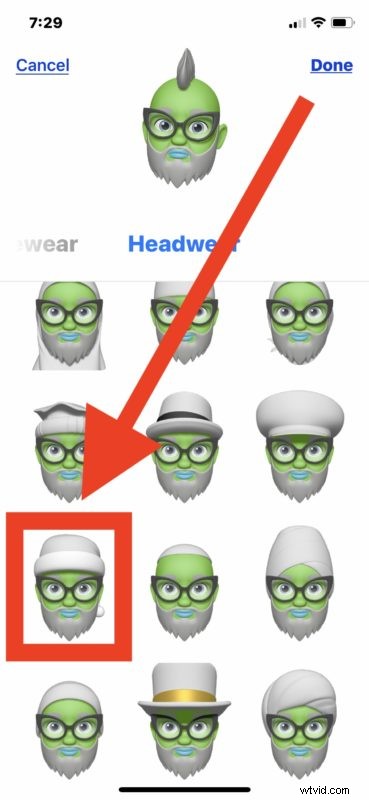
- Locate the “Headwear” section of the Memoji customizations, then scroll down near the bottom to find and tap on the Santa hat (it’s not red yet)
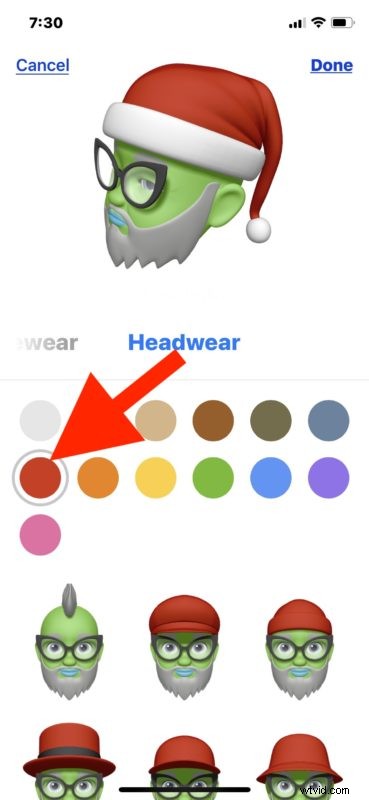
- After you choose the Santa hat, scroll to the top to the color section and select the additional color options to choose a suitable red for your Santa hat (or pick another color if you prefer)
- Tap on “Done” to use your Santa hat clad Memoji, just like any other Animoji
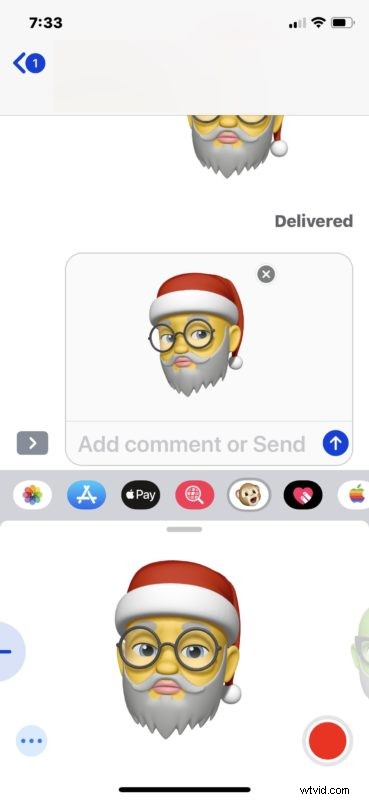
Now you’re free to use your Santa hat Memoji as you want, just like any other Memoji or Animoji.
Send it to everyone you know, make a goofy video with one and turn the Memoji into an animated GIF, or just hoard it to yourself knowing you made the worlds most amazing Memoji and now it has a Santa hat too.
As usual with Memoji and Animoji, you must have a new model iPhone to have access to the features. This includes any iPhone XS, XS Max, XR, X, or newer, and it must be running iOS 12 or later. And that’s whether you’re using the Santa hat or not.
Happy Holidays, Merry Christmas, and Happy New Year!