
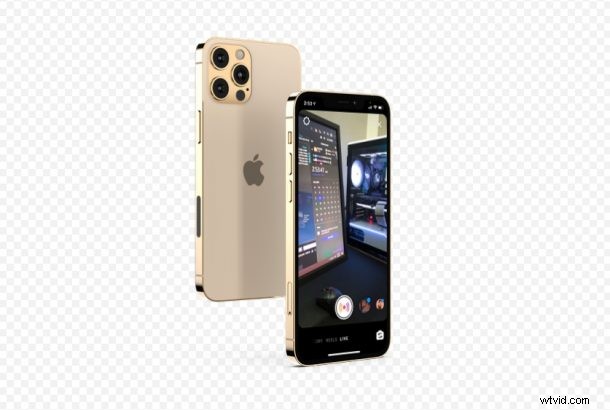
Did you know that Instagram can be used to live stream content right from your iPhone? This feature works similar to Stories, except that everything is live and you’re not limited to 15 seconds. Plus, it’s pretty easy to access and use.
Instagram live allows you to broadcast anything with your iPhone’s camera. Whether you want to live stream a once-in-a-lifetime moment, vlog, or just interact with your followers in real-time, Instagram has you covered. A lot of users struggle to find this feature straight away since it’s hidden in the app’s camera interface.
If you’re fairly new to Instagram and haven’t found this feature yet, just read along as we’ll be guiding you on how to go LIVE on Instagram using your iPhone or even iPad if you have one.
How to Broadcast Livestream on Instagram with iPhone
Live broadcasting with Instagram is extremely straightforward and all you need to do is access the app’s camera interface. Follow the steps below.
- Launch the Instagram app on your iPhone.

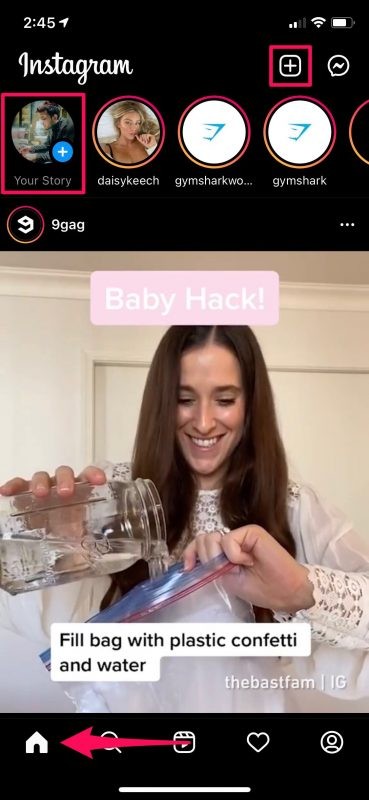
- Make sure you’re in the Home section of the app which is your Instagram feed. Here, either tap on “Your Story” or the “+” icon at the top-right icon of the screen to open the camera.
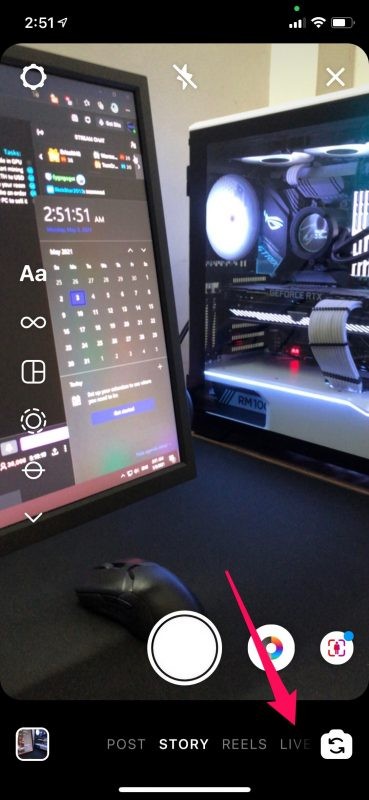
- Depending on what you tapped on in the last step, you may be in the Post or Story section of the camera. Swipe left on it to switch between Instagram features and you’ll find LIVE on the extreme right.
- Now, simply press the LIVE shutter button as shown in the screenshot below to begin the broadcast.
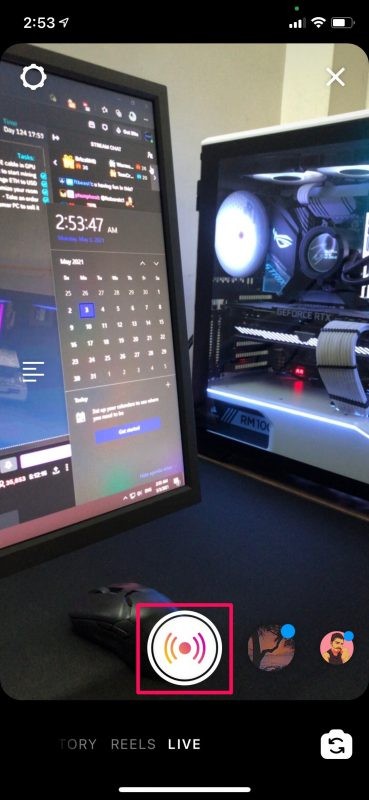
See? It’s really that simple. Enjoy your live-streaming!
The second you go live, your live broadcast will show up at the top of your followers’ Instagram feeds along with other Stories. You’ll be able to see the people who join in to watch your broadcast. Once you end the broadcast, you’ll have the option to save it to your camera roll if you want to watch it later.
For those who’re interested in streaming for a long time, like vlogging or anything else really, keep in mind that you can only broadcast for a maximum of 4 hours, which is in line with Facebook’s live streaming limits.
It’s worth noting that the 4-hour broadcasting limit was introduced not too long ago and it’s only available for user accounts that are in “good standing”. If not, you’ll be limited to the old 60-minute cap instead. Of course this limit could change at some point, so don’t be surprised if it does.
Are you using Instagram’s live broadcasting feature to interact with your followers, audience, and to stream quality content from your iPhone? What are your first impressions of Instagram Live? Let us know your thoughts in the comments below.