

Accidentally deleted an Instagram Story that you posted? Too lazy to re-create the story from scratch? No worries. Instagram now allows you to restore deleted stories easily. So, it’s pretty easy to access them as long as they were deleted in the past 30 days.
Instagram has added a new Recently Deleted folder that houses not just deleted stories, but also photos, videos, reels, and IGTV videos. This allows users to quickly restore the deleted content within the app itself. Items stored in the Recently Deleted folder can be recovered within 30 days as long as they are archived. However, if a deleted story wasn’t archived, it can still be restored within 24 hours.
Are you keen on accessing this new addition to recover deleted stories? Look no further, because, in this article, we’ll be discussing exactly how to restore deleted Instagram Stories on your iPhone.
How to Restore Deleted Instagram Stories on iPhone
Before you go ahead, make sure your Instagram app is up to date, since this is a feature that was recently introduced. Once you’re done, follow the steps below:
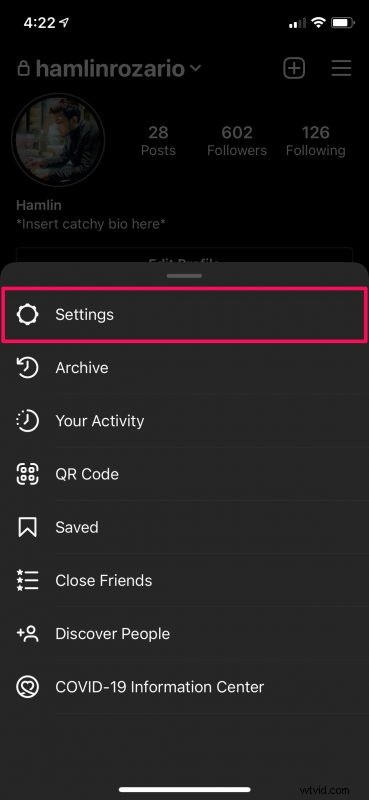
- Launch the Instagram app and head over to your own profile. Here, tap on the triple-line icon located at the top-right corner to access more options.
- Now, choose “Settings” from the menu that pops up from the bottom of your screen.
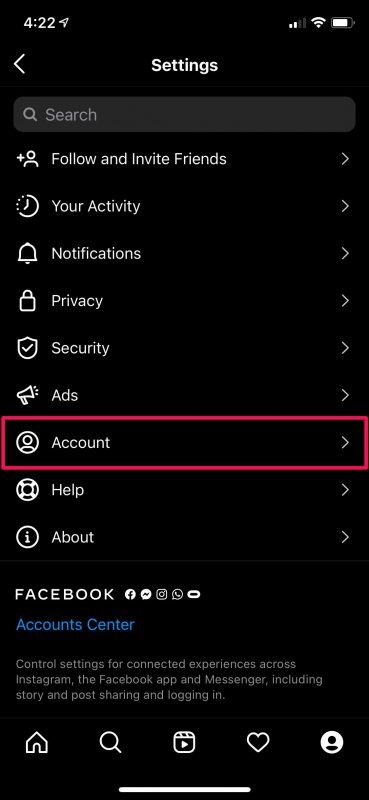
- In the settings menu, select the “Account” option.
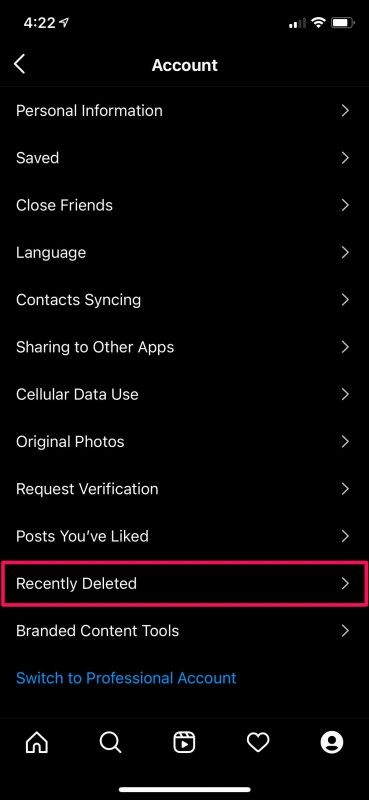
- Here, you’ll find the Recently Deleted section which is the second-last option in the menu.
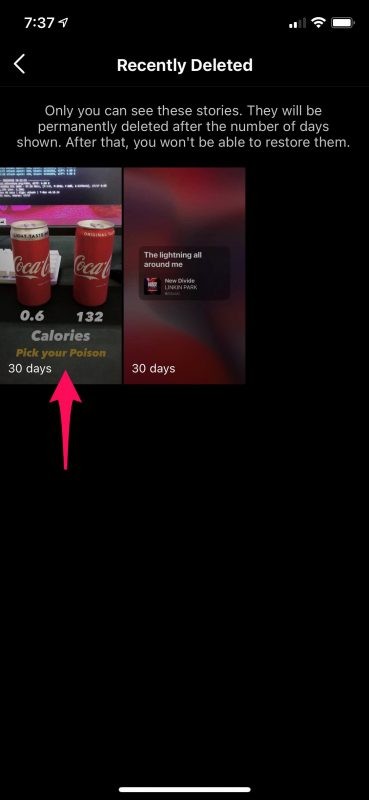
- You’ll now be able to view items in your Recently Deleted folder. You’ll see a day count below each item indicating how long before they’re permanently deleted. Simply tap on the story that you want to restore.
- Now, you’ll get access to the preview of the story. Tap on the triple-dot icon at the bottom-right corner of your screen.
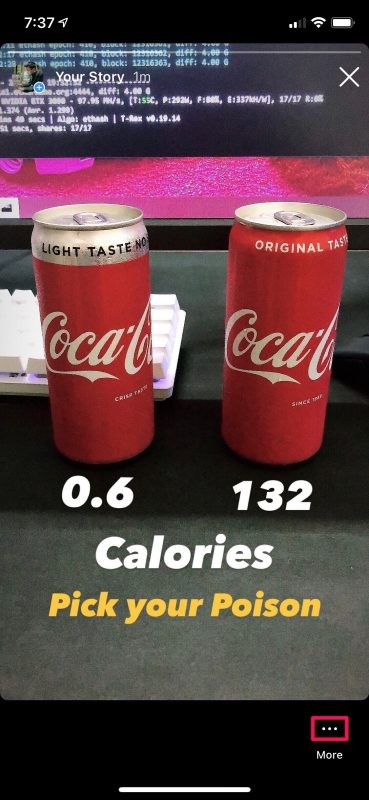
- Next, choose “Restore” from the pop-up menu.
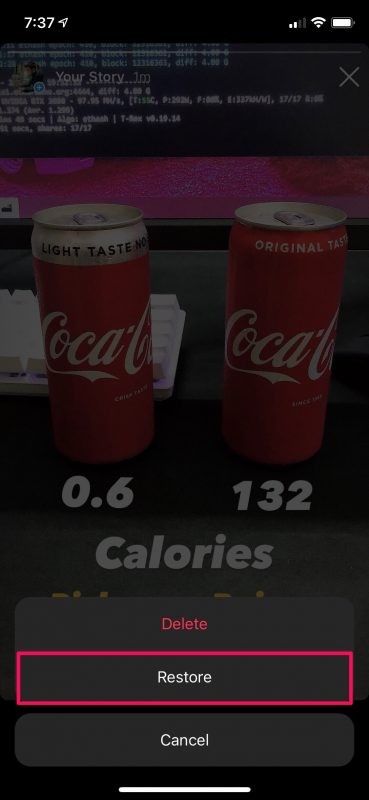
- You’ll now be prompted to confirm your action. Choose “Restore” again and you’re good to go.
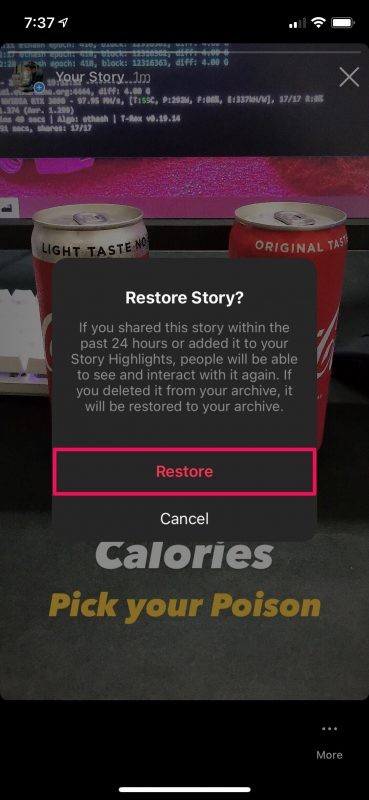
There you go, you’ve successfully restored your deleted Instagram Story.
If the restored story was shared within the past 24 hours or added to your Story Highlights prior to its deletion, people will be able to see and interact with the story again. However, if the story was deleted from your archive, it will be restored to your archive instead.
Although we were focusing on the iOS version of the app in this particular article, you can make use of these exact steps to restore deleted Instagram Stories on your Android smartphone too, provided you’ve updated the app.
By default, Instagram archives all your stories. Therefore, all your stories should be recoverable for 30 days after their deletion. However, if you turned this feature off and you’re not archiving your content, you only have 24 hours to get back your deleted story.
Prior to this update, the only way to actually restore a deleted story was if you manually saved the story to your iPhone and then reposted it on Instagram. According to Instagram, this feature was introduced to help users who are victims of hacking, since hackers often tend to delete content when they gain access to an account.
Don’t miss out on other Instagram tips too while you’re on the topic.