
How aesthetically pleasing is it to watch someone’s Instagram story of a beautiful sunset while a relaxing tune plays in the background? There is just something about pairing a breathtaking view with a peaceful song that just makes you happy while watching.
Background music can take your videos to the next level and evoke all the right emotions. So, how do you put music on Instagram Stories?
It just takes a few easy steps. Instagram users can add their favorite music to their Instagram Stories via the app and through our free online video editor. Let’s learn how!

How to add music on Instagram Stories through the Instagram app
Instagram Stories are extremely popular due to how easy they are to make.
If you want to share or republish any Instagram Story with an awesome photo or video, try adding some background music. Instagram offers tunes from their very own library, as well as streaming services such as Spotify, SoundCloud and Shazam. It’s fast and free!
Step 1. Upload an Instagram Story photo or video
Click on the Add button at the top right corner of your profile. Next, click on the Story button to start creating an Instagram Story. Upload a picture or video. Once you have taken your Instagram Story, click on the third tab across (looks like a smiley face). You will see editing options appear, click on the Music button.
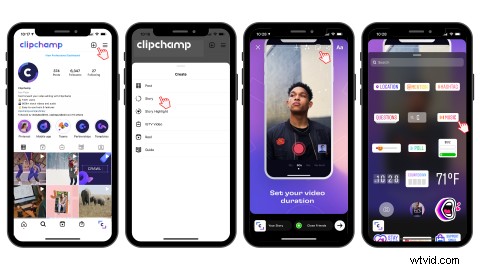
Step 2. Choose your music for Instagram Story
Once you have clicked on the Music button, an endless list of music will appear. There are two options, For You and Browse. You can preview the song by clicking the play button on the right-hand side of your screen. Click on the song you would like to add to your Instagram Story and you will return back to the story.
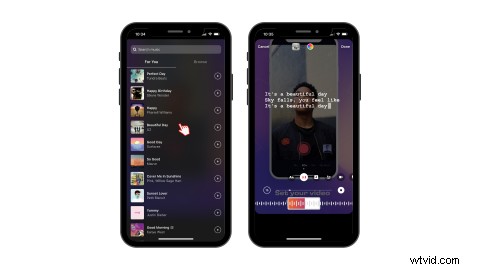
Step 3. Edit your background music
Instagram automatically chooses a section of the song they think you will like. If you want a different verse or chorus, slide the toolbar across to a specific time.
You will also see 6 display options above the toolbar. You can change the appearance of the song with these. Choose an album cover, different text and rotation.
The circle on the left of the timeline will represent how long the song will go for. You can choose between 5 and 15 seconds. Click Done when finished.
When you have finished editing your Instagram Story background music, click Done in the top right corner.
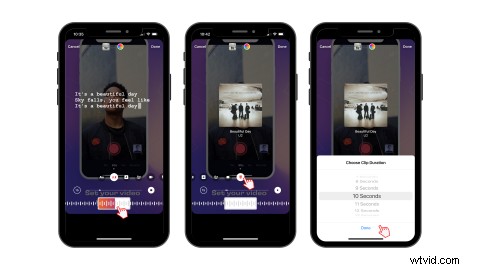
Step 4. Move your songs location and post
Once you click Done in the top right corner, you can now freely move your album cover or song lyrics around the screen. Shrink the size by using two fingers and pinching the song. Place the song at the location of your choice. You can make the song disappear by moving it off the screen entirely. Click the share button when ready to publish.
How to add music on Instagram Stories through Clipchamp
If you’d like to use a tune from a sound library, you can browse Clipchamp’s royalty-free stock audio library and add it add to your Instagram Story.
You can create your Story video in our online video editor, add your soundtrack and save! It’s as easy as that. Let us dive into the details on how to add music on Instagram Stories through Clipchamp.
Step 1. Sign into Clipchamp
If you have a Clipchamp account, log in to your account or sign up for free today.

Step 2. Create a new project
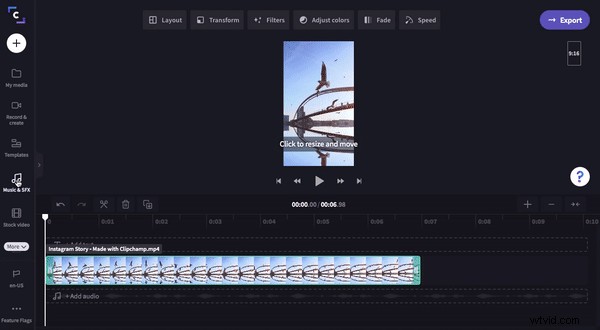
Click on the purple + Create a video button and set your aspect ratio to portrait 9:16. All Instagram Stories must be in 9:16 ratio. Rename your video.
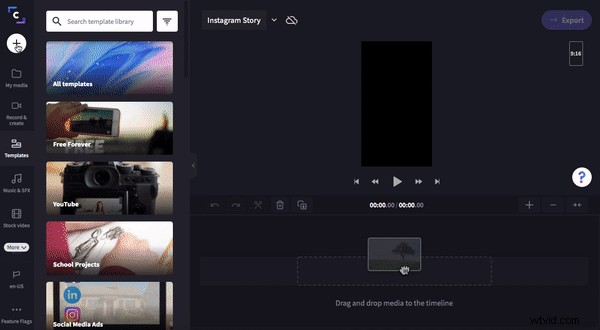
Step 3. Upload your Instagram Story video
Click on the white + button to add your own media. Either drag and drop your video file or browse your files. Click on the video you would like to use, then click Done. Drag and drop your video onto the timeline.
Step 4. Add royalty-free stock audio
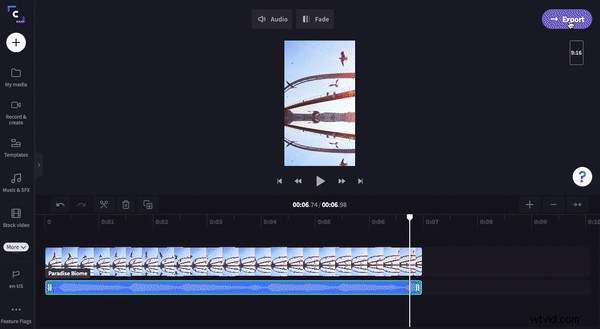
Click on the Music & SFX side tab. Search the audio library by typing in a specific word or scroll through our categories. When you have found the song you would like to use as your Instagram Story background music, click on the + symbol. The song will automatically be placed on your timeline.
Make the audio the same length as your video clip by splitting the clip using the Snip tool, deleting the unwanted section using the Trash tool and drag the green sidebar exactly underneath the video clip.
Step 5. Export your new Instagram Story
It’s now time to save your Instagram Story. Click on the purple Export button, select 720p resolution and maximum compression for fast upload speed to social media. Click Continue when ready to publish. Your video will save automatically to your desktop or share directly via the sending options.
You now easily put music on your Instagram Stories using the app or Clipchamp!
Hopefully, you have learnt how to add music to your Instagram Stories and successfully can put it into practice.
Both ways to add music to Instagram Stories are fast, free and extremely effective.
Tag us in your Instagram Stories if you made it via Clipchamp! For more information on Instagram video posts, check out our Instagram Reels for small business marketing blog.