
Instagram stories will disappear after 24 hours. If you want to save Instagram stories and view them after 24 hours, you can use the following methods on how to save Instagram stories with music. (To make or edit your Instagram videos, try MiniTool MovieMaker.)
How to Save Instagram Stories with Music without Posting
Want to create an Instagram story without publishing it? Here’s how to save Instagram story with music without posting.
Step 1. Launch the Instagram app.
Step 2. Click on Your Story at the upper left corner of your screen and record a story or load videos or photos from your phone.
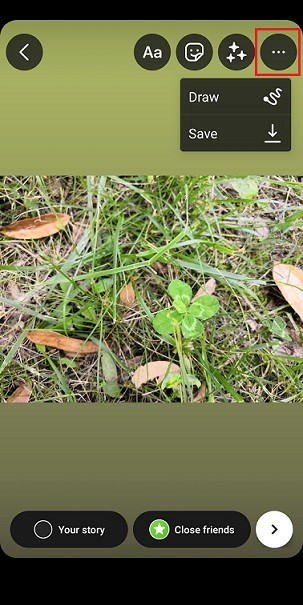
Step 3. After that, you can add music, text, stickers, filters to your story. Then click the three dots and select Save to download the Instagram story to your camera roll.
To know who viewed your Instagram stories, see this post: How to See Who Viewed Your Instagram Post
How to Save Instagram Stories with Music After Posting
Here are 4 solutions to save Instagram story with music after you’ve posted it.
Archive Instagram Stories
The Archive feature can archive all your posts, stories, and live videos that you share on Instagram. If you archive your stories, you can view them in Stories Archive anytime.
Here’s how to archive your stories on Instagram.
Step 1. Open Instagram and click on your profile at the bottom right corner.
Step 2. Tap the Menu button and select the option Archive from the drop-down list.
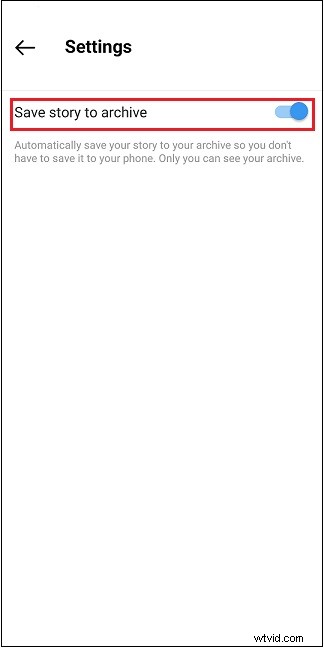
Step 3. Make sure that Stories archive is selected and click the three vertical dots next to it. Then choose Settings under More options.
Step 4. Toggle on the Save story to archive button.
Download Instagram Stories to Camera Roll
After you publish a story on Instagram, you can directly save it to your device.
Here’s how to save Instagram stories with music:
Step 1. Open your story.
Step 2. Click the three dots and select Save…
Step 3. Then click Save Story to download your Instagram story.
Related article: How to View Instagram Posts and Stories without Account
Add Stories to Highlights
Adding stories to Highlights is another method to keep your stories permanently.
Follow these steps:
Step 1. Open Instagram.
Step 2. Click on Your Story to open the published story.
Step 3. Click the Highlight icon and give it a name.
Step 4. Lastly, add the story to Highlights.
To learn more about Instagram Highlights, see this post: How to Use Instagram Highlights to Promote Your Brand
Use an Instagram Story Downloader
The last method to save Instagram stories is using an Instagram story downloader. StorySave.net is an online Instagram downloader that allows you to download Instagram stories with music, highlights, and more.
Here’s how:
Step 1. Copy the link of your Instagram story.
Step 2. Go to the StorySaver.net and paste the copied link into the box.
Step 3. Click the Download button and save your Instagram story.
Conclusion
Try the above method to save Instagram stories with music. If you have other solutions, please share them in the comments section!