How to do a slideshow for Instagram
The more picturesque your posts are, the more attention they draw, the more followers you get. Slideshows are still quite rare, so they will definitely distinguish your blog. You just need the right tool.
Instagram slideshow apps are memory-consuming and very often they are developed for a precise OS: Android or iOS only. We have a free solution for you compatible with all the devices and operating systems.
It works online – it’s a user-friendly and intuitively comprehensive website with a wide range of video editing tools. Let’s focus on how to make a slideshow for Instagram, but if you want to cut, resize, mute or edit your video in any other way – check the full list of our online tools.
Upload photos, videos and GIFs
Open the Slideshow Maker by Clideo in any browser. Hit the blue button in the centre to import the initial media from your personal device. You can select as many files as you need!
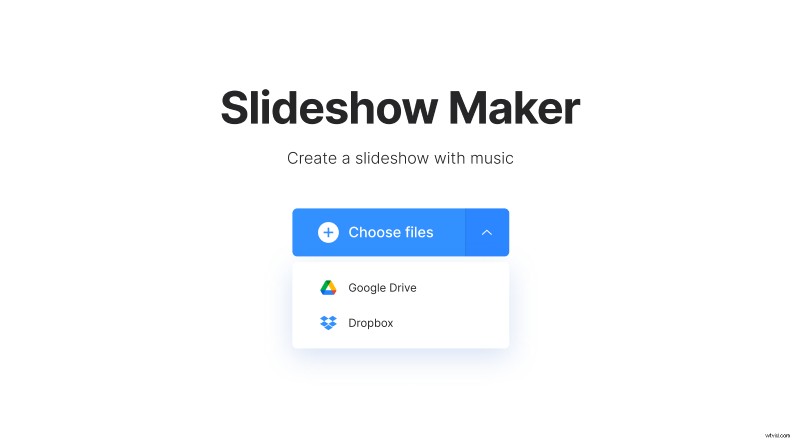
The tiny down-arrow on the right calls a drop-down menu with two more options. You can either upload visuals from Google Drive or Dropbox.
Instagram video slideshows
Get creative! Add more photos, videos or GIFs to the timeline, using the drag & drop option. You can also click “Add more files'' or the face-down arrow at the top right corner and use one of the three above mentioned ways. Then reorder added files as you need.
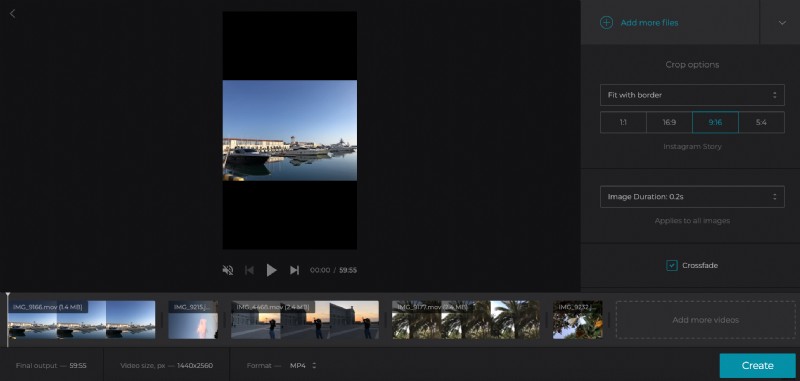
Choose an aspect ratio under the “Crop Options”. For Instagram in-feed you’ll need the first one, 1:1, for the Stories – the third preset, 9:16. You can also adjust your clip for YouTube or Facebook specs.
Choose the crop option – you can either zoom and crop your slideshow or fit it with borders.
If you’ve used static pictures in your presentation, choose their duration.
Tick the “Crossfade” box to make the frame transition smoother.
Add a great song
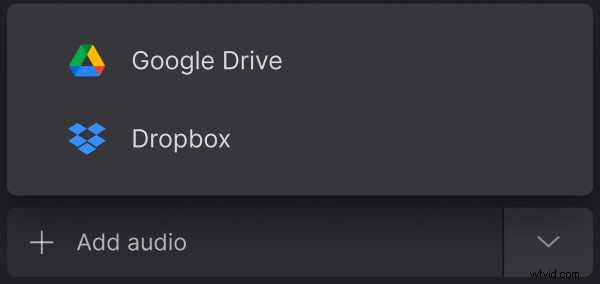
Upload an audio track from your personal device, cloud storage account or online source.
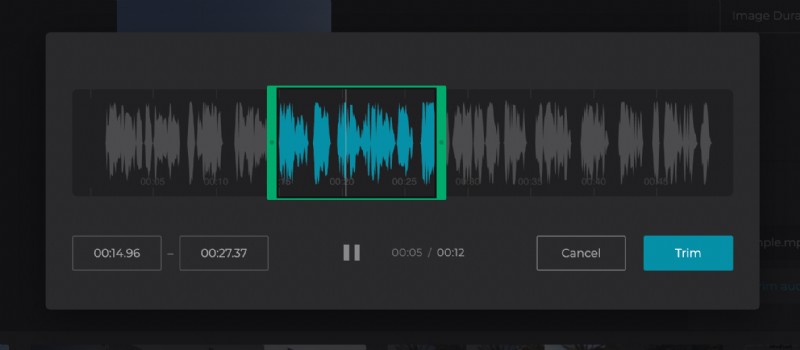
Hit the scissors sign and trim the audio using slidebars. If the track is shorter than the slideshow, click the infinity sign to loop it.
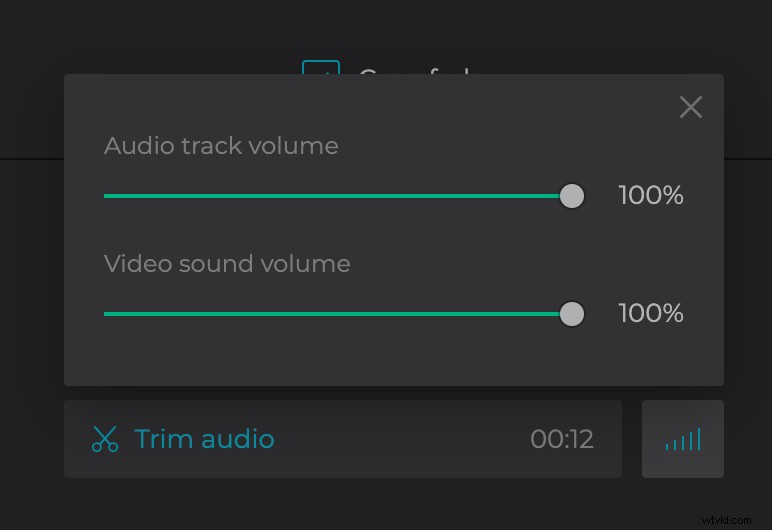
Set the audio volume. If the basic video already has its initial sound, you can also adjust it or mute.
Click “Create” and wait several seconds.
Save the slideshow and share on Instagram
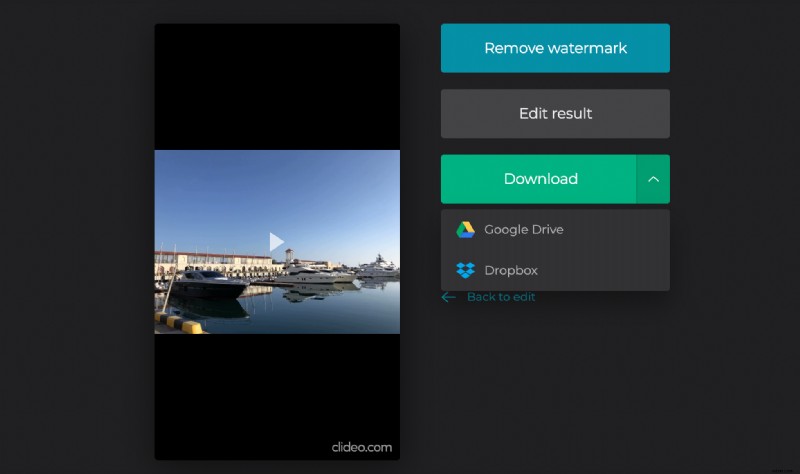
Take a quick glimpse to get sure that the result is impeccable and save it where you want – to your personal device, Google Drive or Dropbox. If you think it could be better, click “Back to edit” and try again.