
This is the place for a detailed guide on how to make a wedding slideshow with music and photos, and free wedding slideshow templates.
A wedding reception slideshow is all about spreading the love in this one of the most important days of your lifetime and eternalizing the moment, so it has to be good. Aside from downloading wedding slideshow templates and creating your own wedding slideshow with programs like PowerPoint, there’s a much handier way to make an attractive wedding slideshow for your big day. Rest assured, it’s free and effortless, now let’s get started.
Best Free Wedding Slide Show Maker for You
Want to prepare the best wedding slideshow maker for the best day? We’ve got you FilmForth Slideshow Maker, the best free slideshow maker that allows you to make wedding slideshows with music, videos, and pictures in simple clicks. It is completely free, and it doesn’t have watermarks.
Moreover, it enables you to add transitions, special effects, stickers, and even animations to the clip to make the slideshow looks absolutely amazing.
FilmForth is freely available from Microsoft store, hit the free download button below to get it on your Windows 10 or Windows 11 PC in less than 2 minutes!

Guide on How to Make Wedding Slideshows with Music and Photos
Step 1. Start a New Project
To make a slideshow with FilmForth, after FilmForth is fully installed, launch it from the Windows start menu, and hit New Project button in the middle. The Fast Video section to the left offers great video templates.
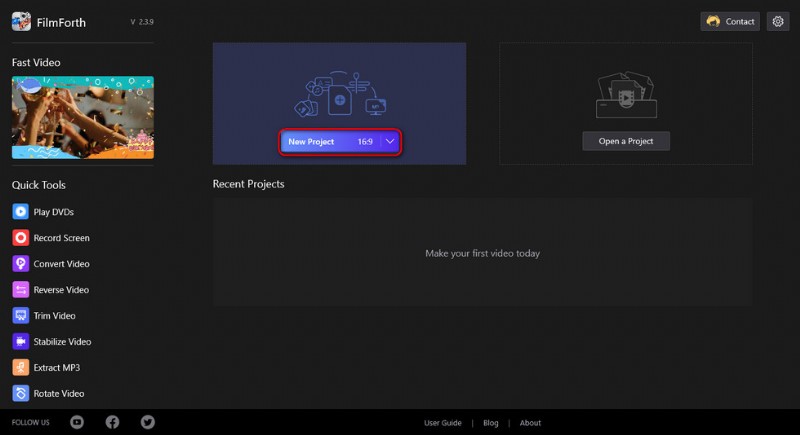
Create a New Project
Step 2. Create Wedding Slideshow with Photos
Drag and drop the pictures into the program or click ADD VIDEO/PHOTO CLIPS button to load the wedding photos you intend to create a slideshow with. Then you’ll be led to the slideshow editing screen with your pictures in the timeline. Drag and drop the wedding images in the timeline to reposition them, and hit the Duration button to adjust durations for each image. Additionally, adding transition effects between images will make your slideshow look a lot better.
FilmForth supports a large assortment of media formats including JPG, JPEG, BMP, GIF, MP4, MP3, etc.
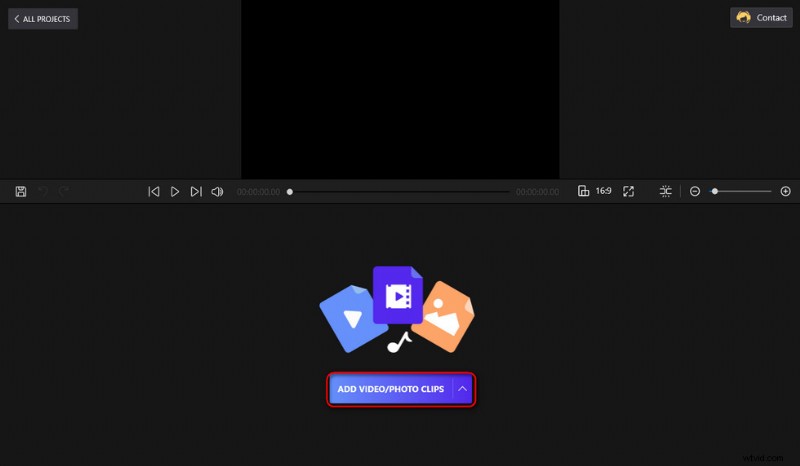
Import Wedding Pictures
Step 3. Add Music to Wedding Slideshows
Of course, a wedding slideshow works best with euphonious music. To add music to a wedding slideshow, click on the audio track in the timeline and click Add audio. Then you can choose to add your own music, the voice of your own, or music from our ready-made music library. You can drag the handlebar of the audio track in the timeline to quick trim it.
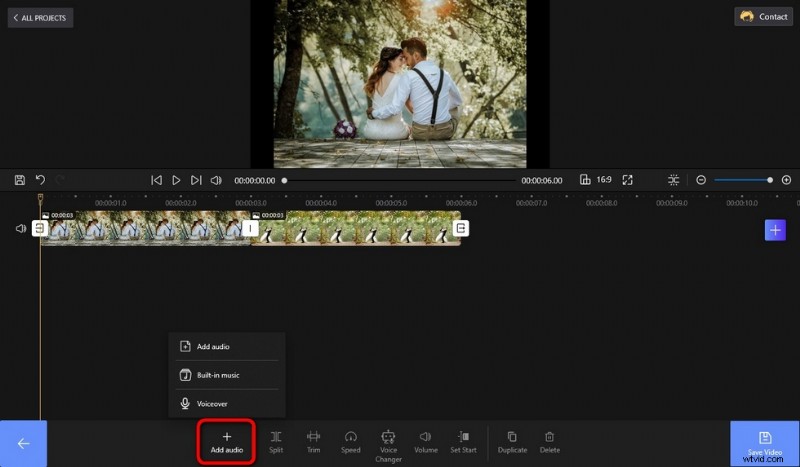
Add Music to the Slideshow
Step 4. Add Text to Wedding Slideshows
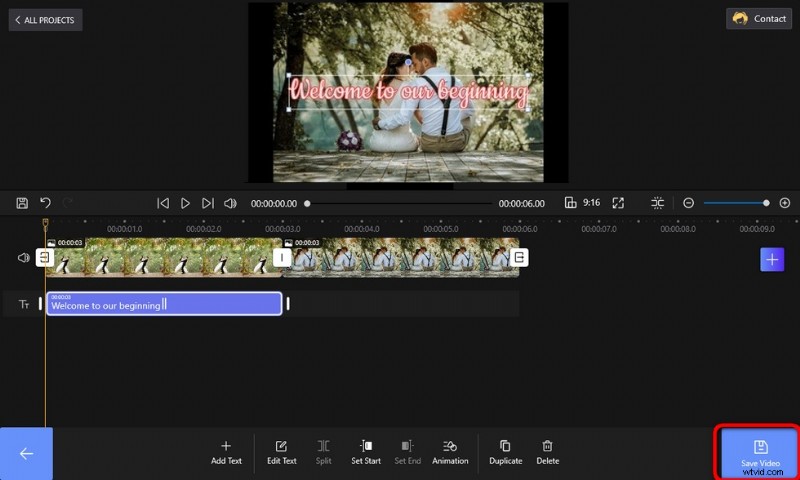
Don’t forget to give your slideshow some sparkles texts! Like the text “Welcome to our beginning” I did with the wedding slideshow in the snapshot shown below. You can add customizable text to the slideshow by hitting the Text button below.
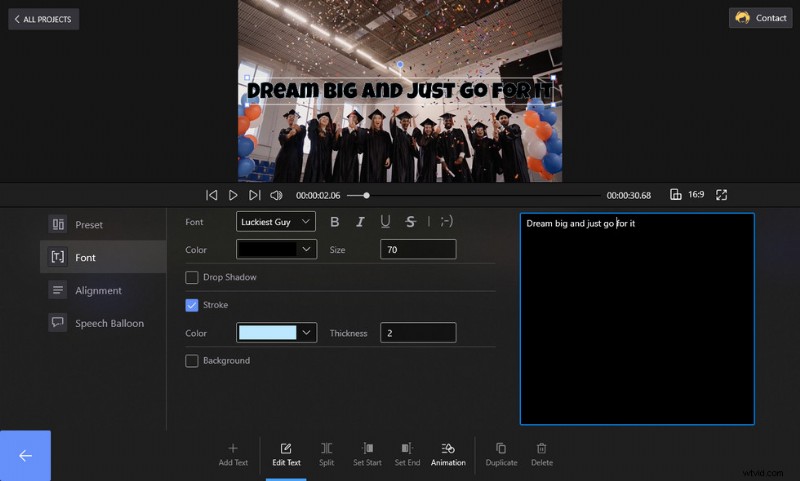
Add Text to the Wedding Slideshow
Step 5. Save and Export Wedding Slideshow
Now we have successfully made a wedding slideshow! It’s time to export it. Hit the Save video button from the lower-right side of the slideshow editing workplace to define the slideshow quality/output file folder and export the slideshow.
As mentioned, creating wedding slideshows with PowerPoint is also a brilliant idea, learn from this guide on how to make slideshows with PowerPoint.
Save and Export Wedding Slideshow
How Long Should a Wedding Slideshow Be?
In order to have ample time to showcase your wedding photos that encompass the couples’ love story in a fancy and creative way, while keeping as many guests as possible in their seats by trying not to make the wedding reception too somniferous or tedious, an apropos time for a wedding slideshow should be around 8 to 15 minutes. You can use FilmForth to customize the image duration and transition time to adjust the length of the wedding slideshows.
At Last
Best wishes to your best day! And I really hope that you’ve learned from this guide how to make a great wedding slideshow! Additionally, with FilmForth, you can even crank things up a notch by editing the slideshow with various video editing options such as trimming, cropping, and applying pic-in-pic, etc. so don’t hesitate to give it a whirl!
More Related Articles
- 7 Best Free YouTube Video Editors
- Final Cut Pro Review – Is It Worth it?
- Top 3 Apps to Convert YouTube to MP3 for iPhone
- How to Edit or Create a GIF Free and Easily
- How to Add Music to a Video for Free