
This page is a detailed and illustrated guide on how to resize videos for IGTV in a free and easy way.
IGTV has become a preferable stand-alone app on Android and iOS smartphones over Instagram since it allows users to upload longer videos compared to Instagram feeds. In a bid to fit the whole video on IGTV without displaying with offputting black bars, resizing your videos to IGTV aspect ratio is a must.
IGTV shares the same 9:16 aspect ratio with popular social media app TikTok, and in the following tutorials, you can learn from the step-by-step guide on how to resize videos for IGTV.
Why My Videos Not Showing in Full-screen on IGTV?
IGTV app uses its unique aspect ratio and will automatically adjust the display frame of off-spec uploads. In plain English, if your video aspect ratio is not identical to that of IGTV, you’re video will not play in full-screen on IGTV. That explains why IGTV crops your video, why IGTV videos are zoomed in, and the black bars during video playing on IGTV.
The overall solution here is to resize videos to the IGTV aspect ratio.
Best Free Video Resizer for IGTV (Best for Beginners)
To change video aspect ratio for IGTV app, allow me to introduce FilmForth, an excellent video/photo resizer that is free of charge, easy to use, and watermark-free. FilmForth allows you to change video aspect ratio to YouTube, Instagram 1:1, Instagram 4:5, TikTok/IGTV, Ultra Wide, Classic TV, etc. in a few clicks.
Moreover, FilmForth is a simple video resizer as well as video editing software that even enables you to easily trim videos, crop videos, split videos, add transitions to videos, add special effects to videos, merge videos, and more. So don’t forget to give FilmForth a shot and touch up your creation!
A simple click on the free download button below, you’ll get FilmForth from Microsoft store to your computer in less than 2 minutes!

Step-by-step Guide on How to Resize Videos for IGTV
Step 1. Create a New Project in FilmForth
To rescale your video to an IGTV, make sure FilmForth is fully installed, and launch it from Windows start menu, then hit New Project button in the middle.
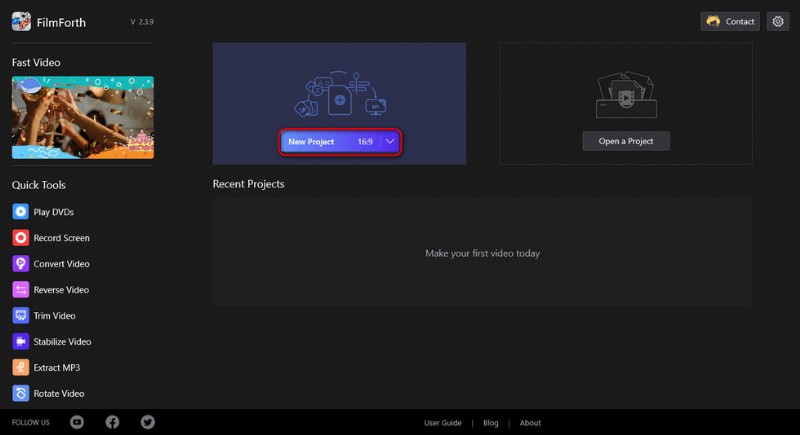
Create a New Project
Step 2. Import the Video into FilmForth
Drag and drop the video into the program or click ADD VIDEO/PHOTO CLIPS button to import the video you intend to edit to IGTV aspect ratio, FilmForth supports most industrial-standard video formats for media sharing including MP4 and MOV.
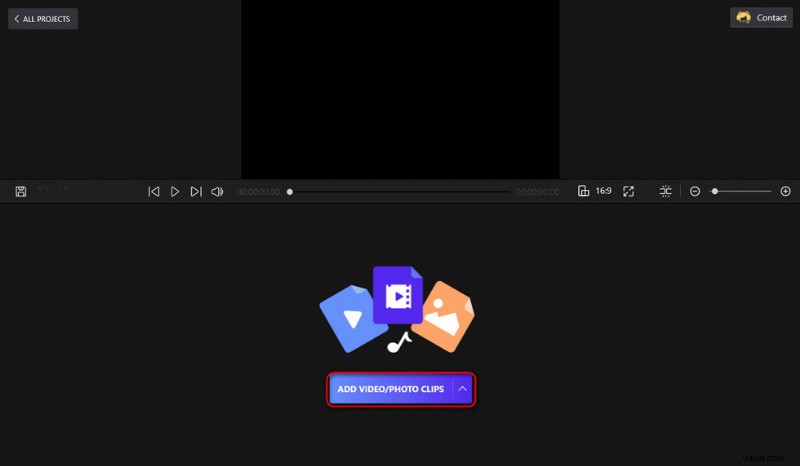
Import Video Files
Step 3. Change Video Aspect Ratio to IGTV
To convert your video to IGTV, Instagram, Instagram reels, or Instagram landscape photo size, click on the small aspect ratio button. You can find it below the video preview window, and a smaller screen will pop up where you can customize aspect ratio for your video. Click on TikTok/IGTV button.
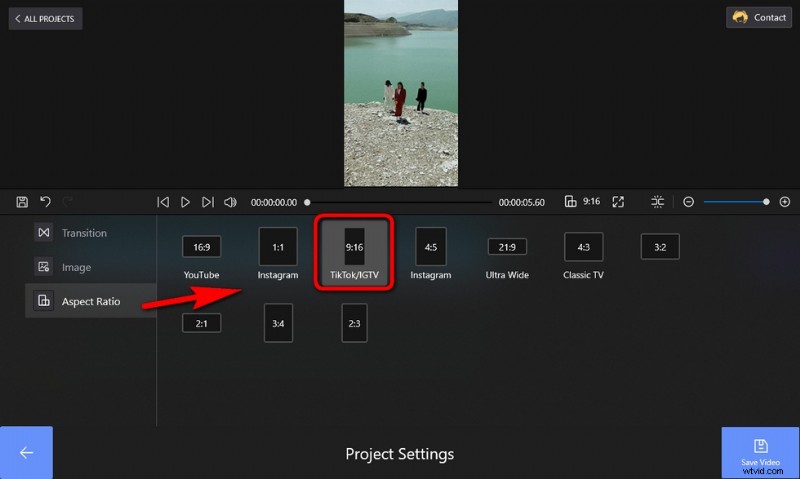
Resize Video to IGTV
Step 4. Edit Your Video for Better Sharing on IGTV
Apart from changing aspect ratio for videos, FilmForth also offers a variety of functional video editing features for you to improve your videos if needed. Click to select your video in the timeline and then click the button from the lower operation panel to trim a video, split a video, crop a video, merge videos, add transitions/special effects to a video, etc.
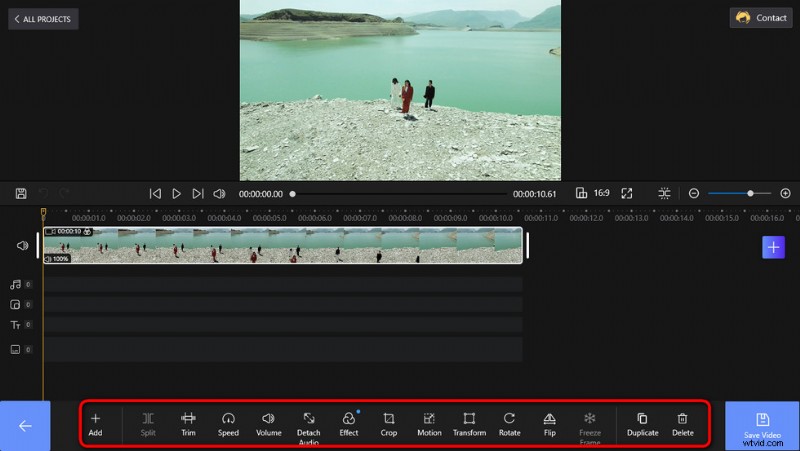
Edit a Video
Step 5. Save and Export the Video
When editing, hit the play button from the upper window to preview your work. Whenever you’re done editing, click Save video button from the lower-right side. A dialog will pop up for exporting the video, then you can customize your video bitrate, resolution, frame rate, and audio sample rate, and define a destination path for your videos, to save and export the resized video clips.
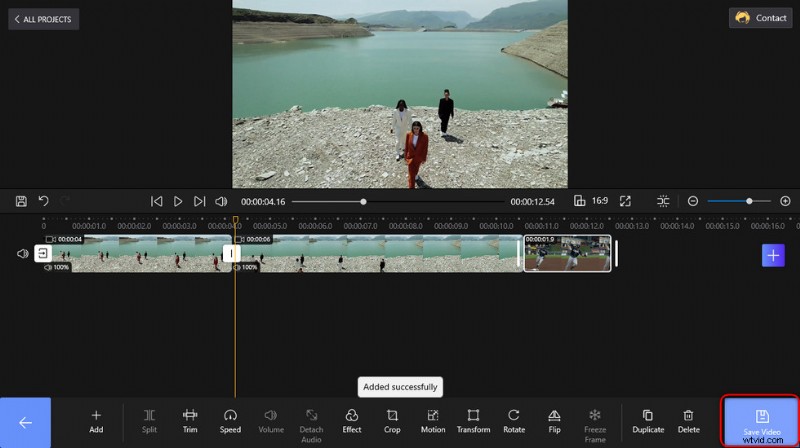
Click Save Video to export
At last…
Compared with resizing videos online, FilmForth is much steadier and can handle much bigger files. Have you followed our tutorials to use FilmForth to resize your videos to be perfectly fit for IGTV? I hope so, please leave a comment and share with us your questions or insights!
In the meantime, are you looking for detailed instructions to resize videos for Instagram? We’ve got you covered.
More Related Articles
- 7 Best Free YouTube Video Editors
- Final Cut Pro Review – Is It Worth it?
- Top 3 Apps to Convert YouTube to MP3 for iPhone
- How to Edit or Create a GIF Free and Easily
- How to Add Music to a Video for Free