
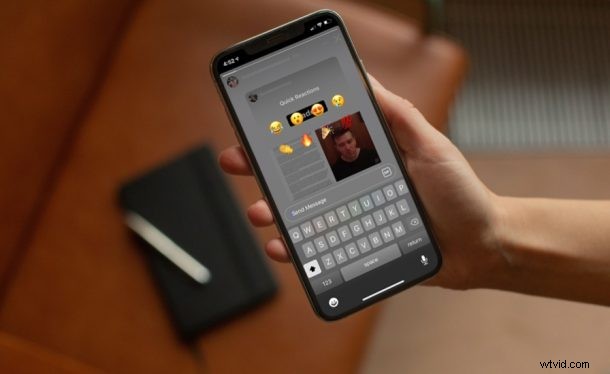
If you’re getting a lot of unwanted responses to the Instagram Story that you just posted, you may consider turning off replies altogether. Luckily, Instagram gives users the option to disable replies at any point they want to.
Instagram is one of the most popular social networking platforms that are currently out there. A ton of people use it to share pictures and videos with their friends, followers, and fans. As per the default setting, all your followers can reply and react to your Instagram Stories. However, this may not be the ideal option especially if you have a lot of followers, because this means you’re likely to get flooded with messages in your inbox after you post a story. Whether you just don’t want the replies in general, or they’re too negative, or so positive that your ego is inflating to the size of a zeppelin and you want to come back to earth, you can disable the ability for users to reply to your Instagram stories
Disabling Replies on Instagram Stories
As long as you’re running a fairly recent version of the Instagram app, you can make use of the following steps to disable replies. So, without further ado, let’s get started:
- Start off by opening the Instagram app on your iPhone.

- Head over to your profile and tap on the triple-line icon at the top-right corner of the menu.

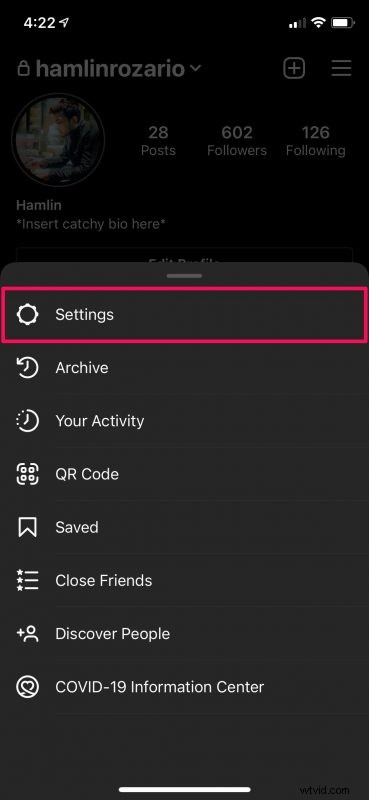
- This will bring up a pop-up menu. Now, tap on “Settings” to manage your Instagram settings.
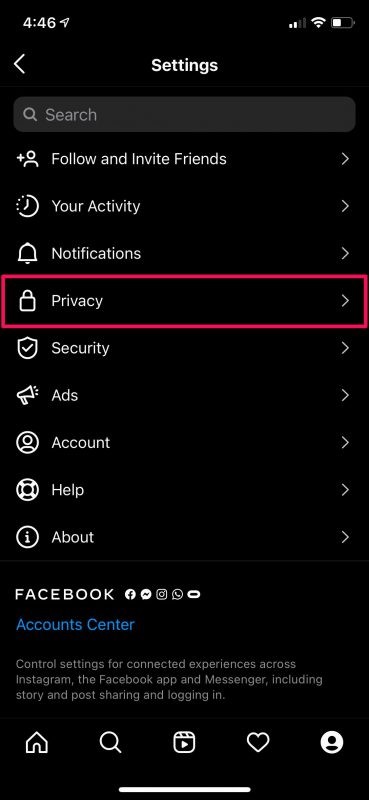
- In the settings menu, tap on “Privacy” to control how others can interact with your profile.
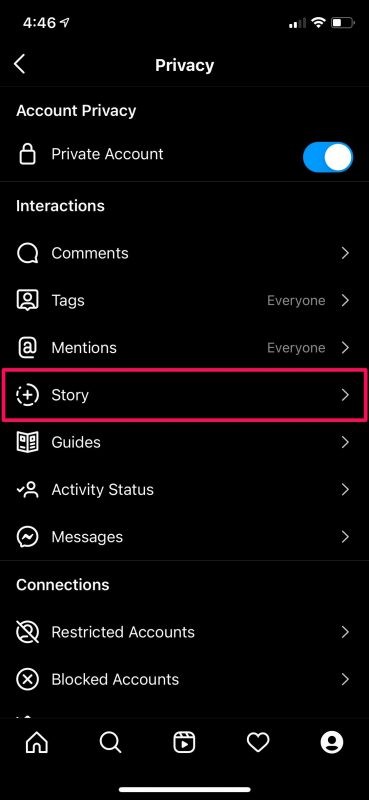
- Under Interactions, select the “Story” option to proceed to the next step.
- Here, you’ll see that your followers are currently able to reply and react to your stories. Select the “Off” setting in this menu and you’re good to go.
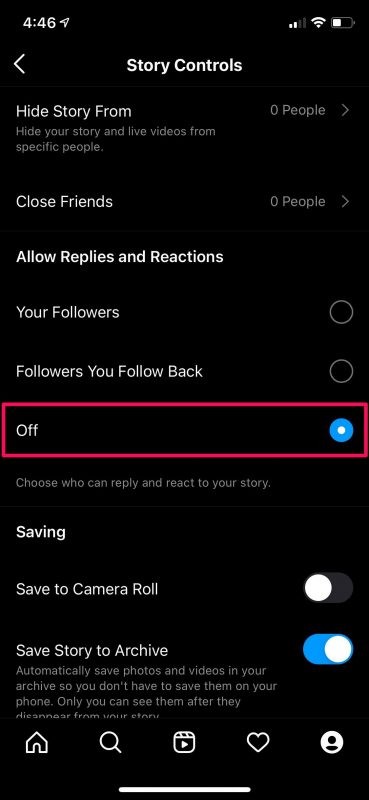
In the same menu, you also have the option to limit reactions and replies to the followers that you follow back on Instagram. This can filter out a lot of people that you may not want to interact with, especially if you have a huge following on the platform.
From now on, you won’t be flooded with messages that are replies or reactions to the Instagram Stories you’ve posted. Keep in mind that changing this setting won’t stop your followers from sending you normal message requests. However, this can be limited from the settings menu too, if needed.
Instagram Story settings can also be used to hide stories from specific people who follow you. This can help you avoid stalkers since they’ll have no idea that you even posted anything. Or, you can just limit your Instagram Stories to your close friends. However, you’ll need to create a close friends list first.
If you’re getting a lot of direct messages whenever you log on to Instagram, it’s likely due to your activity status that’s visible to your followers. However, you can disable online activity status on Instagram and hide from others whenever you’re using the app.
Did you disable Instagram stories? Don’t miss more Instagram tips if you’re an Instagram user, and you can follow us on there too if you’re interested.