
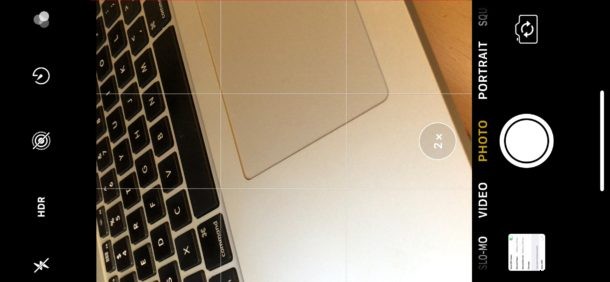
The latest iPhone models from Apple default to automatically enabling HDR on the device camera, this includes iPhone 12, iPhone 11, iPhone XS, XR, X, iPhone 8 Plus, and iPhone 8. HDR can often create better looking pictures by blending color range from different exposures into a single image, but it can also sometimes make pictures look strange or even worse, particularly in some lighting situations and with some pictures of people as well.
By disabling auto HDR on iPhone, you also regain the “HDR” button in the iPhone camera app, which lets you choose HDR to be on, off, or automatically enabled depending on lighting, and directly from within the camera app itself. This contrasts to the default state on new iPhones, which hides the “HDR” button since the auto feature is enabled by default. In other words, if you want the HDR button controls returned to the iPhone Camera app, you have to disable Auto HDR in Settings.
How to Disable Auto HDR on iPhone and Get HDR Button Back in Camera App
This only applies to the latest iPhone models with auto HDR enabled by default, older iPhones will not have auto HDR / Smart HDR enabled in Settings.
- On the iPhone, open the “Settings” app and go to “Camera”
- Look for the “HDR (High Dynamic Range)” section and toggle “Auto HDR” or “Smart HDR” to the OFF position
- Optional but helpful to some; enable “Keep Normal Photo” so that you can determine which of the two photo types you prefer*
- Return the iPhone Camera and you will now see the “HDR” button option at the top of the camera screen again
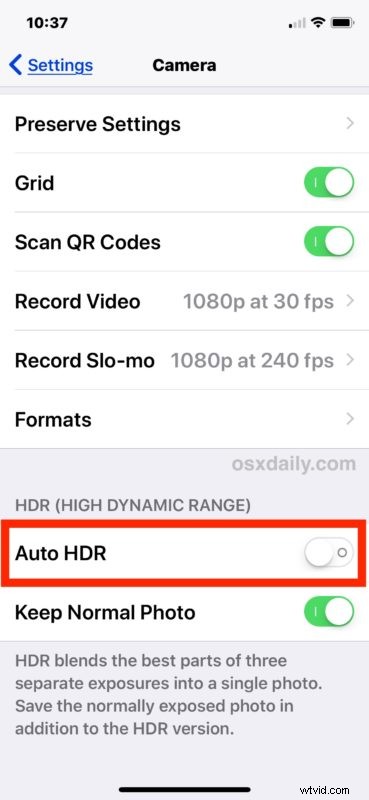
With Auto HDR disabled in the general Camera Settings, the “HDR” button option returns to the Camera app itself, where it can toggled directly.
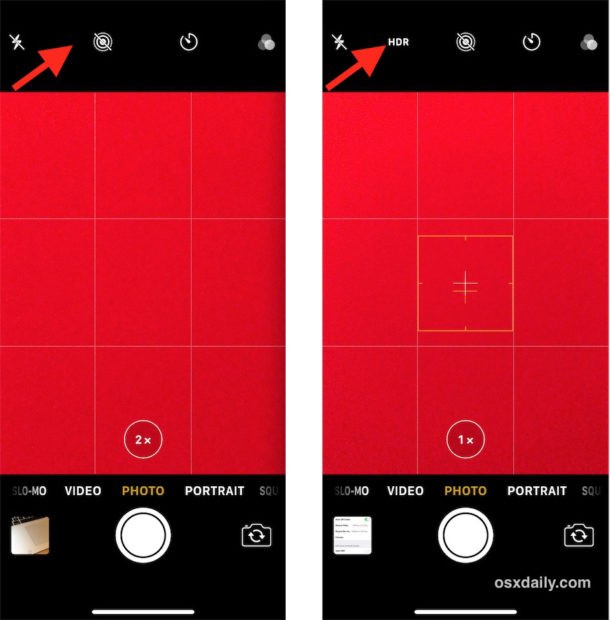
And yes, you can also set HDR to be on “auto” within Camera app again, even if Auto HDR is turned off in Settings. When you turn off “Auto HDR” in Settings, it brings the controls back into Camera app, just like they were on prior iPhone models. Additionally, you can also turn HDR off, or HDR on, directly from the camera app again on iPhone X, iPhone 8, and iPhone 8 Plus. This is admittedly confusing, but that’s the way it works in current versions of iOS for the newest iPhones. Basically, if you want more direct control, turn the feature off in Settings, so that you can then turn the feature on or off as you want in the Camera app itself.
The Camera Settings section on iPhone has some other useful options you might want to check out, including enabling the camera grid, making sure iPhone camera can read QR codes, setting iPhone camera to take photos as JPEG or HEIF format, and many others.
* The “Keep Original Photos” option is recommended if you want to see what both the HDR and non-HDR photo looks like when an HDR photo is captured. You’ll see them both alongside one another in the Photos app Camera Roll when available, it may look like the same photo from the thumbnail, but if you look closely at the two images you’ll see they are different as HDR pulls in a wider range of exposures and then uses software to join them into a single picture, whereas the standard photo does not do that. HDR is often loved or hated, and other times not even noticed, but for anyone who likes to geek around with an iPhone camera they will undoubtedly appreciate the choice and being able to see both pictures directly. The primary downside to enabling “Keep Original Photo” with HDR is that you end up with two of the (generally) same picture.
If you enjoyed this you’d likely appreciate browsing through other Camera tips as well.