
 The Frequently Visited sites section of Safari in iOS appears when you open the browser on an iPhone, iPad, or iPod touch to a new tab or blank page. While this can be a convenient way to offer quick access to the webpages and sites you visit often (like this one, right?), it can also reveal pages that you may not want someone to know you’re visiting often. Aside from the privacy implications on multi-user devices, you may also just not like the Frequently Visited sites feature.
While using Safari Private Browsing mode is an easy way to avoid sites showing up in Frequently Visited section, and you an always go and delete sites from the Frequently Visited section of Safari, another option is to just completely disable the feature in Safari for iOS.
Turning Off Frequently Visited Sites in Safari for iOS & iPadOS
Exit out of Safari if you haven’t done so already, then just do the following:
- Open the Settings app and go to “Safari”
- Under the ‘General’ section of Safari settings, locate “Frequently Visited Sites” and toggle the switch to the OFF position to disable Frequently Visited from appearing
- Exit out of Settings and return to Safari, the change is instant
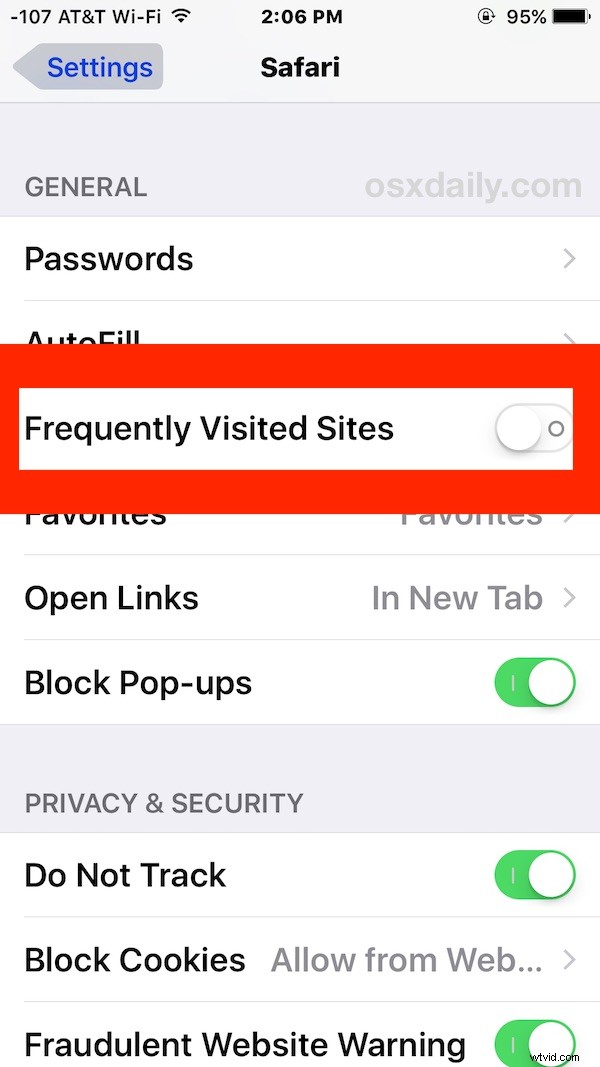
The Frequently Visited Sites section will be disabled and launching a Safari window, session, or tab, will show you the favorited sites or nothing, depending on your settings and bookmarks.
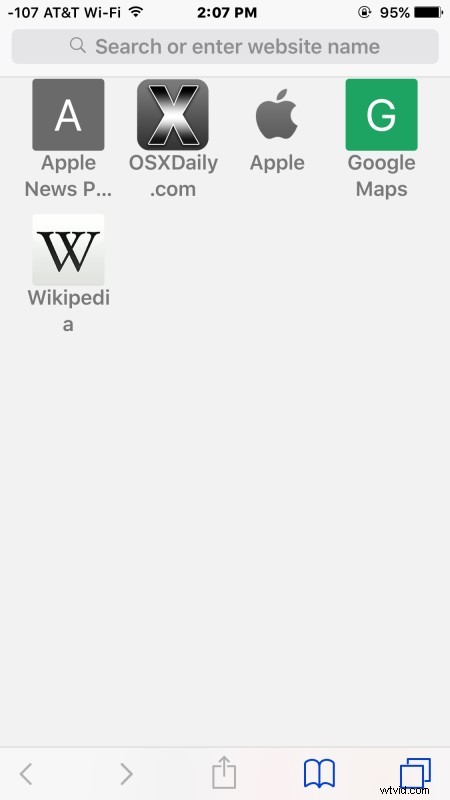
If you disable Frequently Visited but like the general concept of easy access to your preferred websites from the browser, add sites as favorites into Safari or even add bookmarks to the home screen, both offer quick access to webpages.
Like all other iOS settings, if you decide you like this feature, you can easily re-enable it again by returning to iOS Settings and toggling the switch back to the on position again.