
Ever wished you could increase the font size of text on any webpage in Safari on iPhone or iPad? Now you can easily adjust web text size with any iPhone or iPad running iOS 13 or iPadOS 13 or later.
When Apple announced iOS 13 earlier this year there was a lot for iPhone and iPad users to look forward to. The ability to increase the size of fonts when browsing the web is one feature that didn’t get all that much love, yet it’s one that could make a big difference to those who struggle to read their favorite websites, or if you’d just like a little more customization for how big (or small) text appears on webpages in Safari on your iPhone or iPad.
Just like on a Mac, changing the text size makes websites much easier to read. It’s a great little feature and one that certainly could have been used before iOS 13 as well. But now that it’s here, you’ll need to know how to use it.
How to Increase the Font Size in Safari on iPhone & iPad
- Open Safari and navigate to a website of your choice. We’d suggest osxdaily.com for obvious reasons
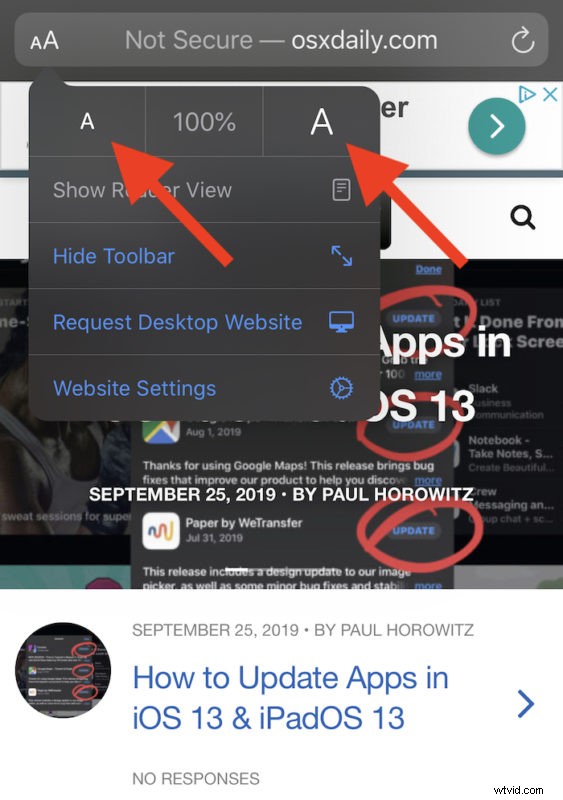
- Tap the button to the left of the address bar, it looks like two capital “AA” characters side-by-side, this will reveal a drop-down menu with display options for that webpage
- Now tap the larger “A” button to increase the size of the font. If you’d like to reduce text size, tap the smaller “A” button
- The page will immediately reflect your changes. Once you have your desired font size, tap anywhere on the page to close the menu and browse the web as usual

This text size setting is persistent, too. That means that the next time you visit the same website your font size settings will automatically be restored and you won’t need to change them again.
You can adjust font sizes for as many webpages or websites as you visit, so if you want one site to have larger text, and another to have smaller text, just customize it as shown above on a per-site basis.
Other Handy Options in the Same Safari Menu
There are some other handy options in the same menu, too. They include:
- Show Reader View: This opens the webpage in Safari’s Reader view, removing all formatting and ads and allowing you to customize the appearance of Safari reader view to your liking (this also worked as a way to increase Safari text size in older iOS versions)
- Hide Toolbar: This button removes all of the Safari interface, making it easier to see more of the website. Tap the top of the screen to restore it.
- Request Desktop Website: Tap this if Safari automatically displayed a mobile version of the website but you’d rather see the desktop version.
- Website Settings: This houses other settings specific to the current website including whether you want to use Reader mode or the desktop website every time you visit it.
You’ll obviously need iOS 13 or iPadOS 13 or later to have access to these new features in Safari, as earlier versions of iPhone and iPad system software do not include the same functionality.
Safari has received plenty of attention from Apple as part of the latest iOS 13 updates and it’s a more capable browser than ever. It’s arguably been the best mobile browser since the iPhone launched in 2007 and now it’s even better.
If you’re running the latest versions of iOS 13 or iPadOS on your device, give this great Safari text size trick a try yourself.