
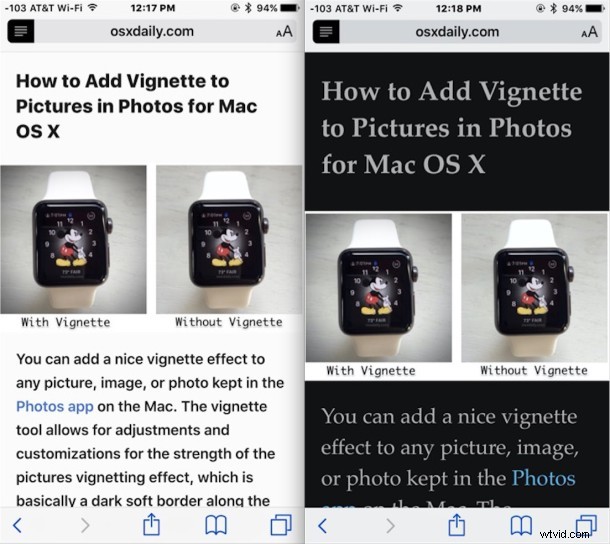
Safari Reader is a nice feature of the Safari web browser for iOS and Mac OS X that allows users to simplify the look of a webpage or article to just focus on the text and image content. Now with the latest versions of iOS, you can customize the look of Safari Reader too, and choose a background color, a font, and even adjust the font size of onscreen text on any webpage on the iPhone, iPad, or iPod touch. This makes Reader particularly great for users who are reading text on webpages and find it too difficult to read, or perhaps they want to implement their own ‘night mode’ and reduce the bright white glare of the text background.
How to Change Font, Font Size, & Background Color of Safari Reader View in iOS
The customizations are possible in Safari for iPhone, iPad, and iPod touch.
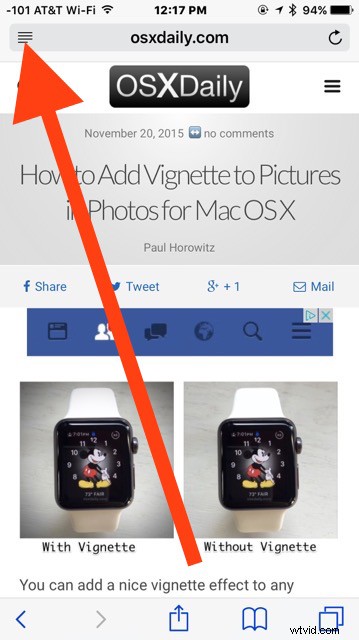
- Open Safari in iOS as usual and browse to a webpage or article that you would typically place into Reader view
- Tap on the Reader icon in the URL bar of Safari to enter into Safari Reader mode
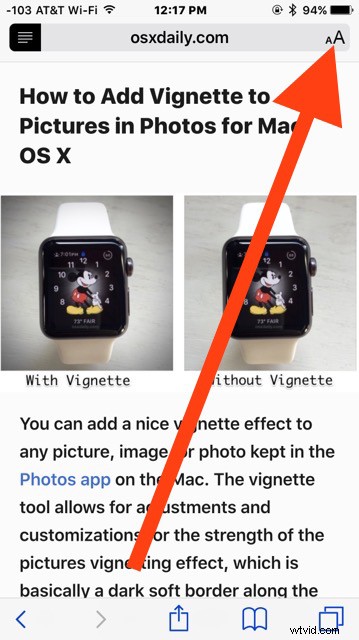
- Now in Reader mode, tap on the “aA” button in the opposite corner of the Reader button to access the various customization options for Safari Reader mode
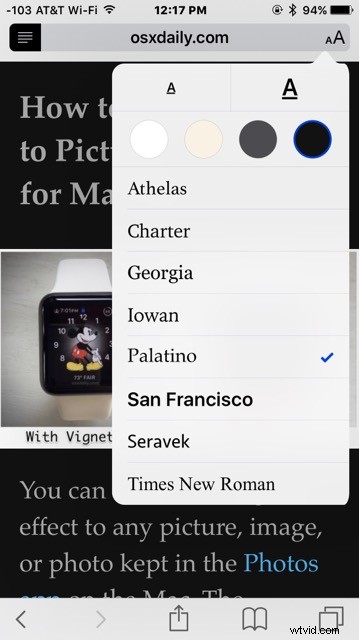
- Set changes to Safari Reader as follows:
- Small A – Shrink the font size
- Large A – Increase the font size (tap repeatedly to greatly increase the text size on webpages)
- The color bubbles: white, beige, dark grey, black – these set the background color of Safari reader view
- Choose a font option as appropriate to your preferences; Athelas, Charter, Georgia, Iowan, Palatino, San Francisco, Seravek, Times New Roman
- Enjoy the article in Safari Reader view, exit by tapping the Reader button in the left corner of the URL bar again
You’ll notice when playing around with the customizations that the effects are instant, giving you a live preview of what the freshly styled Safari Reader view looks like.
For example, here’s Safari Reader set with a dark background for nighttime reading, and a much bigger font:

Safari Reader is particularly useful on the iPhone where it can turn a non-mobile friendly page into a mobile friendly and more readable version, particularly if you’ve requested the mobile site from the desktop site and it failed to load, or perhaps because the site didn’t have a mobile version or it still wasn’t friendly enough to read.
Interestingly enough, the ability to adjust only the font size this way was around in some of the earlier versions of iOS Safari, but was removed for 7 and 8, to make a return again in iOS 9 Safari, with even more customizable options and reader improvements. Thus, if you don’t see the feature, it’s likely because you haven’t updated iOS to the latest version, or you’re on a very ancient version.