
Safari for iOS 15 and iPadOS 15 received a pretty significant visual overhaul, and one very obvious change is that the Safari browser screens tab bar and navigation/search bar now have a color effect that tints the Safari interface towards the color of the webpage in view.
If you’d like to disable the Safari color tinting effect on iPhone or iPad, you’ll find it’s easy to do so.
How to Turn Off Safari Color Tinting on iPhone & iPad
The color tab bar feature are in iOS 15 and iPadOS 15 or later, earlier versions will not have the settings option:
- Open the Settings app on iPhone or iPad
- Go to “Safari” settings
- Uncheck the option for “Allow Website Tinting” (iOS) or “Show Color in Tab Bar” (iPadOS)
- Return to Safari to find the color effect disabled
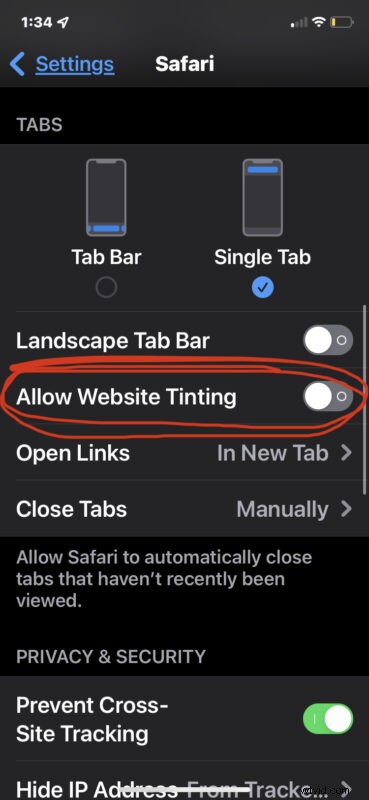
You can reverse the change at any point by re-enabling the tinting option in settings, if you want to have the color back.
Disabling the color effect and moving the Safari Search/URL bar back to the top of the screen are the two most obvious ways to make Safari more closely resemble how it used to, and some users who are creatures of habit or who simply don’t like the user interface changes may be happy to ditch the color and put the URL bar where it has always been – at the top of the iPhone screen.
This obviously focuses on the iPhone and iPad, but you can also disable the color effect for the Safari tab bar on Mac if you’re not a fan of it there either.
What do you think of the color effect in the Safari tab / toolbar? If you have a strong opinion on the matter one way or the other, let us know in the comments.