
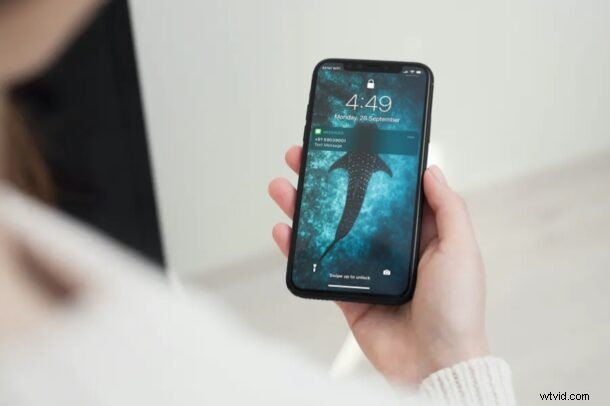
Mentions is one of the newer features that Apple has added to iMessage, which are particularly helpful with group conversations. But if you’re in a lot of Group Conversations on iMessage, you may want to turn off notifications for these mentions, and that’s easy to do on iPhone and iPad.
If you had previously muted some of the group conversations you’re a part of in iMessage, you will now get notifications from them when someone mentions you in the chat. This may be certainly a useful feature for many users as it allows them to participate only in conversations that are relevant to them. However, this could annoy some users, especially if mentions are being overly used by one of the members in the group. Thankfully, you can disable these notifications pretty easily if they bother you.
How to Turn Off Notifications for Mentions on iMessage
Make sure your iPhone or iPad is running iOS/iPadOS 14 or later to have access to this feature.
- Head over to “Settings” from the home screen of your iPhone or iPad.

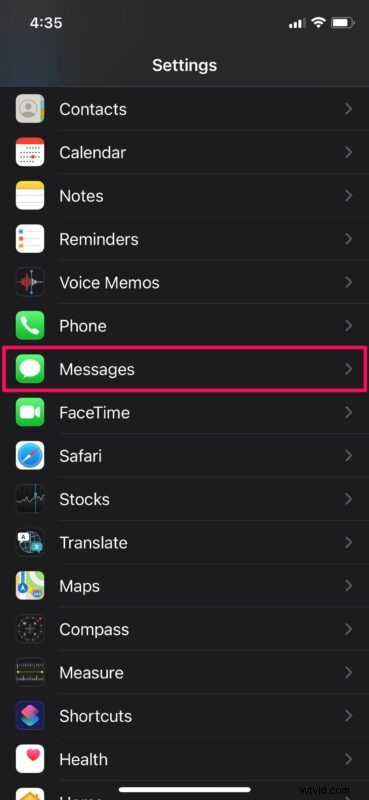
- In the settings menu, scroll down and tap on “Messages” to proceed.
- Here, if you scroll down you’ll find a setting for Mentions. Set the toggle for “Notify Me” to disabled and you’re good to go.
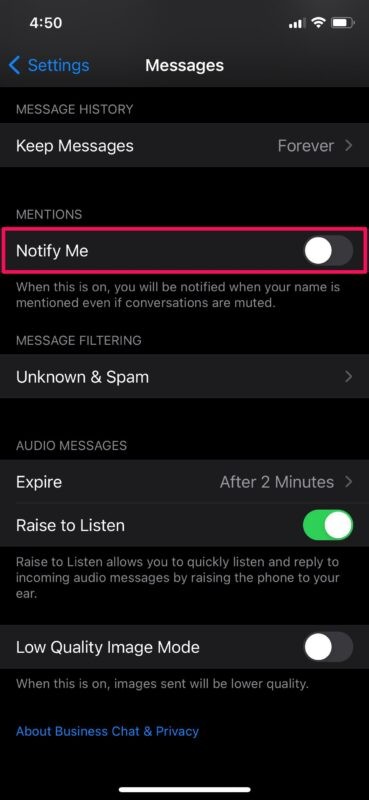
There you go. You’ll no longer get notifications from groups even if you’re mentioned.
Keep in mind that this setting will only be useful if you’ve already muted the group conversation. If you’re not sure how to do that, you can learn how to mute conversations in Messages on an iPhone or iPad.
Unfortunately, this is a global setting at the moment. That means, if you want to receive notifications for mentions from some of the group chats you’ve muted, you’re out of luck. However, it’s possible that Apple addresses this minor issue in a future software update.
Not sure how to mention someone in an iMessage group? Just type “@” followed by the contact’s name and you’ll send them a notification, provided they have it enabled.
In addition to this feature, Apple has also added in-line replies that may come in handy for group chats and also the option to pin and unpin threads to make sure your relevant conversations stay right at the top in the app.
We hope you were able to disable notifications for mentions to stop people from repeating your name in group chats. What’s your reason for turning mentions off? Have you tried out the other new iMessage features? Do share your valuable thoughts and experiences in the comments section down below.