
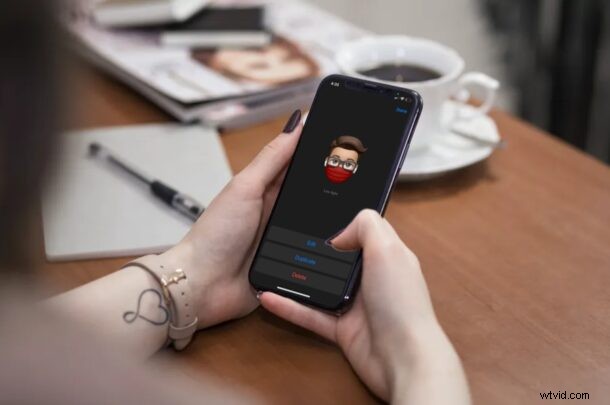
Do you have your own custom Memoji that you use to express yourself while texting your friends on iMessage? If so, perhaps you’ll want to add a face mask to your Memoji, considering the situation we’re currently in.
Many people wear face masks nowadays in public or at work due to the ongoing COVID-19 pandemic. Add in Tinder and it’s all part of the brave new world normal, and you may already be accustomed to meeting your friends and colleagues with masks on. So, why not just add a mask to your Memoji to match your real life, right? Apple thought about this and they’ve added face coverings to Memoji customization, so if you want to give your Memoji a mask, then read along to learn how you can add a face mask to your Memoji, from iPhone.
How to Add a Face Mask to Memoji on iPhone
First of all, you’ll need to create your own Memoji if you haven’t done that already. Once you’re done, make sure your device is running iOS 14/iPadOS 14 or later, since earlier versions don’t support Memoji masks.
- Launch the stock “Messages” app from the home screen of your device and open any message thread.

- Under the text field, tap on the Memoji icon located right next to the image search tool, as shown in the screenshot below.
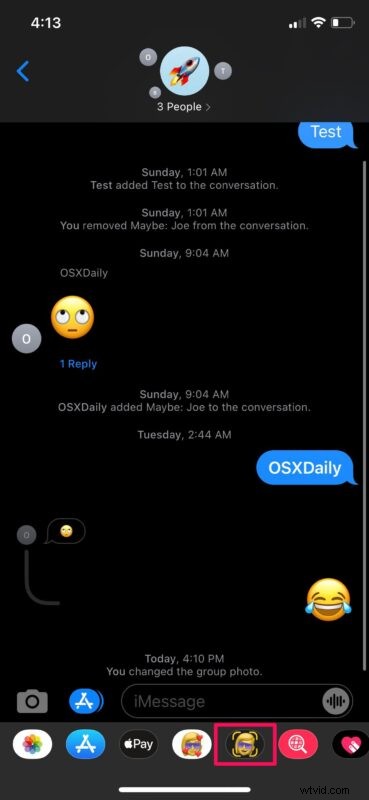
- Swipe left or right and find the custom Memoji you created. Next, tap on the triple-dot icon right next to it.
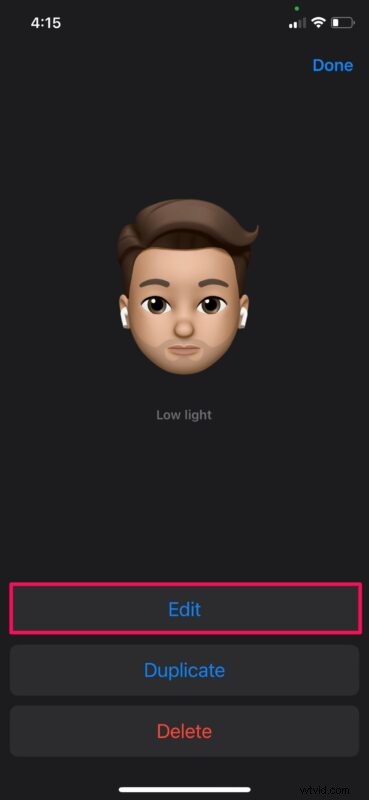
- This will take you to the Memoji customization menu. Here, tap on “Edit” to proceed.
- Now, go to the “Headwear” category and scroll down to the bottom.
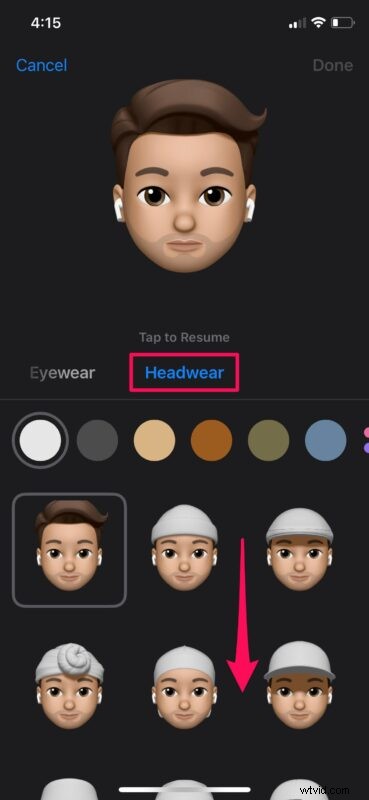
- Now, you’ll find the Face Covering section. There are two different types of face masks to choose from and you can even select your preferred color for the mask. Tap on “Done” to save your changes.
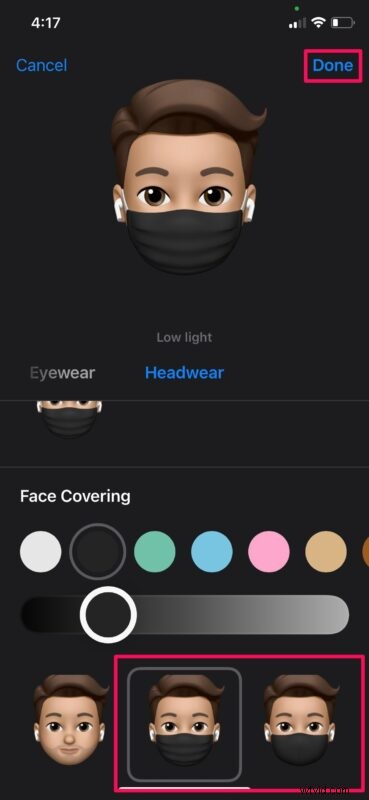
Keep in mind that Memoji isn’t available on all devices. You’ll need at least an iPhone X or newer iPhone with Face ID support since this feature relies on tracking your facial expressions. However, if you do own an older iPhone without Face ID, you can use face masks with Memoji Stickers, provided your device supports iOS 14 or later too.
Although we were focusing primarily on the iPhones, you can follow these steps to customize your Memoji and add a face mask to it on an iPad too, provided you have an iPad Pro with Face ID support.
Speaking of Face ID and masks, if you are having difficulty getting Face ID to work with a mask on, you can try this tip which helps to improve Face ID while wearing a mask.
In addition to face coverings, Memoji has also received other customization options which include new hairstyles, headwear styles, and age options. Plus, there are three new Memoji stickers that let you send a hug, fist bump, or even a bump while texting your friends on iMessage.
We hope you were able to add a face mask to your Memoji to resemble how you look in real life during these pandemic days. How do you feel about the new Memoji customization options? Do you use Memoji? Let us know your thoughts in the comments.