
Want to add and use nicknames for iPhone contacts? Many people use and go by nicknames that are perhaps different from their legal name, and adding those nicknames to iPhone contacts can be a helpful way to keep your address book in order, whether it’s friends, coworkers, service workers, or family members. You can even use nicknames for grandparents, parents, and relatives so that you can preserve their full real names separately from just a simple “Mom” or “Dad” too.
Thankfully setting up a nickname for a contact isn’t a big job, but you’ll need to make sure that you have a nicknames setting enabled first. We’ll run you through the steps to do that on iPhone and ipad.
How to Set Contacts to Prefer Showing Nicknames on iPhone
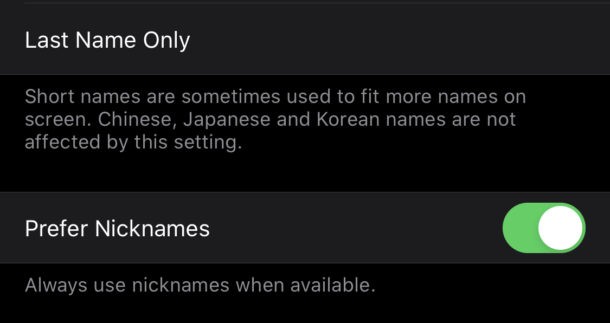
First you’ll want to set iPhone to prefer showing nicknames on Contacts, here’s how to do that:
- Open the Settings app and tap “Contacts.”
- Tap “Short Name.”
- Make sure the “Prefer Nicknames” option is enabled.
Now that the groundwork is done, it’s time to start adding nicknames to your contacts.
How to Set Contact Nicknames on iPhone
Now it’s time to set nicknames for contacts on iPhone, here’s how to accomplish that:
- Open the Contacts app to get started.
- Tap the name of the contact that you want to add a nickname to.
- Tap the “Edit” button.
- Tap “Add Field” and then tap the “Nickname” option.
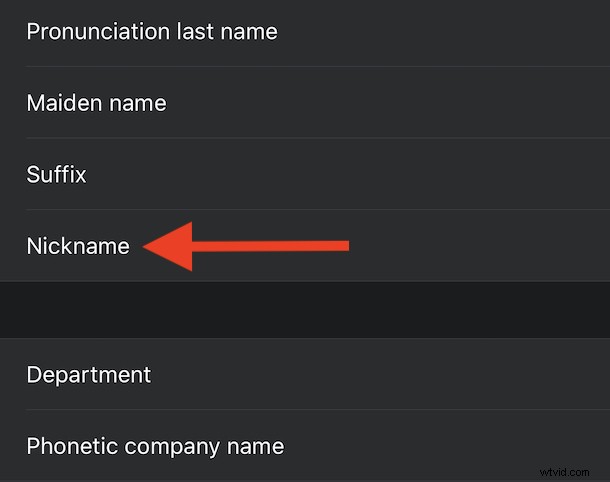
- Finally, enter the nickname that you want to assign to the person and then tap the “Done” button.
And that’s all there is to it. Any existing Messages conversations that were underway will automatically switch to showing the person’s nickname instead of their full name, too.
While you’re in the world of the humble contact, why not also make sure that the most important people can still reach you in emergency even if you have Do Not Disturb (DND) turned on? That’s especially useful if you’re someone who puts their iPhone into DND mode overnight. It’s also a good idea to make sure your device knows who you are by setting up “My Info”, too.
Don’t be fooled into thinking that adding a nickname to a contact isn’t worthwhile just because phone calls are becoming less common. Contact nicknames are used elsewhere, too, like in the Messages app. And for many users it’s well worth spending a few minutes so they can send messages to “Dad” instead of their full name, it’s just more personal, right?
Assigning nicknames isn’t just useful for family members, though. If you have an accountant you could use their job title as their nickname too. Or the electrician that knows your wiring inside and out – you’re not likely to remember that they’re called “Mike Sparky” but you’ll know them as soon as you see “Electrician” instead as you browse through your contacts list.
This all applies to iPad as well, but obviously we’re focusing on iPhone here since most people will be using iPhone as their primary communication device and thus nicknames are likely more relevant there.
Do you use nicknames on iPhone contacts? What do you think of the feature? Share your thoughts and experiences in the comments.