
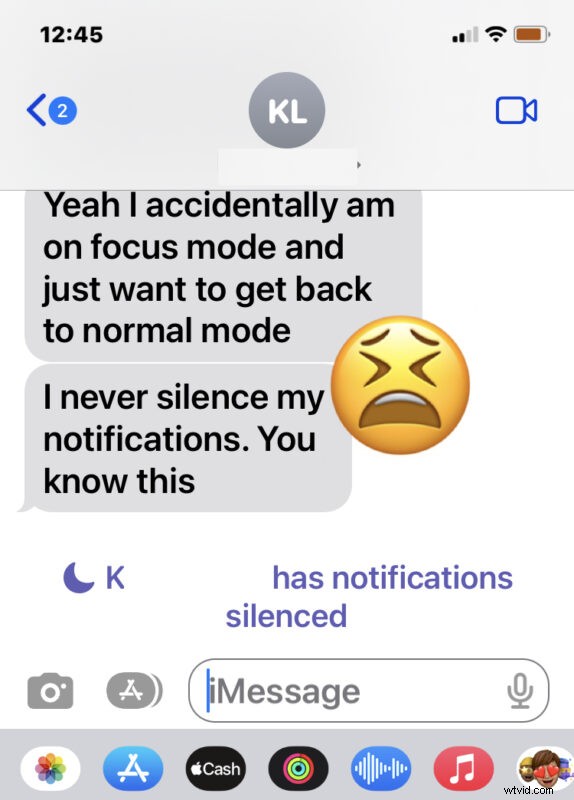
Focus Mode is a feature that was designed to allow iPhone users to focus on tasks by muting and hiding notifications, messages, phone calls, and other alerts on their devices. The Focus feature used to be very simple and called Do Not Disturb Mode, but with later versions of iOS, Apple added a bunch of complexity to Focus Modes that cause some users confusion, not only about using the feature in general, but particularly regarding how to disable Focus Modes or how to get out of and escape Focus Modes.
You can often tell if someone is on Focus Mode because calling their iPhone will result in going directly to voicemail, and if you message them it may say something like “[Name] has notifications silenced.”
How to Get Out of Focus Modes on iPhone
The simplest way to leave and disable a Focus on iPhone is through Control Center:
- Swipe down from the top right corner of your iPhone to access Control Center
- Tap on the Focus Mode button, it may something like: Do Not Disturb, Personal, Driving, Work, Sleep, etc
- Tap on the currently enabled Focus Mode to turn it off and to exit out of Focus Mode
- Make sure there is no Focus highlighted to insure the feature has been turned off
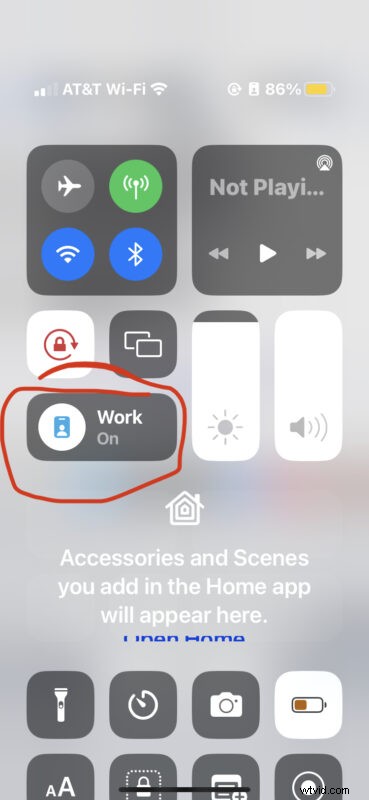
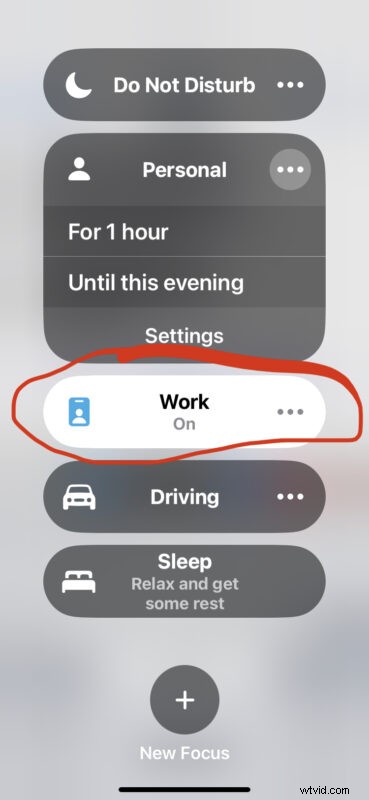
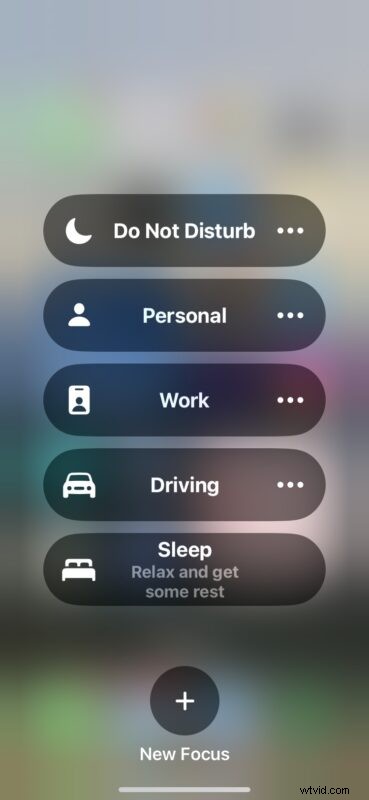
That’s how you disable Focus Mode if it’s currently enabled, which will allow phone calls, texts, messages, alerts, and notifications to come through again as expected.
Focus Mode gets accidentally enabled with some regularity by users, and since it’s not nearly as simple as Do Not Disturb mode was, it has added to the confusion for some users who may find it unintentionally turned on.
Note that if you have multiple devices with Focus Mode sharing turned on, you may need to turn off the Focus feature on those devices as well to have the change take effect, because the Focus syncing doesn’t always work as expected. For example, your iPhone may be stuck in Focus mode even if it’s turned off on the iPhone, because your Mac may have Focus Mode enabled and shared. Whether this is due to bugs, syncing issues, intentional behavior, or whatever else, it doesn’t always just work as intended.
Given how common it is for users to find themselves unintentionally stuck in Focus Mode or with Focus accidentally enabled (and the same thing happened regularly when it was called Do not Disturb), it’s not surprising that some users are not thrilled with the feature. But one helpful trick to get the most out of Focus is to schedule Focus Modes on iPhone for times when you do not want some peace of mind and quiet, like overnight while you sleep.
Do you use Focus modes intentionally, and like the feature, or are you annoyed with it and don’t like it at all?