
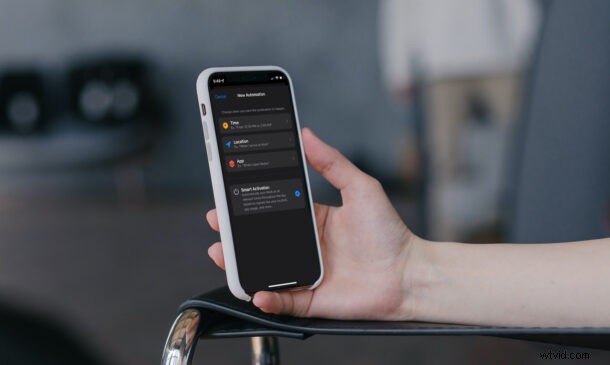
Apple’s iOS 15 and iPadOS 15 introduced an all-new feature called Focus. Focus replaces the Do Not Disturb toggle in the Control Center and Settings, and you can use it to filter notifications from your contacts and apps.
With just a few steps, you can set your iPhone or iPad to schedule Focus depending on the time, location, or even an app you use.
For the unfamiliar, you can consider the new Focus mode a more advanced version of the Do Not Disturb mode focusing on your current activity. While you can access the various Focus modes from the Control Center and enable or disable them at the press of a toggle, you can automate it for a much better experience.
How to Schedule & Automate Focus Mode on iPhone & iPad
Before you proceed with the procedure, you need to ensure that your device is running iOS 15/iPadOS 15 or later. If not, update the software and then follow the instructions below:
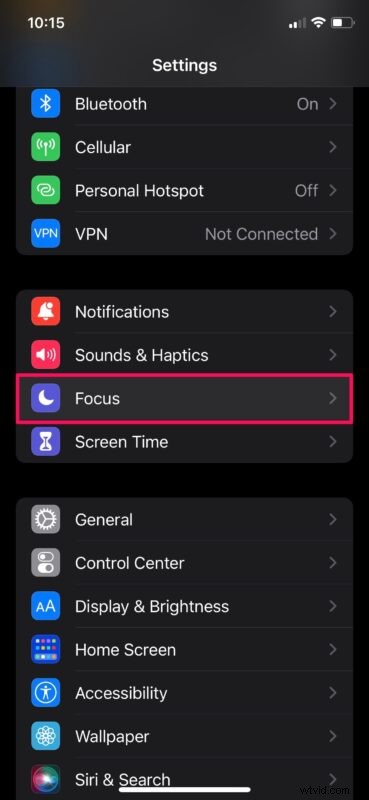
- Head over to the “Settings” app from the home screen of your iPhone or iPad. In the settings menu, scroll down and tap on “Focus.”
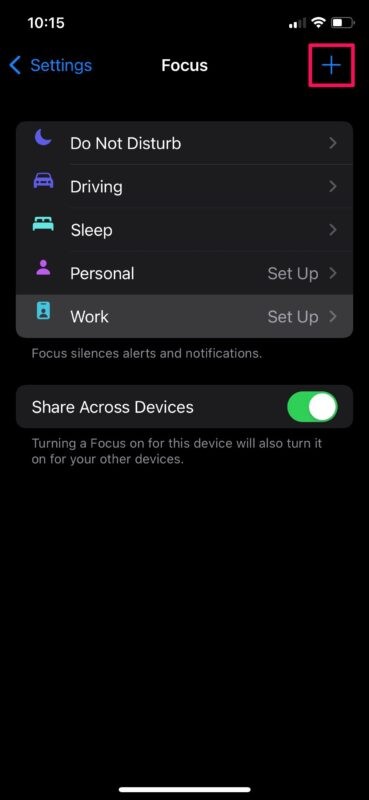
- In this menu, you’ll see a list of default Focus modes. You can either select any one of them or tap on the “+” icon at the upper-right corner to create a completely personalized Focus mode from scratch.
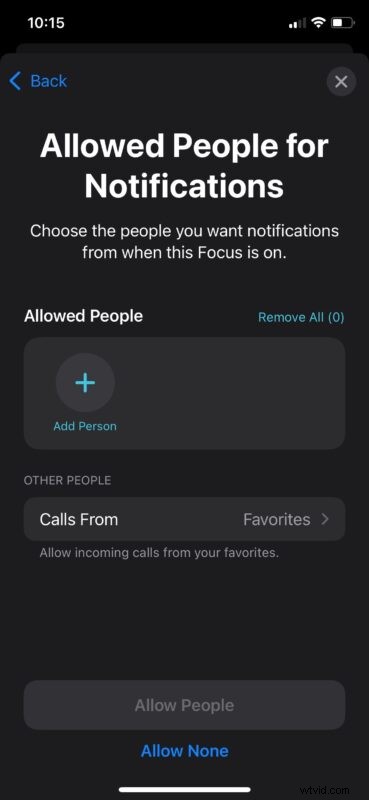
- Now, select any of your contacts you want to allow notifications from when Focus is enabled. If not, you can choose “Allow None” to proceed to the next step.
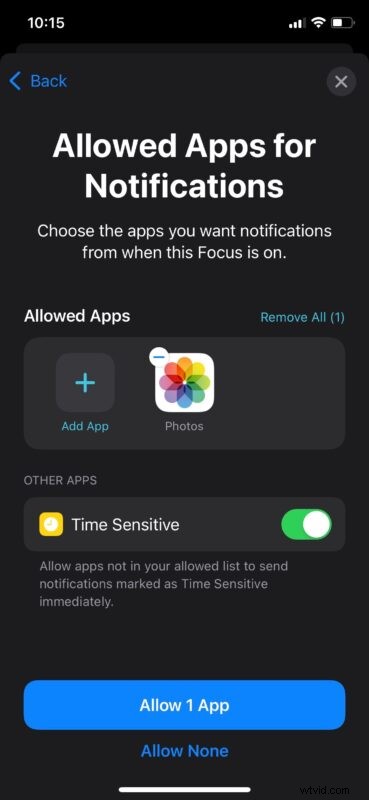
- In this step, you can choose the apps you want to get notifications from when this particular Focus mode is turned on. Or choose “Allow None” if not needed.
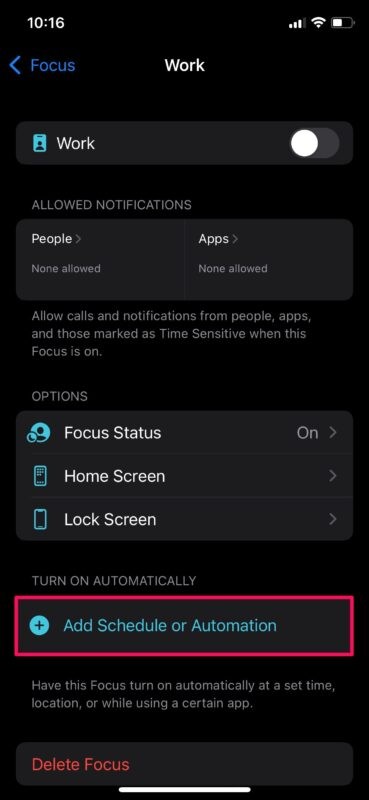
- In this menu, you’ll see the various customization options available for the Focus mode. Here, tap on “Add Schedule or Automation” to continue.
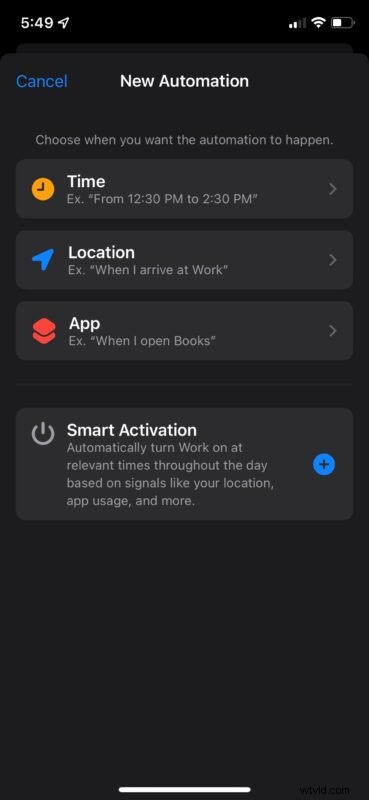
- Now, you can select the type of automation you want to set up. As mentioned earlier, you can choose a time, location, or app to trigger the Focus mode. And if that’s not enough, there’s an additional option called Smart Activation which will automatically turn it on at relevant times throughout your day.
Now, your iPhone will automatically enter and leave Focus mode based on the values you have set.
Note that Smart Activation will take some time to adjust since it monitors your daily activity like your location, app usage, etc., to automate Focus mode on your device.
We understand that some of you would like to have finer control over the Focus mode. Hence, if you’d like the old-school approach, you can check out how to enter Focus mode manually on your iPhone and iPad.
Whether you automate Focus mode or use it manually, this feature will sync across all your Apple devices with the help of iCloud. So, you don’t have to worry about enabling Focus on each of your devices when you switch between them.
While Focus takes the existing Do Not Disturb mode to a whole new level to filter out notifications, it’s just one of the many features that iOS 15 brings to the table. For instance, Safari gets a complete redesign with Tab Groups and support for browser extensions in this new iteration. FaceTime users can now create web links that will allow non-Apple devices to connect to their video calls. There’s a lot to explore in iOS 15 and iPadOS 15.
We hope you were able to familiarize yourself with the new Focus feature without trouble. Which automation method did you select for your Focus mode? What’s your favorite iOS 15 or iPadOS 15 feature so far? Feel free to share your valuable opinions in the comments section down below.