
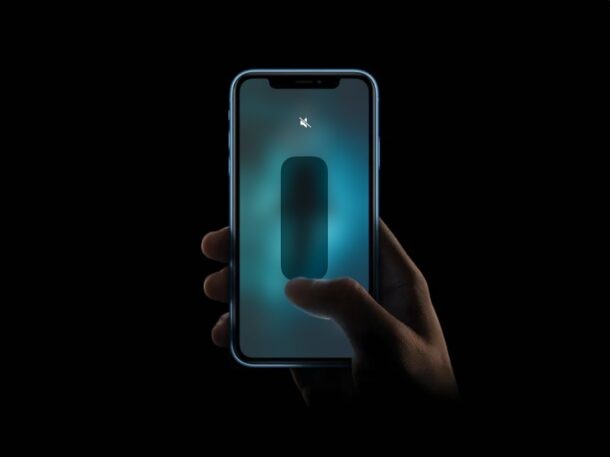
Whether you’re spending time with someone special, in class, trying to focus, or you’re in the middle of an important meeting, you might want to mute your iPhone and completely silence all phone calls & notifications, so that you don’t get distracted easily by the beeps, buzzes, and alerts emanating from your iPhone.
In some cases, muting ringtones and alerts aren’t good enough, since your phone starts vibrating in silent mode. Or, you may want to disable any kind of sound that may come out of your iPhone. These could include sounds when you take photos, screenshots, or just audio when you’re watching content on YouTube. Regardless, completely turning off sound on your iPhone isn’t exactly a one-step process.
Not to worry though, as we’ll be going through the various steps to help you mute and turn off all sound coming from your iPhone, truly silencing the device.
How to Mute & Turn Off All Sound on iPhone
Every iPhone that has been released to this very date features a physical mute switch on its left side. This is the quickest way to silence all phone calls and sound alerts on your device. However, that doesn’t turn off sound during music or video playback, in all apps anyway.
- To put your iPhone into silent mode, simply push the physical mute switch to the left side. You should be able to see the orange indicator when you’ve muted your iPhone, as shown below.
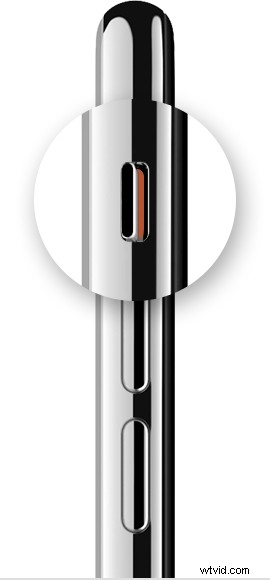
- Next, to turn off sound during music or video playback, hold the volume down button located on the left side of the device. Your iPhone will now display the volume bar to indicate the current volume level.

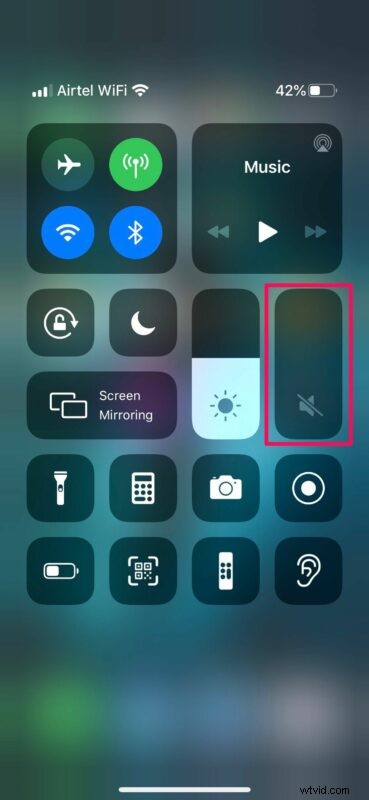
- Now, if the physical volume buttons on your iPhone are broken or not functioning properly, you use the volume slider in the iOS Control Center to adjust the volume level for media.
- If the hardware mute switch on your iPhone is damaged or not working properly, you can adjust ringer volume by heading over to Settings -> Sound & Haptics.
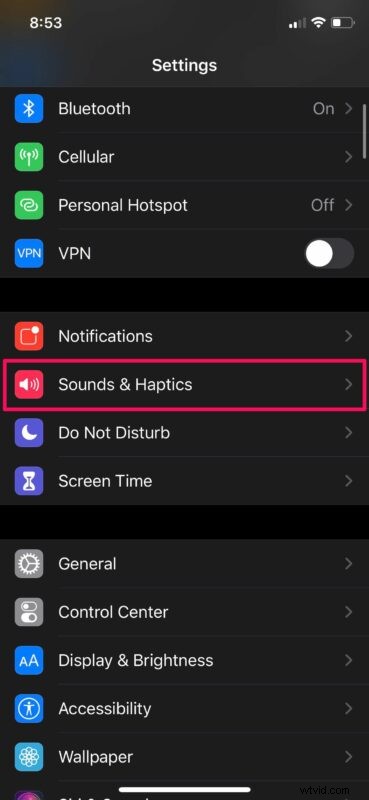
- To put your device in Silent mode, move the slider for Ringer and Alerts all the way to the left. Here, you can also disable vibrations while you’re in Silent mode using the toggle right above the slider, as shown below.
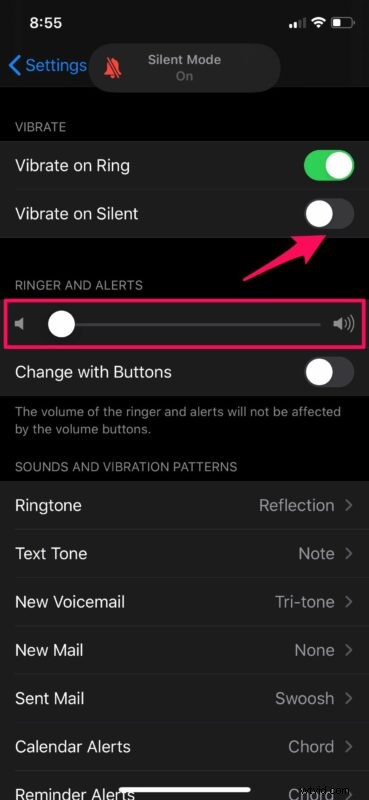
These are pretty much all the necessary steps you need to follow, and you should now have a completely mute iPhone, silent as can be.
Putting your device in silent mode using the mute switch should turn off the sound while you make phone calls silencing the dial sounds, take screenshots, or silently taking pictures using the camera. However, the camera shutter sound might stay on at all times in certain countries like Japan, South Korea, etc. due to government restrictions. In that case, you can try turning on Live Photos within the Camera app to disable shutter sound.
Another neat way to quickly silence an incoming phone call is by hitting either of the volume buttons on your iPhone. You can even do this while your phone is still in your pocket. This method is certainly a lifesaver during meetings.
In addition to this, you can filter out and automatically mute calls from unknown phone numbers, by heading over to Settings -> Phone -> Silence Unknown Callers on your iPhone. Or, if you just want to temporarily mute all phone calls, messages and alerts, simply turn on Do Not Disturb on your iPhone or iPad. Coincidentally, that same feature can lead some users to wonder why their iPhone isn’t making any sounds or ringing particularly if it’s accidentally enabled.
We hope you were able to turn off all sounds on your iPhone using the methods we discussed above, and are now enjoying your truly quiet and silent device. Share your thoughts, tips, and experiences in the comments section down below.