
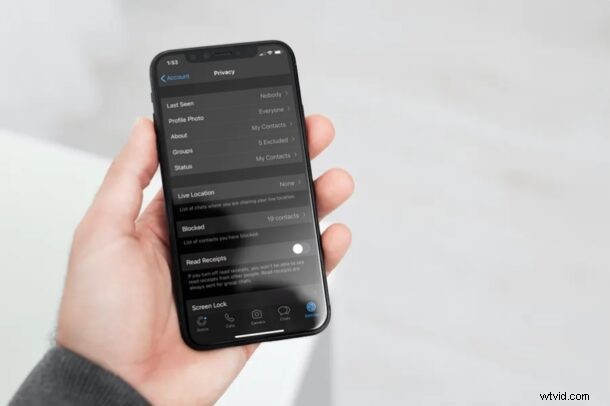
If you use WhatsApp to text your friends, family members, and colleagues, you might already be aware of the blue tick that indicates if your message has been read or not. But, did you know you can turn the read receipts feature off to stop people from being informed if you’ve read their messages on WhatsApp too?
For people who’re new to the platform or who aren’t aware, WhatsApp has a total of three indicators to inform you regarding the status of text messages you send. A single tick indicates that your message has been sent to WhatsApp’s servers. A gray double-tick indicates that your message has been delivered to the receiver’s device. Last, but certainly not the least, the blue tick indicates that the receiver has read your message.
Much like with iMessage, you can disable or enable blue ticks / read receipts in WhatsApp, and that’s what we’ll be covering here. We’ll be focusing on WhatsApp for iPhone, but the trick should be the same on Android as well.
How to Turn Off Blue Ticks / Read Receipts in WhatsApp
Disabling or hiding Read Receipts in WhatsApp is actually a pretty simple and straightforward procedure, regardless of what device you use the service on. Just follow the steps below to get started.
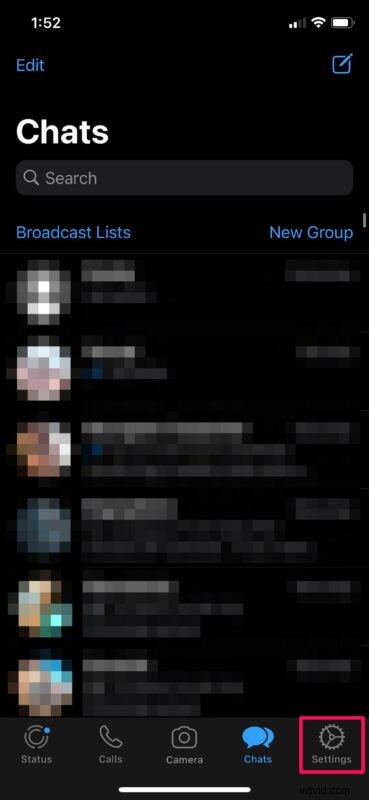
- Open “WhatsApp” on your iPhone.

- This will take you to the “Chats” section of the app. Tap on “Settings” located at the bottom-right corner of your screen.
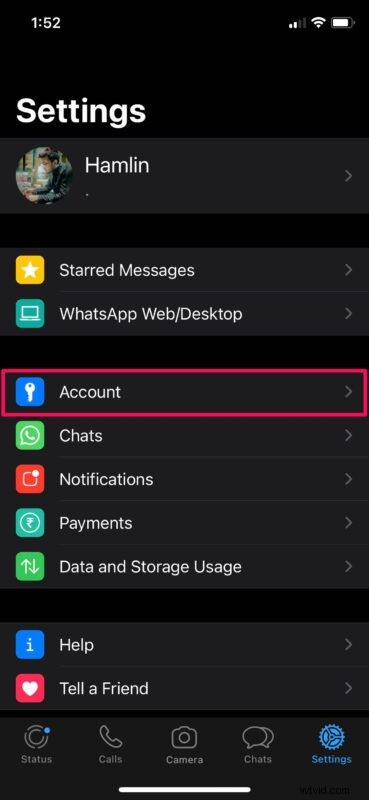
- In the settings menu, choose “Account” to manage your account settings.
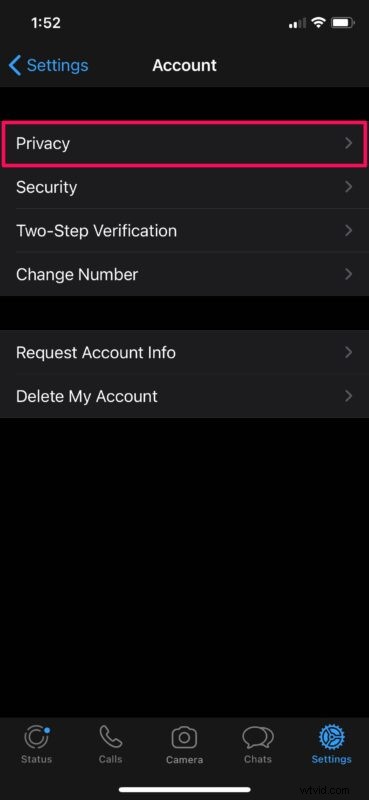
- Next, tap on “Privacy” which is the first option in the menu.
- Now, use the toggle to disable Read Receipts as shown in the screenshot below.
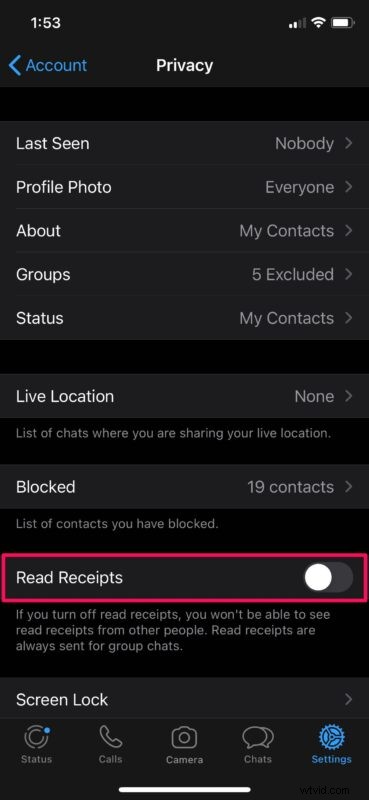
That’s all you need to do to disable the blue ticks and turn off read receipts for the texts you receive over WhatsApp.
There are two important things to keep in mind once you’ve disabled this feature. Firstly, you won’t be able to see read receipts for the texts you send to other people, just like they’re unable to see yours. Secondly, if you’re in a WhatsApp group, read receipts will be sent for all the messages, regardless of whether you have this feature disabled or not.
Read receipt isn’t the only feature that you can privatize in WhatsApp. Features like “Last Seen”, Status, About, and even your profile picture can be hidden from others too, if you prefer it. Additionally, you can even stop people from adding you to random WhatsApp groups that you have no interest in.
Although we were primarily focusing on the iPhone in this article, you can follow the above steps to turn off read receipts on your Android smartphone as well. You’ll just need to tap on the triple-dot icon at the top-right corner of your screen to access the settings.
And while this article is focused on WhatsApp, you can also disable read receipts for iMessage, or even enable or disable read receipts for specific contacts with iMessages too, a feature that is particularly handy for many users. Many other third party messaging apps also have features to toggle read receipts as well, so check their settings.
Did you disable and hide read receipts for your WhatsApp account? What are your overall thoughts on this neat privacy feature that works both ways? Share your thoughts and feedback in the comments.