

The popular WhatsApp messenger allows you to mark conversations as unread or read on iPhone. This can be helpful if you want to reply to a message later by emphasizing it’s unread, or perhaps you inadvertently opened a message in WhatsApp but want to keep it marked as unread. Similarly, maybe you want to ignore a WhatsApp chat and mark it as read so that it no longer appears as a new message.
Marking WhatsApp messages as read or unread is really easy on iPhone thanks to a simple gesture, let’s walk through how to perform this handy trick.
How to Mark WhatsApp Messages as Unread on iPhone
Want to change a WhatsApp conversation so it appears as Unread? Easy:
- Open WhatsApp if you have not done so already
- Swipe to the right on the WhatsApp message you want to toggle as unread
- Tap the “Unread” button when it becomes available to mark that message as Unread
- Repeat with other messages as desired
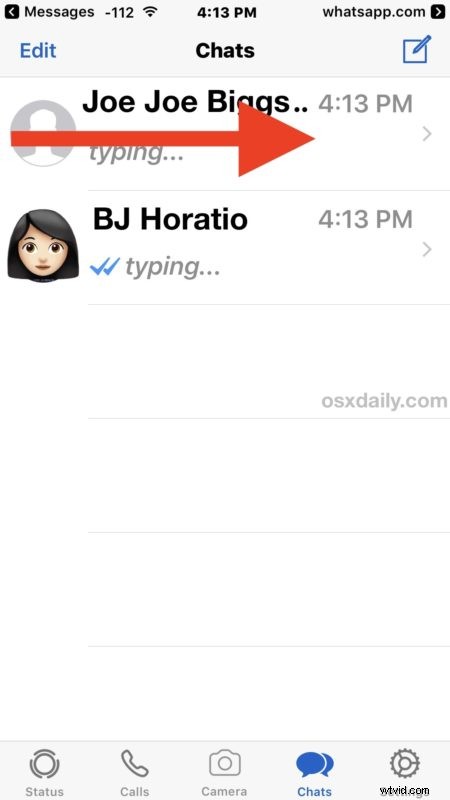
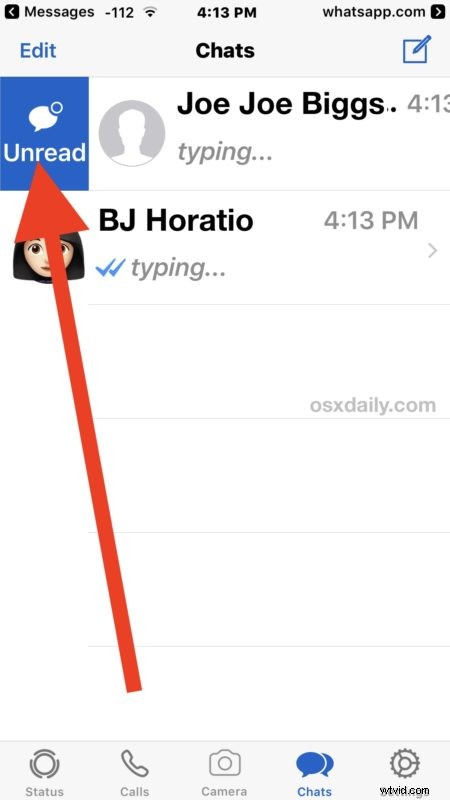
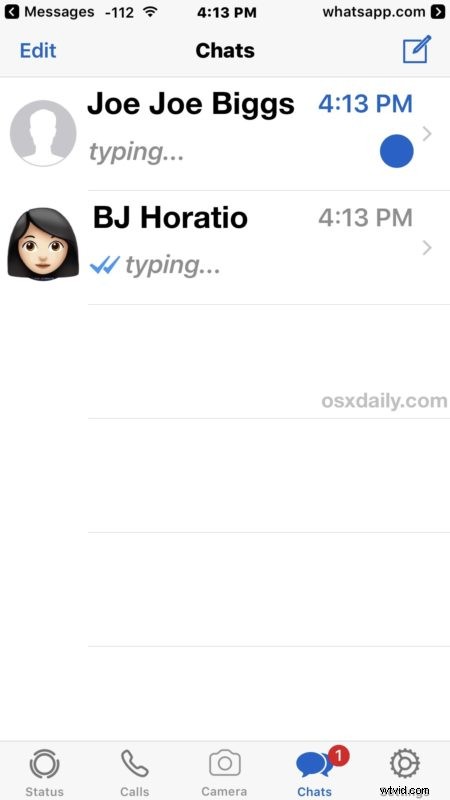
You’ll notice the message marked as “unread” will now have the blue dot indicating it is an unread message in WhatsApp, and the WhatsApp Chats tab will show a red indicator demonstrating the number of unread messages in the app.
How to Mark WhatsApp Messages as Read on iPhone
Changing an unread message to Read is equally easy:
- Open WhatsApp on the iPhone
- Swipe right on the WhatsApp message to mark as Read
- Tap “Read” button to change the message to Read
- Repeat with other WhatsApp chats if necessary
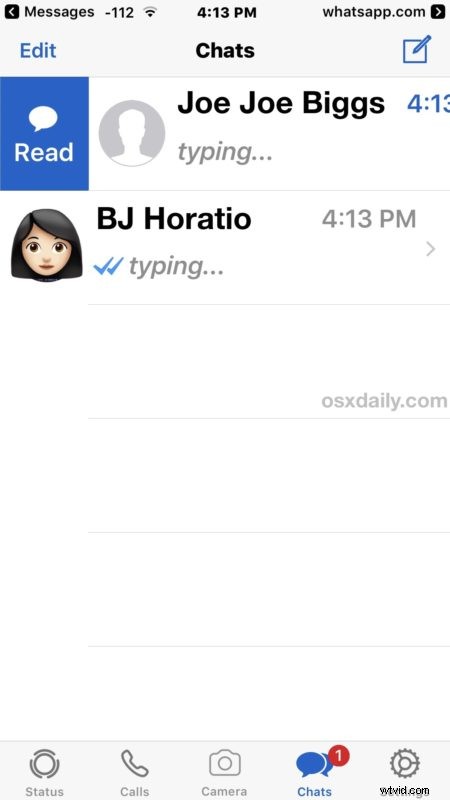
If you mark a WhatsApp chat as read, it will remove the blue indicator unread icon and it will also remove any badges on the app signifying there are unread messages (or at least for the number of chats you marked as read).
The swipe-right gesture to change a message to read or unread is actually the same as what you can use in iOS Mail to mark an email as unread or read, making the WhatsApp gesture consistent with some other iOS features. There is no way to mark iMessages as unread however in current versions of the Messages app for iPhone anyway, though you can bulk mark all messages as read in iOS.
Know of another handy WhatsApp trick? Let us know in the comments!