
It’s easy to fall behind on email and let unread messages build up over time, but the iOS Mail app offers an excellent solution to this problem by allowing users to enable a hidden optional “Unread” only email message inbox on their device.
Just as it sounds, the Unread message mailbox will display only the unread email messages that are within the Mail app of an iPhone or iPad, letting users greatly improve their email workflow and productivity. This can be in invaluable solution for those of us who are routinely overburdened with tons of emails, as it puts the requiring action unread message right in front of you, ready to be marked as read, responded to, forwarded, trashed, or triaged in another manner.
This tutorial will walk through enabling this incredibly useful mailbox option in the Mail app on any iPhone, iPad, or iPod touch.
Enable an “Unread” Email Message Inbox in Mail for iOS
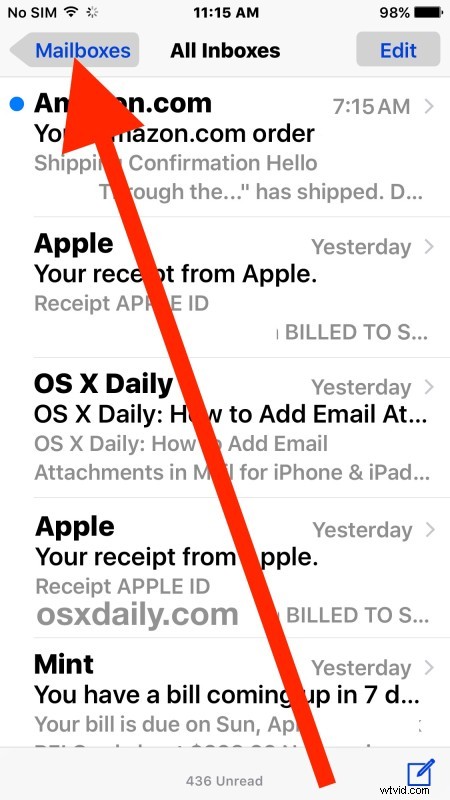
- Open the Mail app in iOS if you haven’t done so already and go to the primary mailbox screen
- Tap on the “Mailboxes” button in the upper left corner
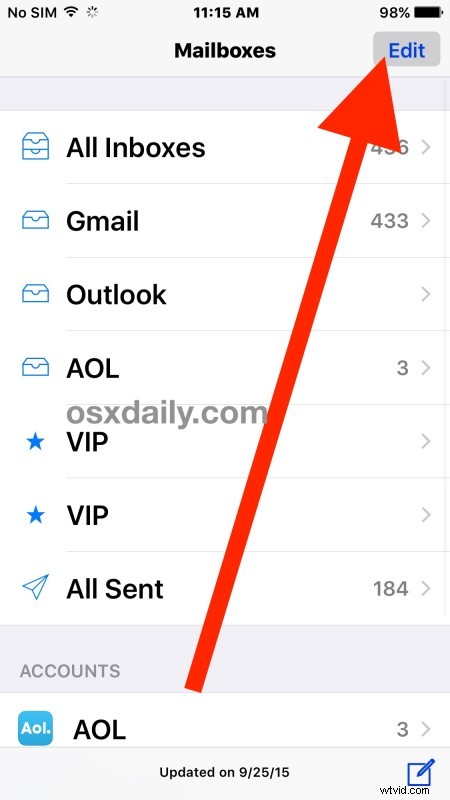
- At the mailboxes screen, tap on “Edit” in the upper right corner
- Locate the “Unread” mailbox and tap on it so that the blue checkbox alongside is checked, then tap on “Done”
- Still in the Mailboxes screen, now tap on “Unread” to open the Unread email only inbox view
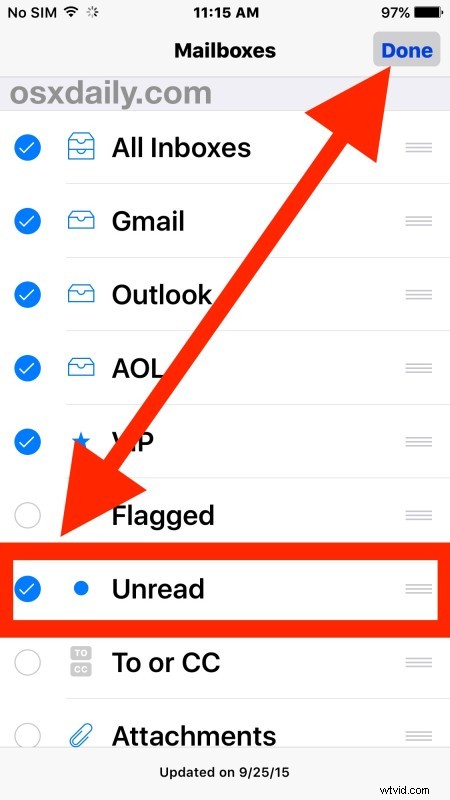
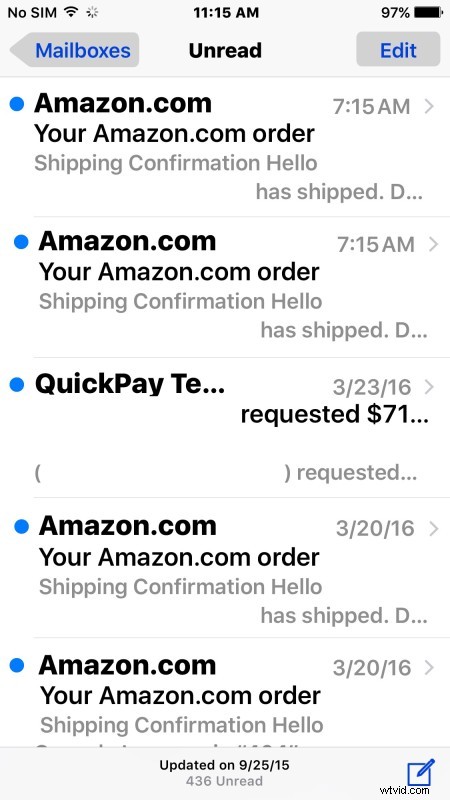
This will open a special email inbox that only shows the unread messages in Mail app on the iPhone, iPad, or iPod touch, making it a very efficient way to manage an unruly inbox and triage unread messages faster.
Mail users can return to their normal “everything” inbox by returning back to the “Mailboxes” view and choosing “All Inboxes” again, or selecting an individual email account, or another mailbox, as desired.
The Mail app in iOS has several other hidden mailbox options, with this Unread inbox and the email attachments inbox being perhaps the two most useful for those aiming to improve their email productivity.
For those users who have a Gmail account, you can use a special inbox sorting trick to show unread message in Gmail in the web client as well, which is equally as useful if you juggle between the iOS Mail app and Gmail.com in a web browser on another machine.
So, rather than hide the unread mail number on the icon, why not enable the unread-only mail inbox and tackle your emails head on? Even if you aren’t overloaded with hundreds of emails and mail messages every day on your iOS device, this can still be a great way to handle Mail on an iPhone or iPad, so give it a try.