
Wondering how you can update an email password on iPhone or iPad for the Mail app? If you changed the password to an email account that is used on iPhone or iPad, you likely want to update that email password so the email address account continues to work on that device.
This article will show you how to update an email account password for the Mail app on iPhone and iPad. This is usually only necessary if the email password has been changed, reset, or cleared.
How to Change or Update an Email Password on iPhone and iPad
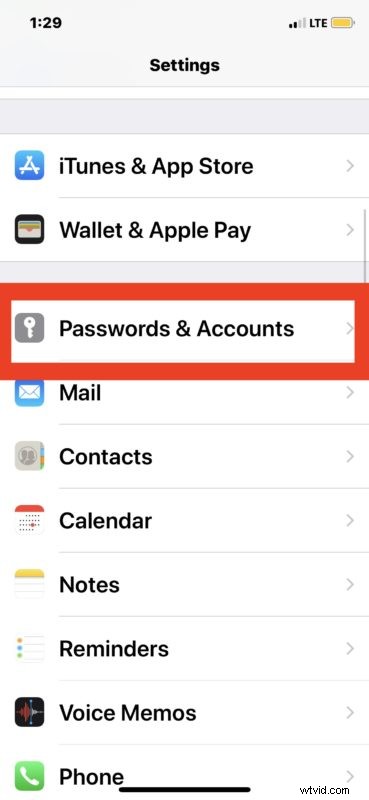
- Open the “Settings” app on iPhone or iPad
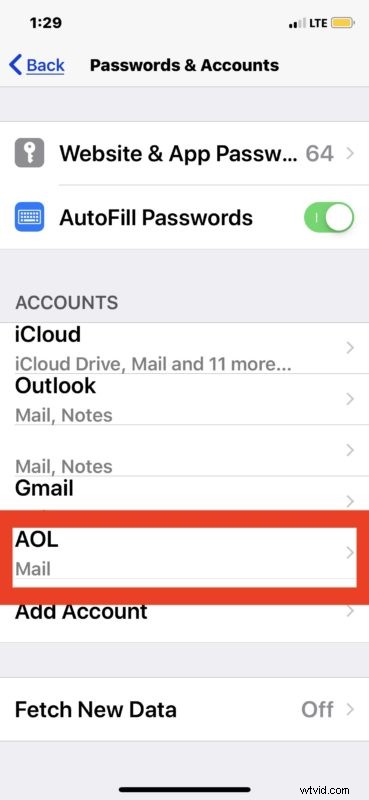
- Go to “Mail” (on earlier iOS versions, go to “Passwords & Accounts” or choose “Mail, Contacts, Calendars”)
- Tap on the email address account you want to update and change the email password for
- Tap the ‘Account’ field again to access email account login and server details
- Tap in the “Password” field and clear any existing password, entering the new changed password to update the email password, then tap on “Done” when finished
- Go back or exit out of settings when finished
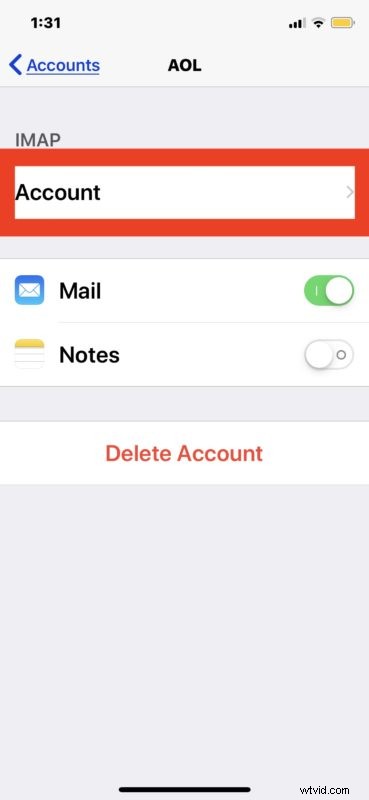
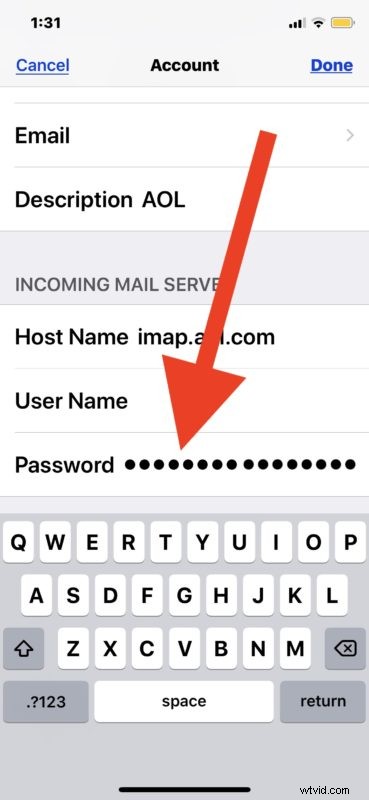
If you need to update and change any other email passwords you can do so the same way.
It’s always a good idea to confirm that the email account is working as intended after updating a password or changing a password. Simply opening the Mail app on iPhone or iPad and sending yourself an email using the account you updated the password for is usually sufficient to confirm that everything is working as expected.

If you have multiple email accounts setup for use in Mail app then changing the Sent From email address to the one you just updated the password for is recommended (note that does not change the default email address used on the device, it’s only for sending that specific email). If you can both send and receive the email just fine for the account that was updated, the password was updated successfully and you can go about your business. If it fails, you likely entered the password wrong when updating the field, so returning to the Mail settings and trying again is a good idea.
Remember, this is aimed at updating an email password that has been changed through the email service. For example, if you reset a password that was forgotten, or changed the email password to something different or more secure.
If you want to reset or change the email password to something totally different rather than simply update it, you would need to do that through the email provider separately, for example through iCloud, Gmail, Hotmail, Yahoo, Outlook, AOL, or whatever the email provider is. Then after changing the email password through the email service, you would use that changed password to update the email password on the iPhone or iPad.
You might also need to do this as a troubleshooting procedure sometimes, as sometimes some email providers appear to drop a password from the Mail settings, or if you change the Apple ID email or the email address linked to an Apple ID and had reset the password in that process too.