
The Personal Hotspot feature of iPhone and iPad cellular equipped models allows you to use the devices mobile connection as a wi-fi hotspot for other devices and hardware to connect to. It’s an incredibly useful feature that gets a lot of use for many users.
As you may have noticed when setting up and turning on Personal Hotspot, a wi-fi password is automatically generated and assigned to the Personal Hotspot router service, and it’s often a string of gibberish which is not exactly easy to remember or to easily tell someone else. With a simple effort you can change the wi-fi password of a Personal Hotspot in iOS to something much easier, here’s how you can do that.
Changing the Wi-Fi Password for Personal Hotspot in iOS
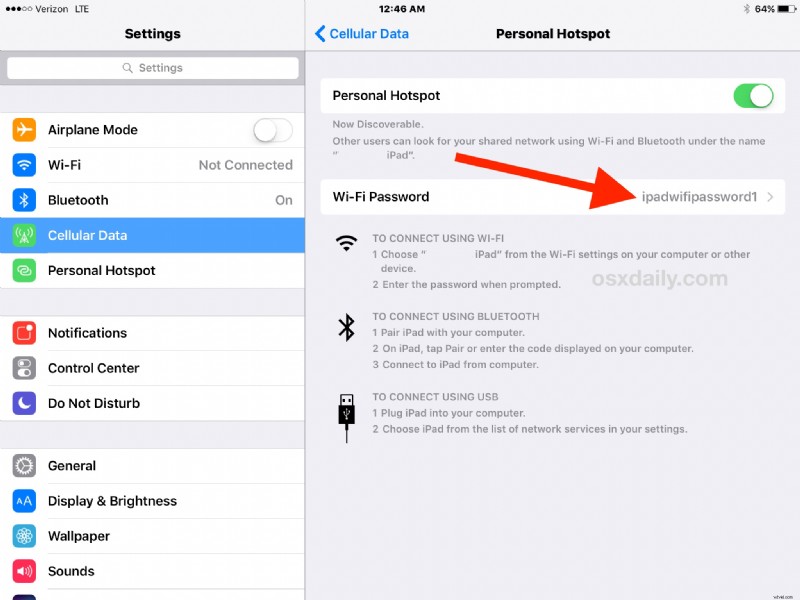
- Open the “Settings” app on the iPhone or iPad and go to “Personal Hotspot” (if it is not yet enabled, it can be found under Cellular Data)
- Turn Personal Hotspot On as usual and then tap on “Wi-Fi Password”
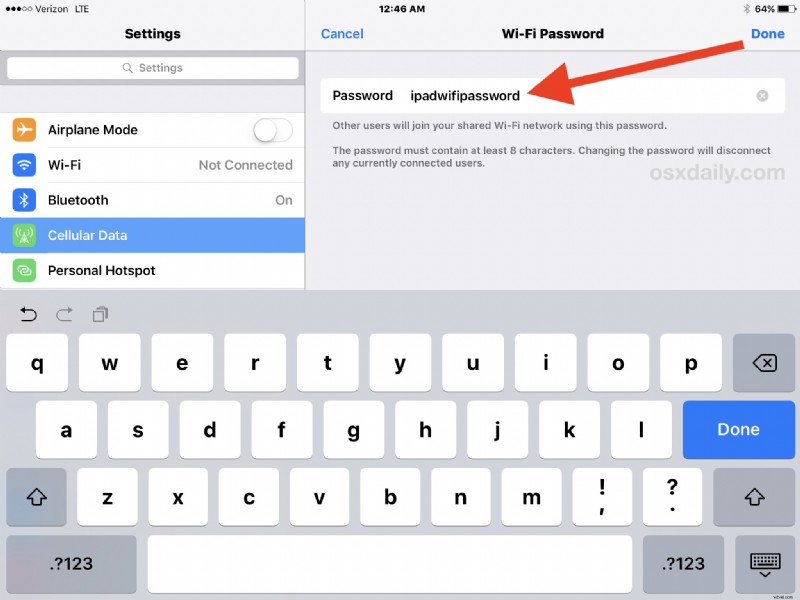
- Delete the existing password and re-enter a new one, it must contain at least 8 characters
- Tap “Done” when finished” and have future Personal Hotspot connections use the new wi-fi password to connect the iPhone or iPad
Note that when you change a wi-fi password in Personal Hotspot any currently connected devices will be disconnected, then they will need to reconnect with the new password, including any Macs that have been using the Instant Hotspot feature on a nearby iPhone.
Keep in mind that Personal Hotspot requires a cellular data plan that allows for the service, and it often entails new separate charges on a mobile network plan (particularly in the USA). If you don’t have Personal Hotspot, you’ll need to contact your network provider and be ready to fork over more cash to your favorite cellular cartel member