
Looking to change your Apple ID password from your iPhone or iPad? There are multiple ways to go about it, but the most convenient way would be to change it right from the comfort of your device.
Your Apple ID is important, and it’s used across various Apple services such as iTunes, iCloud, Apple Music, iMessage, App Store and more. Therefore, changing the password can be critical to keeping your account secure, particularly if you’ve had a security breach somewhere, or if someone had previously guessed your password. And it can also be necessary if you’ve forgotten your Apple ID password and want to reset it. Whatever the reason, updating your Apple ID password on an iOS or ipadOS device is a fairly simple procedure.
Read on to learn how you can change the Apple ID password from both iPhone and iPad in a matter of seconds.
How to Change Apple ID Password from iPhone or iPad
In order to be able to change Apple ID password from your device, you have to be using a passcode and two-factor authentication must be enabled on your Apple account. Therefore, make sure you’ve met the criteria and simply follow the steps below to change the password.
- Open the “Settings” app from the home screen of your iPhone or iPad.

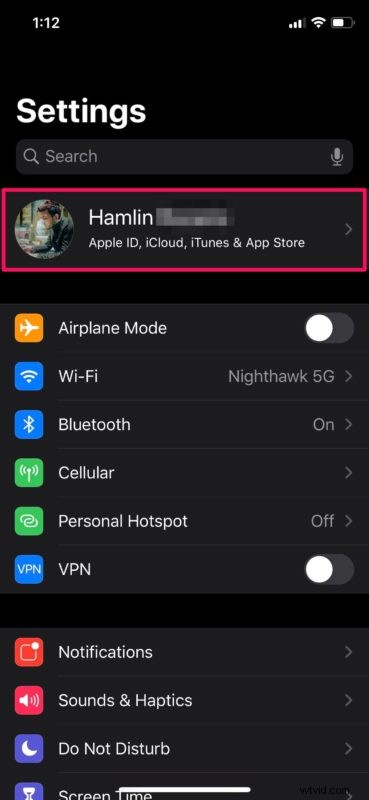
- In the Settings menu, tap on your Apple ID Name located right at the top.
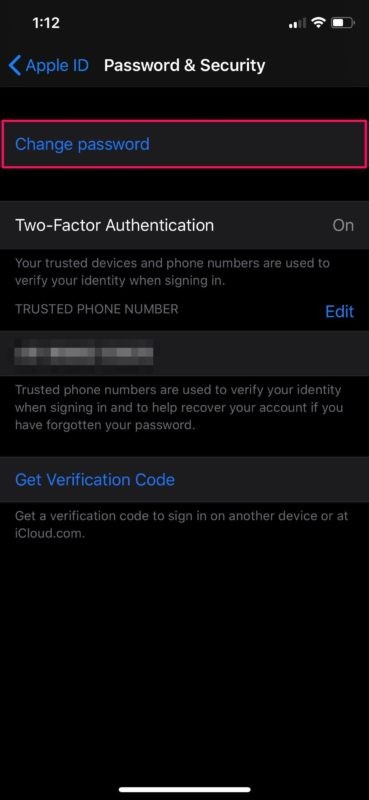
- Here, head over to “Password & Security” as shown in the screenshot below.
- In this menu, simply tap on “Change password”.
- You’ll be asked to enter your iPhone or iPad passcode before you’re able to proceed any further. This is just a security measure put in place by Apple.
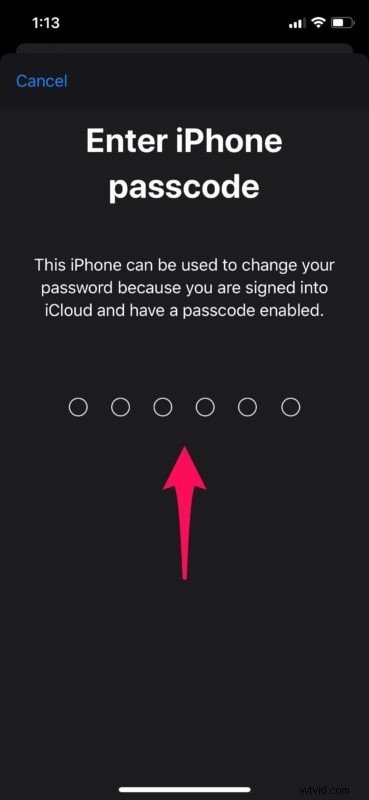
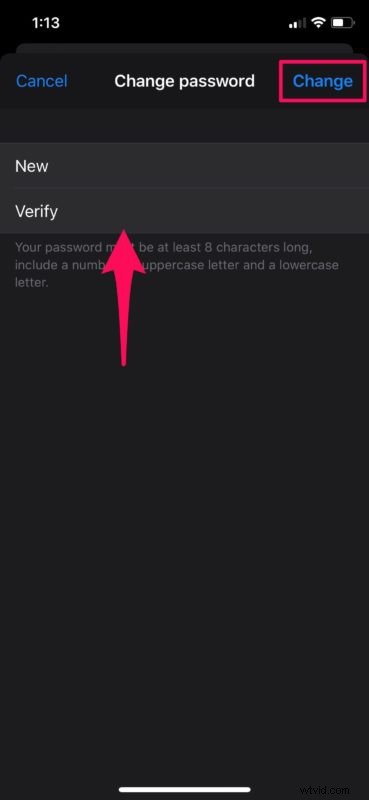
- Now, type in your desired password in both the “New” and “Verify” fields. Once you’re done, tap “Change” which is located right at the top-right corner of the screen.
That’s about it, you have now changed your Apple ID password right from your iPhone or iPad.
As you can see here, this is a fairly simple and straightforward procedure. If you’re unable to change your password on your iOS device, it’s very likely that you don’t have two-factor authentication turned on. So, make sure you set it up on Apple ID account webpage.
This is a great way to change your Apple ID password quickly, especially if you don’t remember your current password and don’t want to go through the hassle of resetting it on the Apple website or following the typical instructions for a forgotten Apple ID or password.
If you’re using an Android smartphone or tablet, you can still change your Apple ID password right from your device by heading over to the Apple ID account webpage using the web browser. This method works best for most people, since all you need is a device with a web browser.
Do you use a Mac? If so, you’ll be pleased to know that you can update your Apple ID password right on your macOS device by simply heading over to System Preferences from the Apple ID menu too.
It’s important to point out this is about changing the password used to login, which is not the same as changing the Apple ID itself that is in use on the device. That’s a separate process that has different implications.
Were you successful in changing your Apple ID password on your iPhone and iPad without any issues? Do you find this to be more convenient than the web browser method? Do let us know your thoughts and opinions in the comments section down below.