
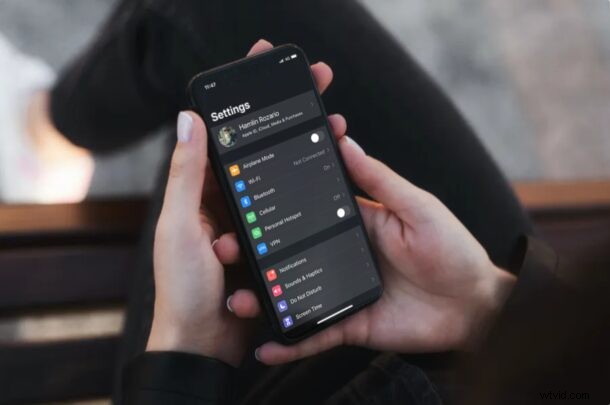
Are you looking to set a new profile picture for your Apple account? Fortunately, this is fairly easy to do and you can do this right from your iPhone or iPad within a matter of seconds.
If you haven’t set a profile photo for your Apple ID before, you might be tired of seeing the default icon. Or perhaps, you might just want to switch to a newer and better picture. Regardless of what your reason is, you can use any image that’s stored on your devices as your Apple ID profile picture. Keep in mind that these pictures show up in multiple apps and services like iCloud, Messages, Contacts, Mail, etc.
You might have a hard time trying to figure out how to change the picture especially if you’re new to the iOS ecosystem. In this article, we’ll cover how you easily can change your Apple ID profile on your iPhone and iPad.
How to Change Your Apple ID Profile Picture on iPhone & iPad
Changing the profile picture of your Apple account is a pretty straightforward procedure on any iOS device. Just follow the steps below to get started.
- Head over to “Settings” on your iPhone or iPad.

- In the settings menu, tap on your Apple ID name located right at the top.
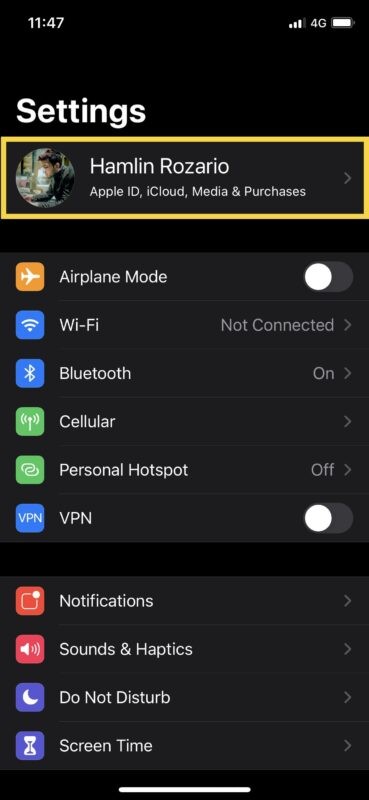
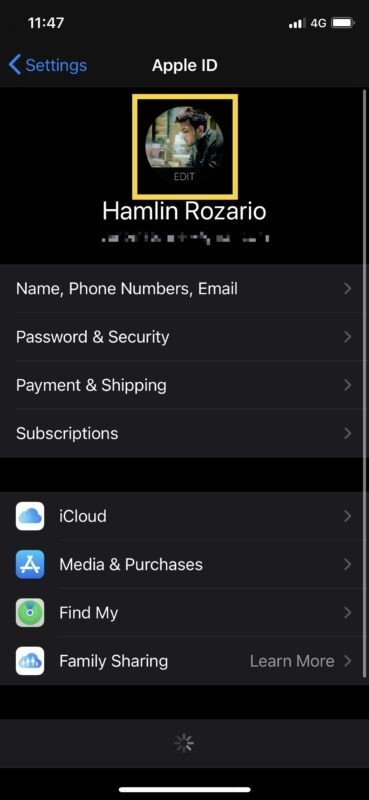
- Here, tap on the profile icon located just above the name, as shown in the screenshot below.
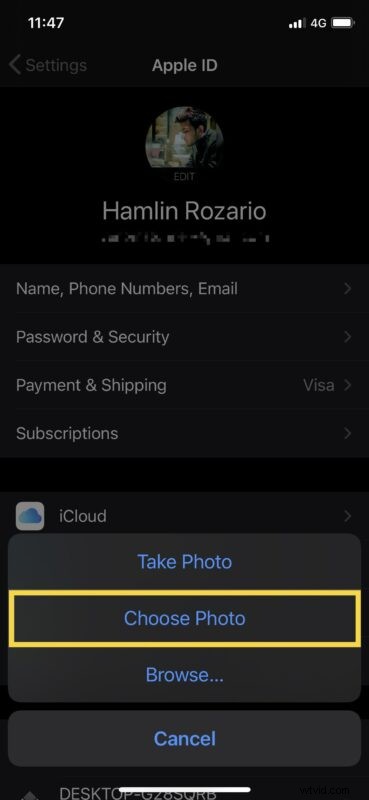
- Now, you’ll get a pop-up at the bottom of your screen. Tap on “Choose Photo” to browse through your photo library and find the picture that you want to use. You’ll be able to crop the picture here too.
Now you know how easy it is to set or change your Apple ID profile photo from your iPhone or iPad.
Once you’ve updated your Apple ID picture from your iOS device, it will be automatically synced across all your other Apple devices with the help of iCloud.
If you’re currently not using an iOS device, you can use iCloud.com to set a different profile picture from any device with a web browser. This is an alternate and easier method to change profile picture on a Mac or any other non-Apple device. Any changes you’ve made to the profile photo using iCloud will be synced across all your devices too.
If you’re a regular iMessage user, there’s a decent chance that you are looking to just add a profile picture for iMessages and leave everything else as it is. If that’s the case, you might be interested in learning how set a profile photo and display name for iMessages on both iPhone and iPad.
We hope you were able to change your Apple ID profile picture conveniently from your iPhone and iPad. How long did it take for the picture to sync across all your devices? Do share your valuable thoughts and experience in the comments section down below.