
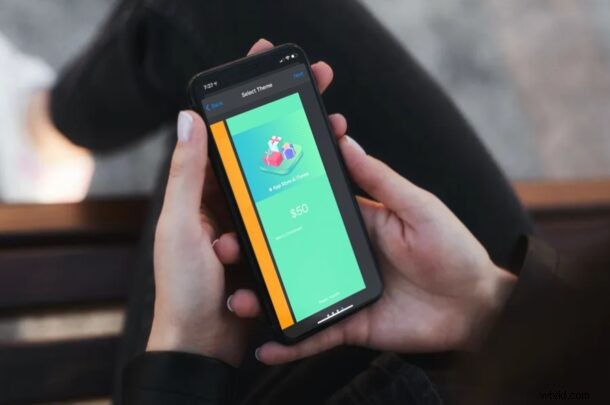
Not sure what to gift your friends or family members this holiday season? If you’re out of ideas, then sending Apple Gift Cards may be a pretty good option. Fortunately, you can do this right from the comfort of your home on your iPhone or iPad. How great and easy is that?
Apple Gift Cards can be redeemed as Apple ID Balance which can then be used for making purchases on the App Store, or paying for subscriptions to services like iCloud and Apple Music. Thanks to these Gift Cards, you can send funds to another Apple account even if it doesn’t have a linked payment method. This could come in handy if you want to let your kids buy apps or pay for services without giving them access to your credit card too.
Interested in making good use of the gift cards feature? We’re here to help. In this article, we’ll be guiding you through the necessary steps to send Apple Gift Cards from an iPhone and iPad.
How to Send Apple Gift Cards from iPhone & iPad
As long as your device is running a recent version of iOS or iPadOS, the following steps are going to be fairly identical. Let’s check out how this works:
- Launch the “App Store” app from the home screen of your iPhone or iPad.

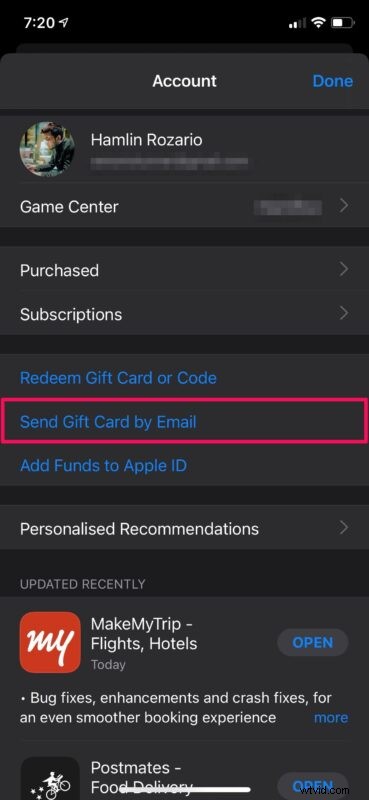
- Tap on your Apple ID profile icon located at the top-right corner of the screen.

- Next, choose “Send Gift Card by Email” as shown in the screenshot below to proceed further.
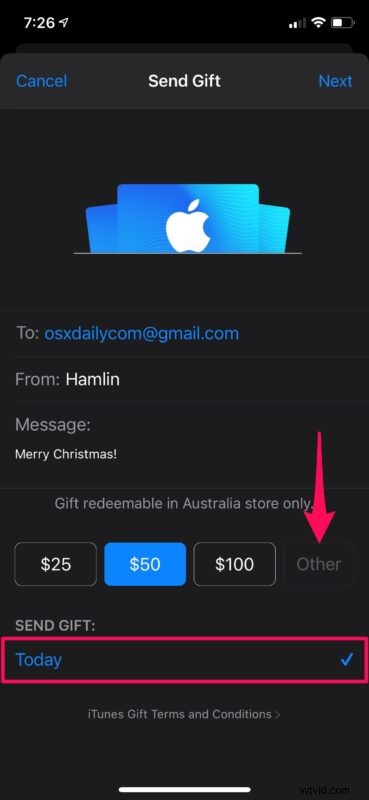
- Now, enter the recipient’s email address fill in the rest of the details. Select the amount you want to send as a gift card. You can select “Other” if you want to enter a custom value. If you want to send the gift card at a later date, you can schedule it by tapping on “Today”.
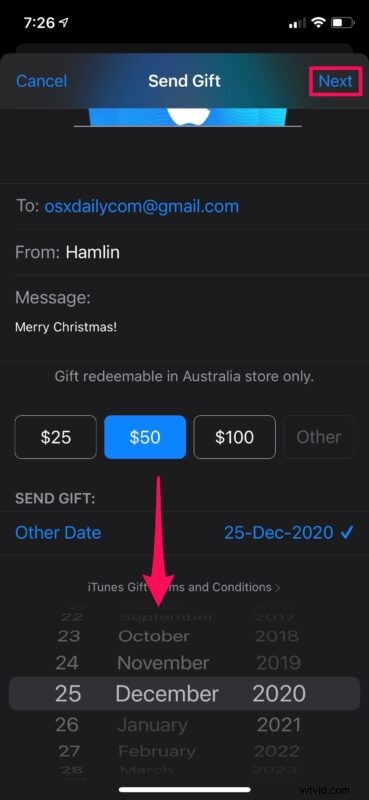
- Next, select your preferred date for sending the gift card and tap on “Next” located at the top-right corner of the screen.
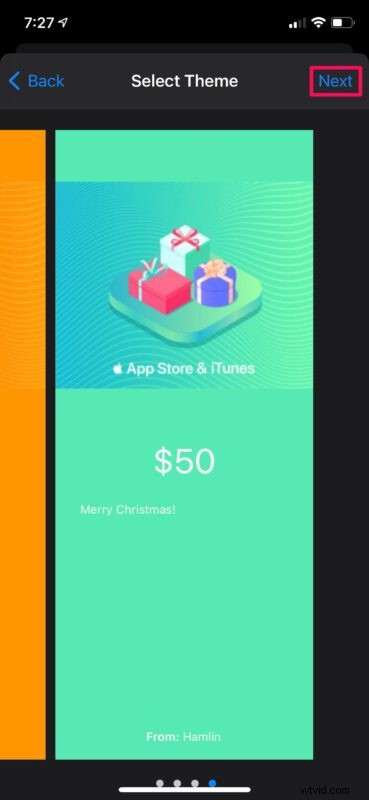
- Here, you’ll be able to choose the theme for the gift card. Tap on “Next” to continue.
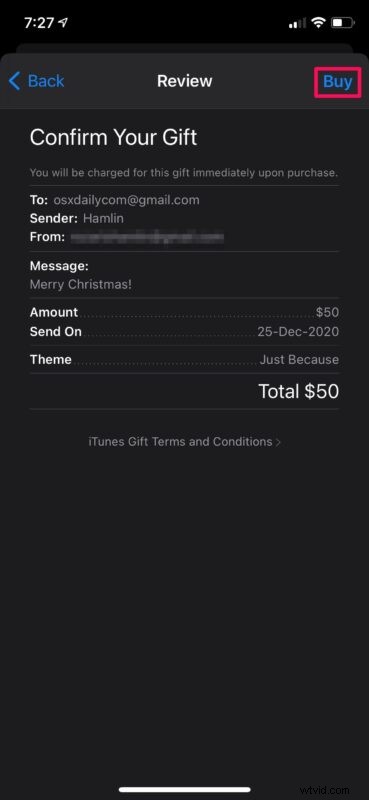
- Now, you’ll be prompted to confirm your gift. Make sure all the details are accurate and then tap on “Buy” to make the purchase. Whether you’re sending the gift card on the same day or you’re scheduling it for a later date, you will be charged immediately.
There you go. Now you’ve learned how to send gift cards right from your iOS device. That makes shopping for gifts pretty easy, right?
With this feature, you can conveniently transfer funds to a family member’s Apple ID as they can redeem the gift card amount for App Store purchases and subscriptions. You no longer need to share your credit card details with them for making payments.
Although this is the easier way to transfer funds to a different Apple account, you can also manually add funds to the account using the valid payment method that’s linked to it. For example, if you have access to your kid’s iOS device, you can temporarily link your credit card and add funds as Apple ID balance.
And there’s also Apple Cash, which lets you send funds back and forth as easy as messaging users, but that’s a different feature entirely and limited only to the USA at the moment, which we’ll cover in another article.
Are you looking to set up a new Apple account for one of your kids? In that case, we’d like to inform you that you can create an Apple ID without even adding a credit card by simply trying to download a free app from the App Store.
Whether it’s to send gifts to your friends or transfer funds to your family member’s account, we hope you were able to take full advantage of Apple’s Gift Cards feature on your iPhone and iPad.
Do you think you’ll use this feature to send gifts during the holidays, birthdays, or some other celebratory event? Share your opinions, insights, and comments!