
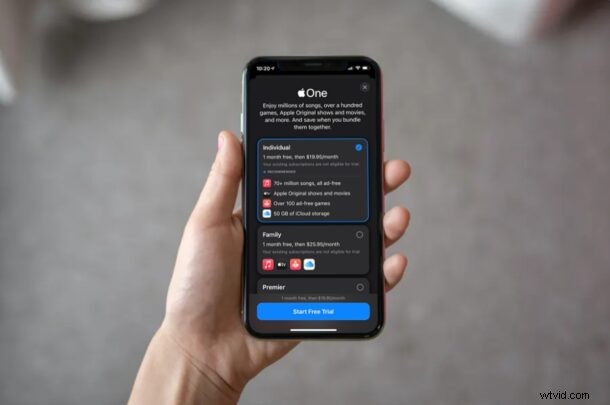
Are you subscribed to multiple Apple services like iCloud, Apple Music, Apple TV+, Apple Arcade, and more? In that case, you’ll certainly want to check out the new Apple One subscription bundle, as it will likely save you some cash. Plus by rolling all of the Apple subscriptions into one, you may find it easier to manage.
Apple One is the company’s latest attempt to push their first-party services to the users. It’s a subscription bundle that combines all major Apple services and puts it under one monthly payment. Subscribing to Apple One rather than individually paying for various services could help you cut down monthly costs. Most of you may not exactly use all of the services in the bundle, but even if you take advantage of three services, Apple One is a tempting deal.
If you’re not convinced yet, Apple is currently offering a free one-month trial to any of the Apple One plans. In this article, we’ll be covering how you can subscribe to Apple One on your iPhone and iPad.
How to Subscribe to Apple One on iPhone & iPad
If you’re trying to figure out how to subscribe to Apple One, simply follow these steps below to get started:
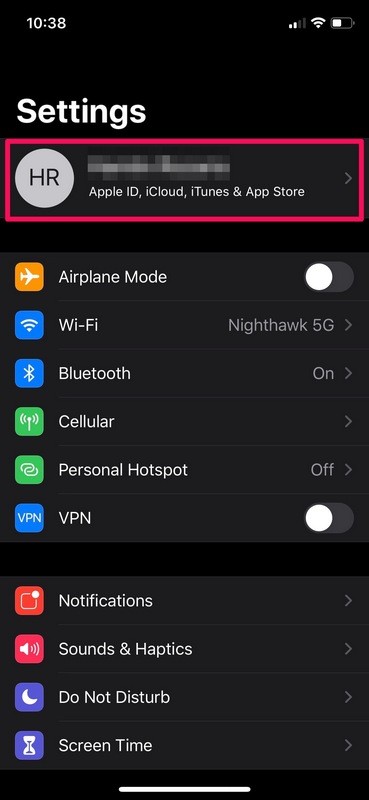
- Head over to “Settings” from the home screen of your iPhone or iPad.

- In the Settings menu, tap on your “Apple ID Name” located right at the top.
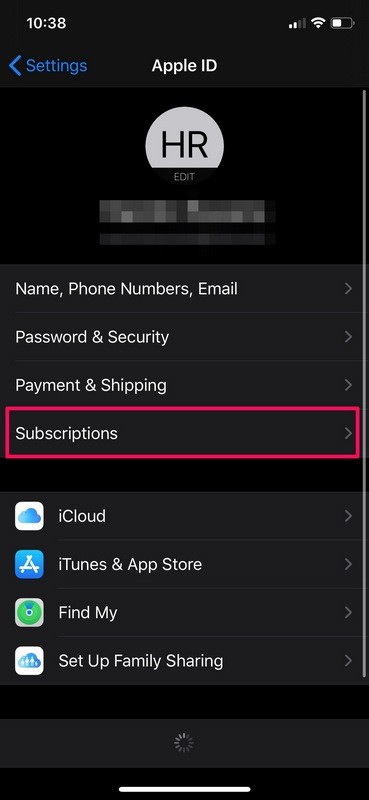
- Next, tap on “Subscriptions” located just above iCloud as shown in the screenshot below.
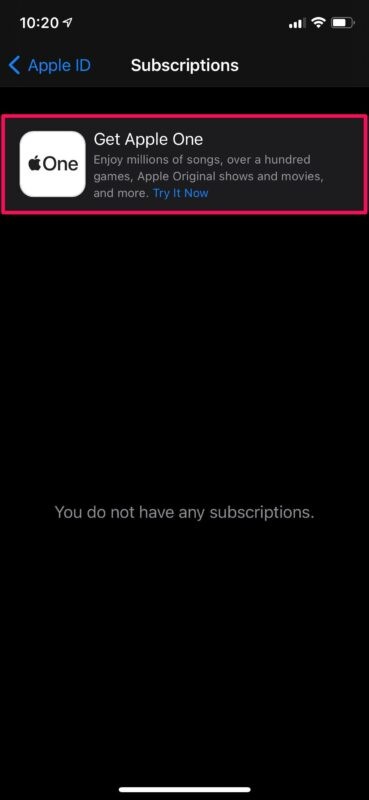
- Here, even if you haven’t subscribed to any services, you’ll see an advertisement for Apple One at the very top. Tap on “Try It Now” to get started.
- Now, you’ll be shown the pricing for all the available Apple One plans and what services are included in them. Select any plan of your choice and tap on “Start Free Trial” at the bottom.
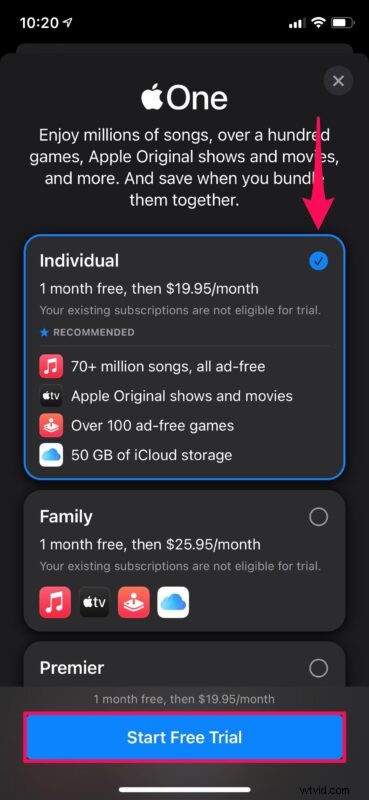
That’s pretty much all there is to it. You’ve successfully managed to subscribe to Apple One from your iPhone and iPad.
You won’t be charged by Apple until the trial period ends, so you have a whole month to check all the services out for yourself and see if they’re worth the asking price. If you aren’t interested in paying for it, you’ll need to manually cancel your Apple One subscription from the subscriptions menu to avoid getting charged once the trial expires.
If you don’t see the Apple One advert, it’s likely that you’re residing in an unsupported region. Apple One is currently available in over 100 countries. You can check the availability for your country from this Apple support page. Additionally, not all Apple One tiers are available everywhere. As of this writing, the Premier plan is only available in the US, UK, Canada, and Australia where Apple News+ is available.
The Individual plan gives you access to Apple Music, Apple Arcade, Apple TV+, and 50 GB of iCloud storage. The upgraded Family plan gets you the same list of services with 200 GB of iCloud storage and supports family sharing. Lastly, the highest-end Premier tier gets you access to 2 TB of iCloud storage, Apple News+, and Apple Fitness+ in addition to the rest of the services.
It’s worth pointing out that Apple One pricing varies by region. For people living in the United States, the base Individual and Family plans cost $14.95 and $19.95 per month respectively. The Premier tier will set you back at $29.95 per month. Unfortunately, there are no yearly plans for Apple One just yet.
We hope you were able to subscribe to Apple One and take advantage of the free trial to make a good decision. How do you feel about the pricing? Is it cheap where you live? Do share your valuable thoughts and opinions in the comments section down below.