
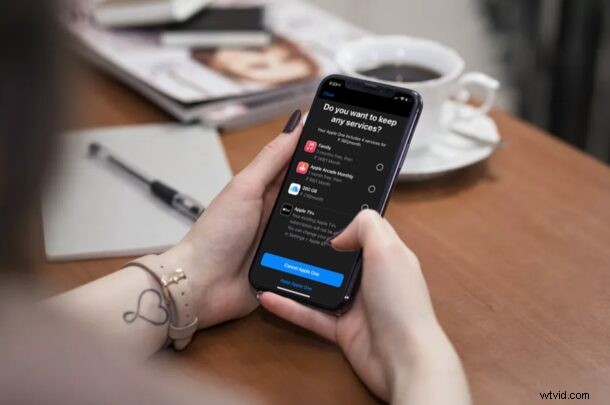
Did you give the Apple One subscription trial a try, but determined you not interested in paying for Apple One? Perhaps, you just wanted to check out all the services and changed your mind? In that case, you may want to cancel your free Apple One trial before it expires to avoid getting charged by Apple.
Apple One subscription bundle brings together all major Apple services under one monthly payment. Although the bundle helps users save a lot of money in the long run, it’s not for everyone. This is because most people don’t really use all the services in a bundle. Some people may just be interested in Apple Music, whereas others would rather want more iCloud storage. In these cases, paying for individual services might be the better option, especially if you opt for the annual plan that comes with its own savings. So perhaps you gave the free month trial a run and determined it’s not right for you.
If you feel like Apple One isn’t going to be worth the price, here’s how you can end your free Apple One trial subscription right from your iPhone and iPad.
How to End the Free Apple One Trial Subscription on iPhone & iPad to Avoid Getting Charged
Ending the subscription is simple enough:
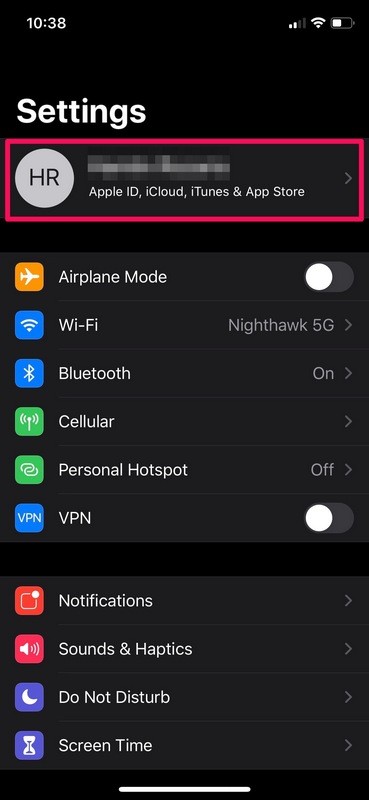
- Head over to “Settings” from the home screen of your iPhone or iPad.

- In the Settings menu, tap on your “Apple ID Name” located right at the top.
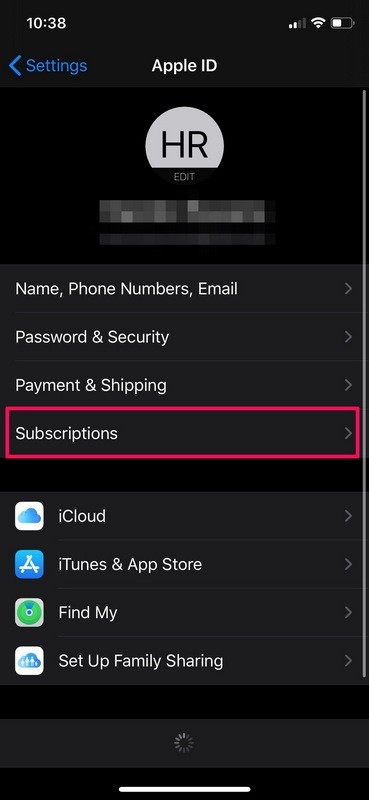
- Next, tap on “Subscriptions” located just above iCloud as shown in the screenshot below.
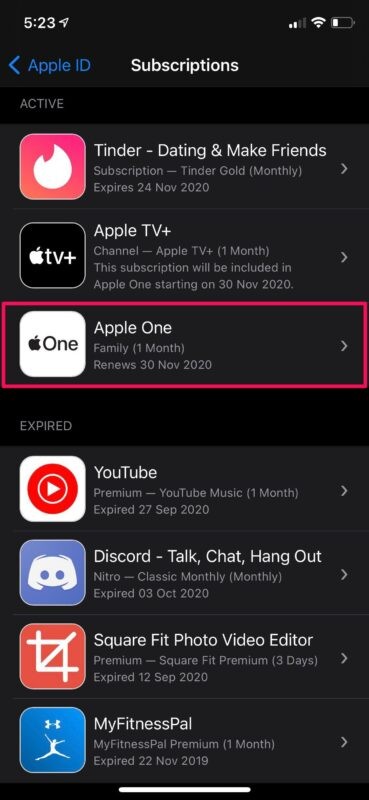
- Here, you’ll be able to see “Apple One” among the list of your subscriptions. Tap on it to continue.
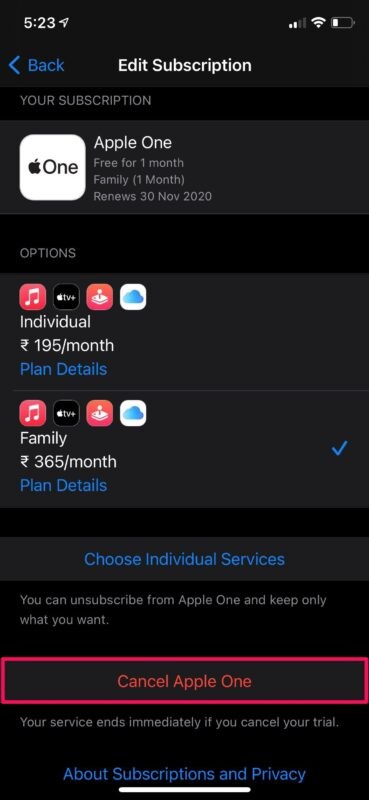
- In this menu, you’ll have the option to switch to a different subscription plan. At the bottom of the menu, you’ll find the option for cancellation. Tap on “Cancel Apple One” to get started.
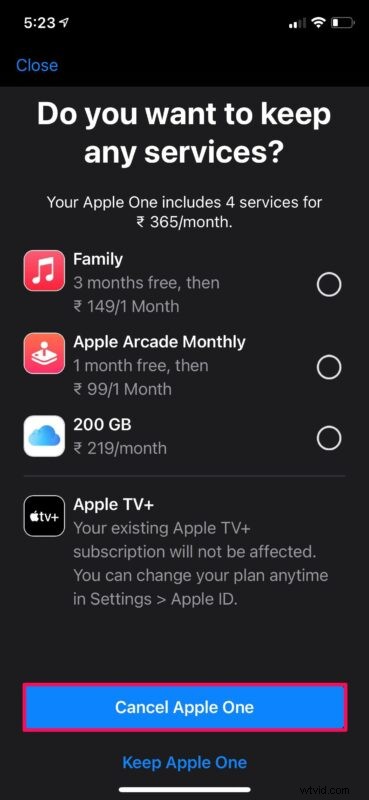
- Now, you will be prompted to select one of the services you’re interested in keeping. You’ll have to pay for them individually. If you’re not interested, just tap on “Cancel Apple One” and you’re good to go.
That’s it. Now you how to end or cancel your free Apple One trial from your iPhone and iPad.
You can follow these exact steps to cancel any other subscription on your iOS device too.
Unlike most other subscriptions that you can continue using until the expiry date, canceling your Apple One trial will end all the benefits immediately. Also, once you cancel the trial, you will no longer be able to reactivate the trial later on.
Apple One’s value heavily depends on how many Apple services that you currently use and the pricing for your region. In the United States, the base Individual and Family plans cost $14.95 and $19.95 per month respectively. The Premier tier will set you back at $29.95 per month. For example, if you just use Apple Music and Apple TV+, paying for them individually will set you back at $14.98, but Apple One gives you access to Apple Arcade and 50 GB of iCloud storage space as well for the same monthly price.
Another way to save money on Apple’s services is by opting for the yearly plans that let you save around 10-20% as opposed to a monthly subscription. However, the yearly plans are limited to individual services as no annual plans have been announced for Apple One just yet.
What do you think of the Apple One subscription? Do you use all the Apple services, or only a few?