
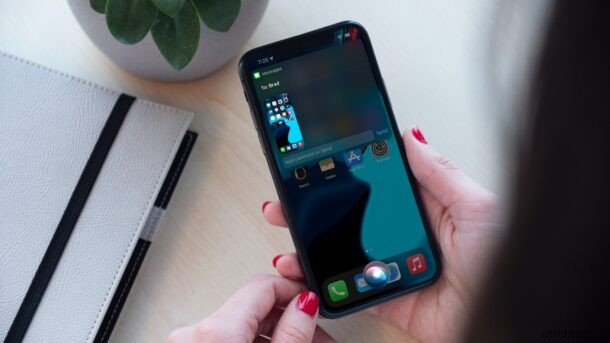
Taking screenshots is a common activity for iPhone users nowadays. Often people use screenshots to share things displayed on their screen, since it’s one of the fastest and most convenient ways to share content as an image. So, wouldn’t it be nice to use Siri to take screenshots and share them?
Typically, you’d take a screenshot on your iPhone by pressing the Power button and the Volume button simultaneously. While this is already easy, Apple has made it even easier to share screenshots with from the iOS 15 software update and onward. You can now use Siri to take a screenshot, and share it with your contacts. You don’t even have to press a button this way, it’s all voice commands.
How to Take & Share iPhone / iPad Screenshot with Siri
Make sure your iPhone or iPad is running iOS 15/iPadOS 15 or later since this feature isn’t available on older versions.
- Start by saying, “Hey Siri, share a screenshot.” Siri will now ask you to name the contact you want to send it to. You can skip this by saying, “Hey Siri, share a screenshot with [contact].”
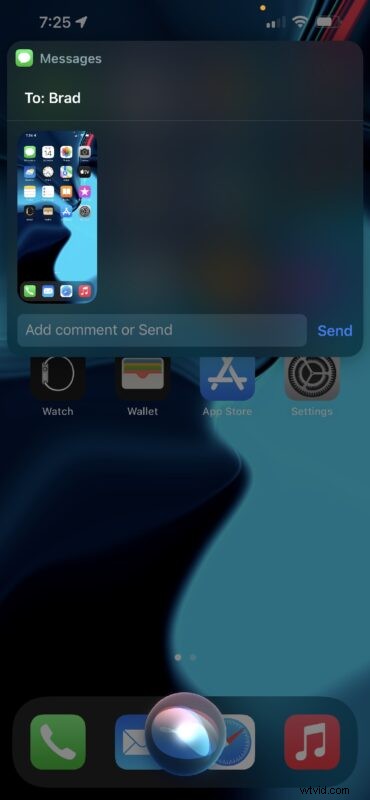
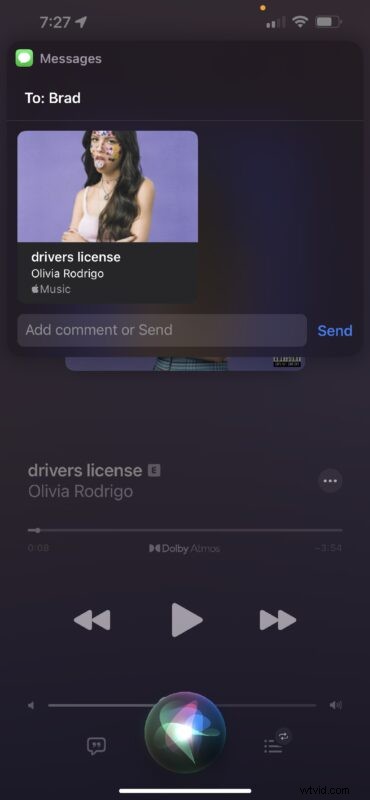
- Alternatively, simply saying “Hey Siri, share this with [contact].” will also take a screenshot depending on the app you’re using. However, some apps like Apple Music, Apple Podcasts, etc., will simply share a link to the content instead of a screenshot.
It’s really that simple. Next time, you can just use Siri to share screenshots instead of pressing buttons.
One of the best things about sharing screenshots with Siri is that the images are temporarily saved to the clipboard and not physically saved on your iPhone. This means you don’t have to go back to your photo gallery and delete the screenshots you took later. It’s kind of like the good old ‘Print Screen’ functionality from the Windows world, but on the iPhone and iPad.
This is just one of the several new features that iOS 15 brings to the table. Besides sharing content and screenshots with Siri, the voice assistant finally gets support for on-device speech processing, meaning you can get a lot of things done without relying on the internet. You can launch apps, make phone calls, or send texts with Siri entirely offline.
Aside from screenshots, you might be wondering about using Siri to take photos, also using your devices camera. It turns out you can do that, but it requires using Shortcuts, for the time being anyway.
Did you use Siri to share screenshots from your iPhone effortlessly? Will you be using this Siri screenshot feature often? Let us know your thoughts in the comments.