

Want to make booking an Uber ride even easier from iPhone? Try ordering an Uber ride with Siri, your phones built-in personal AI assistant.
Uber is the incredibly convenient ride service that will take you just about anywhere you want to go, and Siri is the incredibly convenient virtual assistant that can perform all sorts of helpful tasks for you – so why not maximize the convenience and combine the utility of the two?
How to Order an Uber with Siri from iPhone
You will need the Uber app installed on your iPhone to be able to use this feature available to Siri.
- Summon Siri on the iPhone as usual, by using “Hey Siri”, holding the Side button, or holding the Home button
- Tell Siri “give me a ride with Uber”, or some variation of that language, then confirm that Uber can access your data
- Select the type of Uber car ride to get, and continue the process of booking your Uber ride
- Confirm that you want to order the Uber
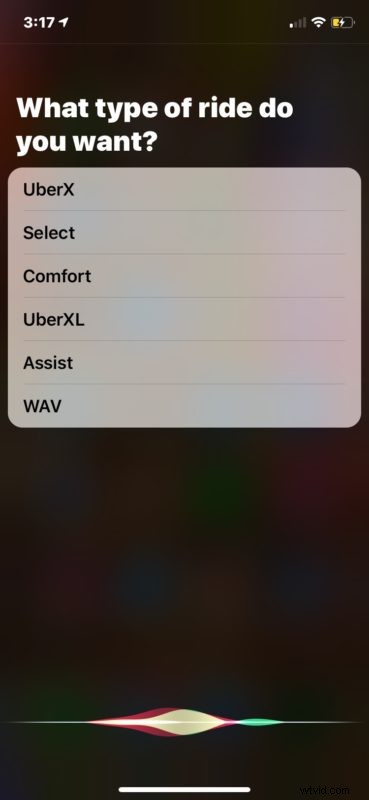
That’s all there is to it, ordering an Uber with Siri is possibly even easier than ordering an Uber without Siri, and it’s a bit more hands free.
Uber obviously uses your location to have the driver be able to find you for your ride, but if you’re confused and lost remember you can also ask Siri for your current location too.
As mentioned before, if you don’t already have Uber on the iPhone, this capability will not work. Thus you’d need to download and install the Uber app to perform this activity of ordering yourself a ride. You can download Uber free from the App Store here if you need to.
For maximum convenience with ordering Uber with Siri, using Hey Siri voice commands is perhaps the simplest, so if you have previously turned off Hey Siri then you’d need to turn it back on again to gain that particular capability.
Likewise if you ever completely disabled Siri on iPhone then you’d need to turn the feature back on before any of this works.
Similar capabilities of ordering rides through Siri probably exist with Uber competitors like Lyft as well. as long as you have those ride sharing and taxi-competitor apps installed on your iPhone too. But of course here we’re focusing on Uber, which is perhaps the most popular and ubiquitous ride app and service out there.
Have you ordered an Uber with Siri before? Do you prefer to use the Uber app? Let us know your thoughts in the comments below.
And even if this particular Siri tip isn’t up your alley, don’t forget to browse through our Siri articles here and you’ll surely find something that is.