
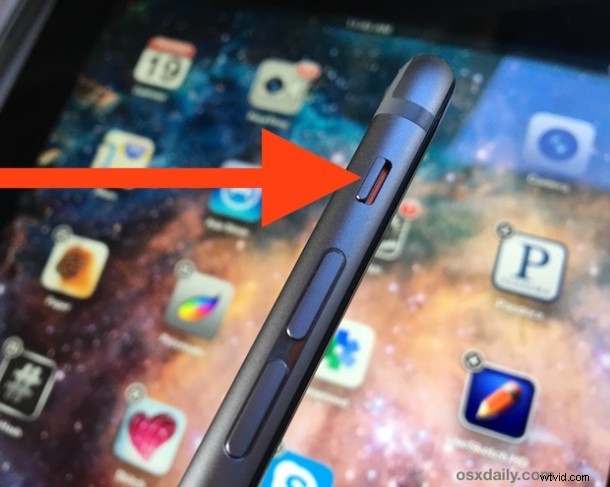
The ever helpful and sometimes comical Siri is a rather vocal virtual assistant, defaulting to speaking back a response to directions and commands. But if you want to hush that Siri voice feedback response while still using the feature for commands and queries, you can enable an optional setting that causes Siri to obey the broader iPhone and iPad hardware mute switch.
Muting Siri with the hardware switch is an easy setting to turn on, but it’s a bit buried and worded a little strange, so don’t be surprised if you overlooked it when wandering around in Settings.
Enable Siri Muting & Unmuting with the Hardware Switch on iPhone & iPad
- Open Settings and go to “General” then to “Siri”
- Choose “Voice Feedback” and select “Control with Ring Switch” (yes, the Mute switch on the side of the iPhone and iPad is referred to as the ‘Ring Switch’ here, but it’s the mute button you know and love)
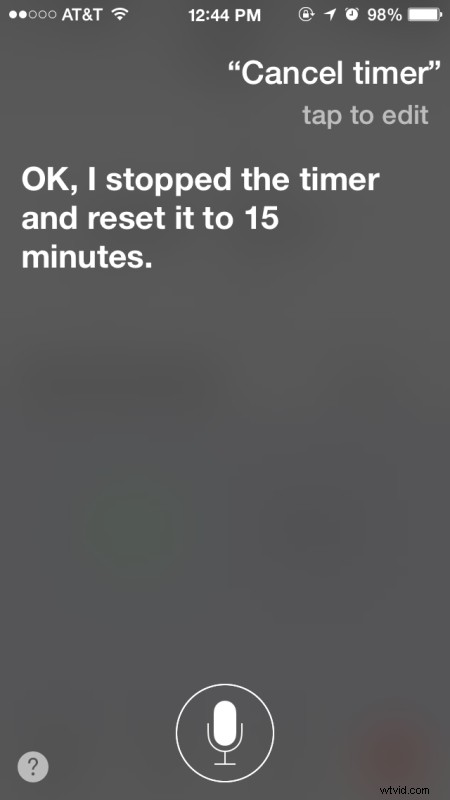
- Leave Settings and activate Siri with the mute switch enabled, Siri will respond in text and on screen only, without blabbing the answer to the world
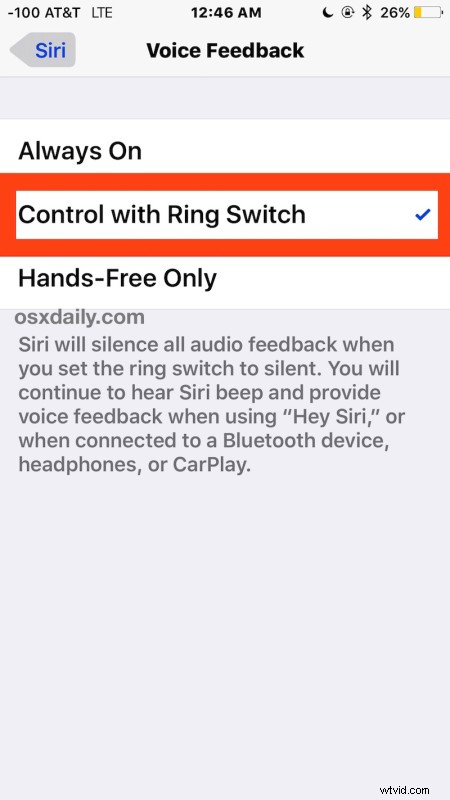
Siri works exactly the same as it did before, but you won’t hear any voice feedback if the mute switch is toggled on, even if you use the Hey Siri command handsfree from afar.
Silence Siri with the Mute Switch
Flipping the Mute switch (or the ring switch, or the silent switch, both of which Apple sometimes calls it) will make Siri completely quiet in responses.
Note that if on iPad you have the mute switch set to orientation lock
Letting Siri Talk Again by Unmuting
Toggling the mute switch again will allow Siri to blab aloud just as you’d expect, perhaps ready to interrupting a press conference or vocalizing opinions and statements out of nowhere again if you’re lucky.

This trick is aimed at a friend of mine who I noticed was actually turning off Siri completely because they didn’t want the voice feedback, a bit overkill and unnecessary if all you want is to read the text on screen rather than having the iPhone or iPad talk back to you. Instead, just enable the switch setting, then you can hush and mute Siri whenever you want, and let Siri talk again when you do want to have voice feedback.