

Ever wondered how you could mute and unmute an entire Zoom meeting, not only yourself? Want to know how to mute and unmute just yourself and your own microphone in Zoom?
If you use Zoom with an iPhone, iPad, or Android, then you’ll find that knowing how to mute and unmute yourself, as well as the entire Zoom conference, are important starting points to mastering your engagement with the Zoom client.
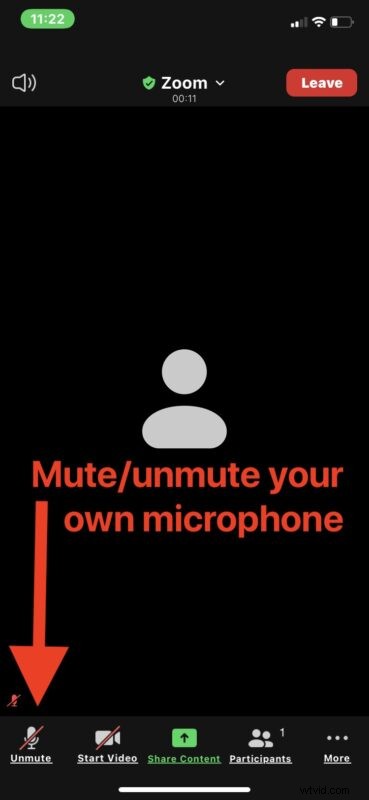
Mute & Unmute Yourself on Zoom (Muting Your Microphone) for iPhone & iPad
The ability to mute and unmute yourself is simple in Zoom on iPhone, iPad, and Android. If you’re already familiar with turning off your camera and microphone in Zoom then you’ll find this is familiar to you.
- From an active Zoom meeting, look near the bottom left corner of the iPhone or iPad screen and tap on the “Mute” / “Unmute” button
Mute the Entire Zoom Meeting on iPhone & iPad
If you want to mute (or unmute) the entire meeting audio, you can easily do that as well with the touch of a button:
- From an active Zoom meeting, look near the upper left corner and tap the speaker button to Mute / Unmute the entire meetings audio
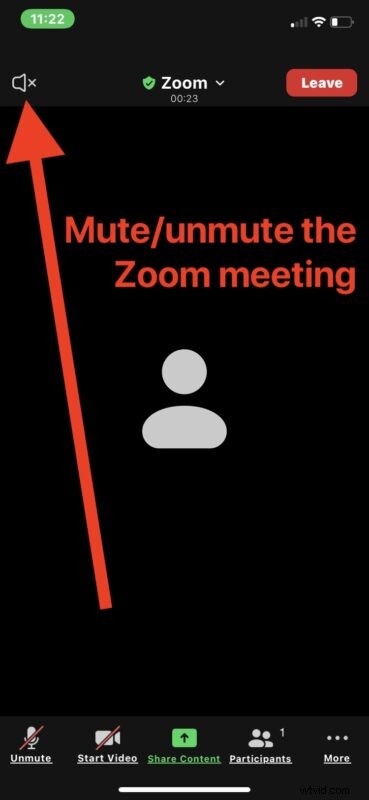
The screenshots shown are from Zoom on iPhone, but it’s basically identical with Zoom on iPad, and Zoom on Android. The interfaces are the same, as are the buttons, and their respective functionalities.
If you’re an iPad user with an external keyboard, like a Magic Keyboard or Smart Keyboard, there are some useful iPad Zoom keyboard shortcuts you might be interested in checking out as well.
Now you know how to mute yourself, unmute yourself, mute the entire Zoom meeting, or unmute the entire meeting, all in Zoom on any mobile device.
How do I turn off the beeping sound when I tap mute/unmute in Zoom on iPhone?
The beep chime that activates when you mute and unmute in Zoom is actually part of iOS since iOS 15, so if you look around in Zoom settings to disable the beeping chime sound effect when muting or unmuting, you won’t find anything.
It turns out that, at the moment anyway, you can not disable the beeping chime sound effect when muting and unmuting on iPhone with iOS 15 or newer. Perhaps that will change eventually, but for now that’s the way it is.
Happy Zooming.