
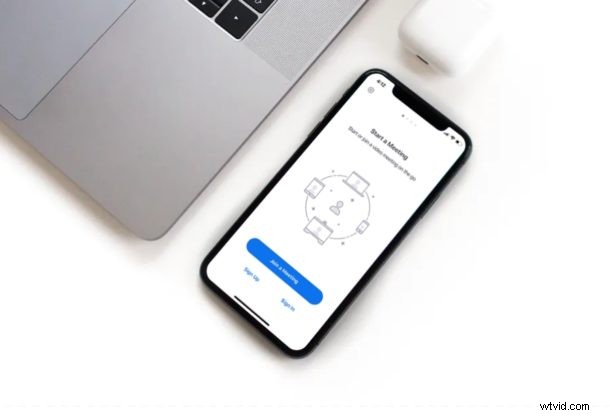
Zoom is a video conferencing solution that allows people to easily setup, host, and join video chats for remote meetings, work, or even just social events.
If you are an iPhone or iPad user and also one of the countless people who are currently working from home during this COVID-19 lockdown period, you’ll be pleased to know that Zoom makes video conferencing quite easy. And even without the COVID-19 outbreak, using Zoom for group video conferences and work-related meetings is easy and convenient.
There are several video conferencing applications that are available today, but Zoom is primarily targeting businesses and institutions that are out there. With many schools and colleges being shut down due to the global pandemic, several educational institutions have even begun online classes with the help of Zoom, as it’s capable of hosting up to 100 participants for 40 minutes, even on the free plan.
Are you trying to host or join a Zoom meeting from your iOS or ipadOS device? Here we’ll be discussing how you can set up, host and join a Zoom meeting on both the iPhone and iPad.
How to Setup, Host & Join a Zoom Meeting on iPhone & iPad
Before you go ahead with the procedure, you’ll need to install Zoom from the Apple App Store. After you have the Zoom app on your device, go ahead and follow the necessary steps to properly host or participate in a Zoom meeting on your iOS or iPadOS device:
- Open the Zoom app on your iPhone or iPad.

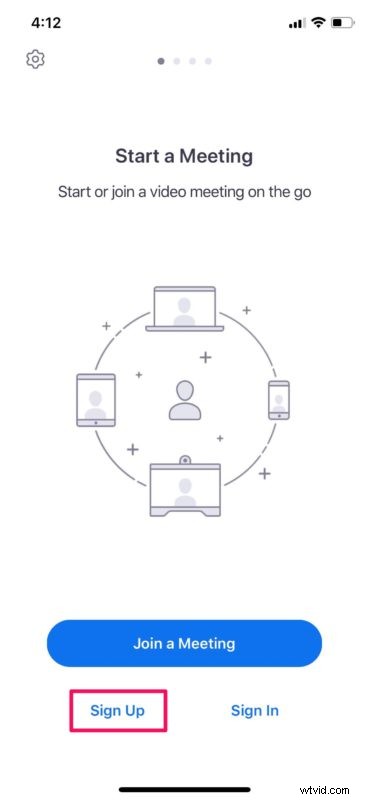
- Choose “Sign Up” if you don’t have a Zoom account. It’s worth noting that you don’t really need an account to join a zoom meeting. However, it’s necessary if you’re hosting it.
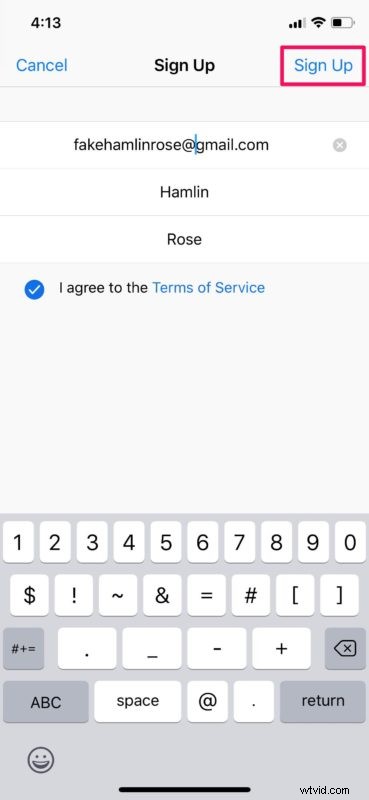
- Now, enter your name, e-mail address and tap on “Sign Up” located at the top-right corner of the screen.
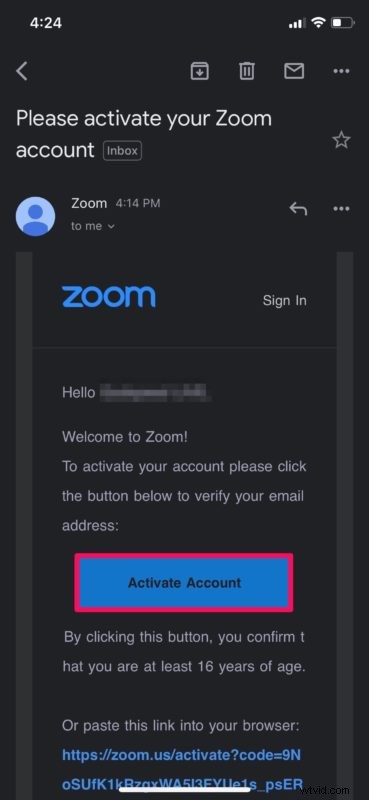
- You’ll receive a verification e-mail for activating your Zoom account. Simply select “Activate Account” and enter a preferred password to create the account.
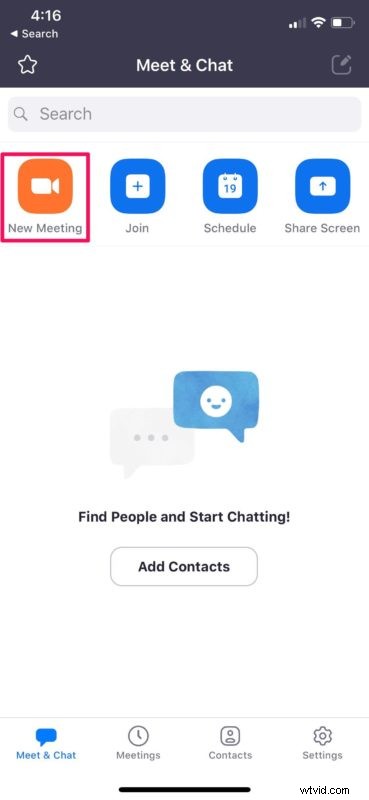
- Now, you’ll see a bunch of different options when you open the Zoom app. You can host, join and schedule zoom meetings right on your iPhone or iPad. Additionally, you’ll also be able to screenshare with the participants. In order to host a meeting, select “New Meeting”.
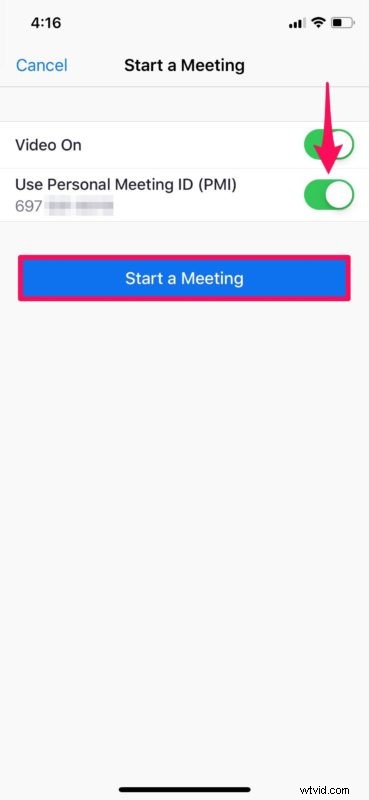
- Here, make sure the toggle for “Use Personal Meeting ID” is enabled and then tap on “Start a Meeting”.
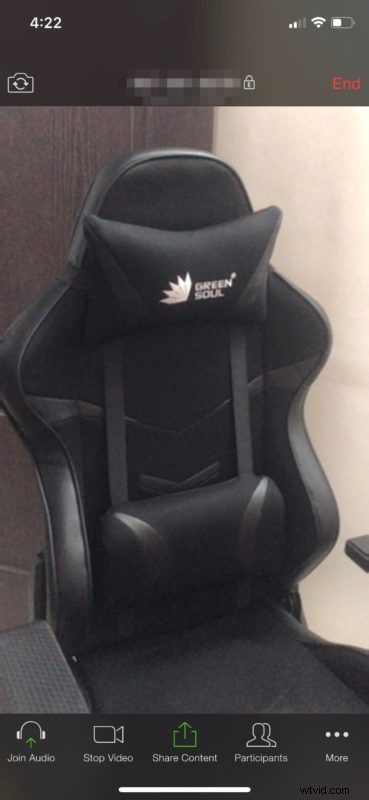
- This will launch your iPhone or iPad camera and start the Zoom meeting. Here, you’ll be able to see the participants, share content and do a lot more. Simply tap “End” to exit the meeting.
- If you want to join a Zoom meeting, head back to the main menu and select “Join”.
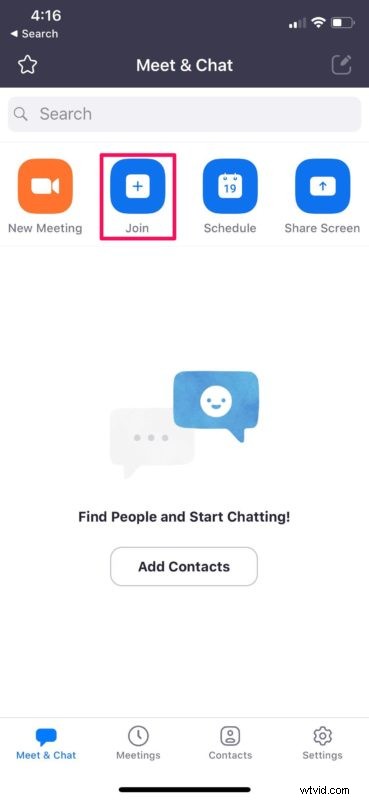
- You’ll need to enter a Meeting ID that was provided to you by the host and then tap “Join”. Alternatively, you can also join the meeting with a personal link name.
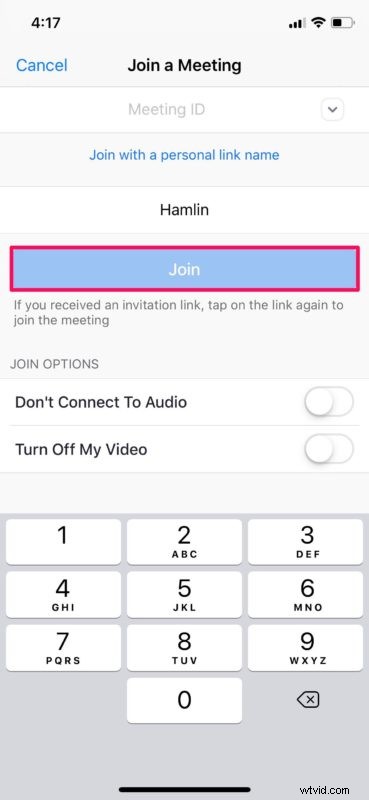
Now you know how to host Zoom meetings and join a Zoom meeting right from your iPhone or iPad. Pretty easy, right?
As mentioned before, Zoom is generally aimed at business, education, and institutional work, but many people are also using it privately too. Of course if you have an iPhone, iPad, or Mac, then you can also use those devices natively for video chats too, but if you’re unfamiliar you an learn about using Group FaceTime calls on iPhone and iPad for group video chat and how to make group FaceTime video calls on Mac.
If you own multiple iOS and iPadOS devices, you can use one of your devices to record video and another device to screenshare content with your participants. This feature could come in handy during an online lecture or presentation.
Zoom offers both free and paid subscription plans. The free plan has a 40-minute limit on group meetings and capable of hosting up to 100 participants. If you want a longer duration limit on your Zoom meetings, you’ll need to subscribe to the Pro plan that costs $14.99 a month and lets you host 24-hour meetings. Additionally, the $19.99/month business plan will let you host up to 300 participants in a single meeting.
Although Zoom has been available for a while, the service has recently grown in popularity among businesses, medical offices, high schools, and college students, as companies and educational institutions are resorting to online meetings and classrooms due to the massive global COVID-19 outbreak. Whatever the reason, Zoom can work for handling important meetings, as many people are stuck at home for schooling and work.
Did you manage to host or join your Zoom meeting on your iPhone or iPad without any issues? How does it compare to other popular video conferencing solutions Skype, Slack, Hangouts and more? Do let us know your thoughts and opinions in the comments section down below.