
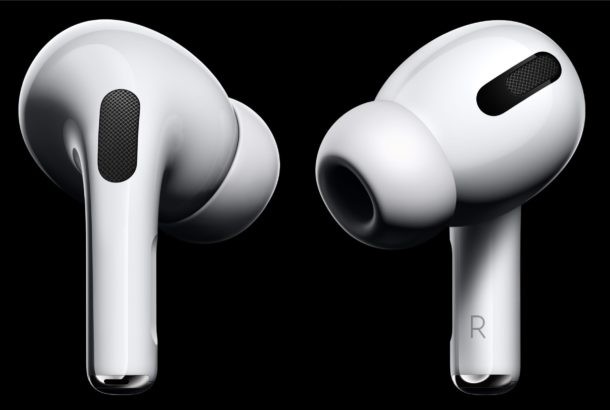
Did you know you can use the AirPods Pro Active Noise Cancellation feature even if you only have one of the earbuds in? Indeed you can use ANC on a single earbud. This is a great feature if you use a single AirPods Pro earbud for phone calls, conversations, podcasts, or listening to audio. If you didn’t know about this feature, that’s not too surprising because it’s not the most obvious AirPods Pro feature to reveal itself.
In this article, we’ll show you how to enable Active Noise Cancellation on a single earbud of AirPods Pro.
To enable ANC on a single earbud, you’ll have to dig into the “Accessibility” area within the Settings app on the paired iPhone. That isn’t necessarily somewhere most people will venture into on their own, so chances of you spotting it by accident are pretty slim. And that’s a shame because this is a pretty handy feature.
By default, ANC isn’t active when you use a single AirPods Pro earbud. If you’re someone who uses their AirPods Pro to make phone calls – we’re told people still make those – then you probably have a single earbud in your ear regularly. So you’re missing out on the hot new feature, and that’s just no way to live.
Obviously, we’re assuming you already have your AirPods Pro setup and paired with iPhone, if not you’d need to do that first.
How to Enable Noise Cancelation with One AirPod Pro Earbud
As with so many things, we begin with the Settings app on an iPhone or iPad, so here’s how to proceed:
- Open the Settings app on iPhone or iPad that is paired with AirPods Pro
- Tap “Accessibility.”
- Next, tap “AirPods.”
- Toggle “Noise Cancellation with One AirPod” to the “On” position.
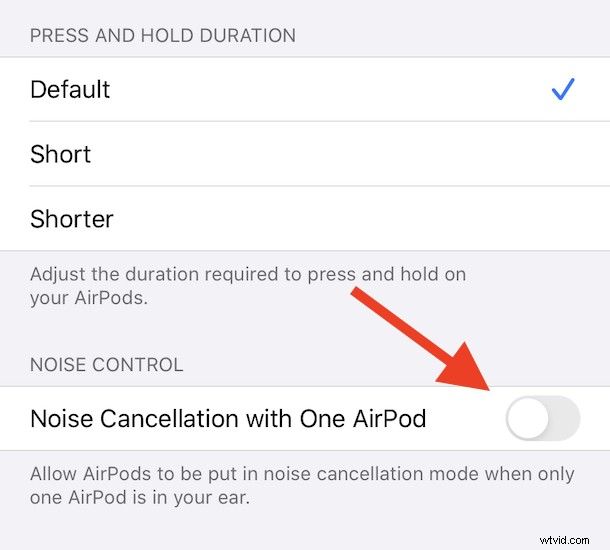
Exit the Settings app and take your handiwork for a spin. Put a single earbud in, and try it out.
You should now be able to activate Active Noise Cancellation even if you’re using a single earbud.
Like most features of AirPods Pro, you’ll want to be sure you did the AirPods Pro ear fit test to make sure they fit as best as possible, this will give you the best results of all audio quality and features on the earbuds.
Apple’s AirPods Pro have a lot going for them not least the fact that they fit inside your ears better for many users compared to AirPods and other earbud brands. But one of the biggest selling points is the availability of active noise cancellation (ANC) and transparency modes rather than just having to hope your music, podcasts, or audio drowns everything out, you have more control than ever before about your ambient audio and how it impacts your AirPods use.
Now that isn’t all you can do with AirPods Pro – you can also change what AirPods Pro do when you squeeze them amongst many other nifty tricks, and we have a ton more AirPods tips and guides on how to get the most out of your AirPods Pro. Check them out, there’s more to just putting them in your ears! You can even do interesting and unexpected things like use AirPods as hearing aids of sorts, and so much more.
As always, if you know of any other handy tips, tricks, or just have thoughts and opinions you’d like to share, sound off in the comments about AirPods Pro and noise cancellation!