
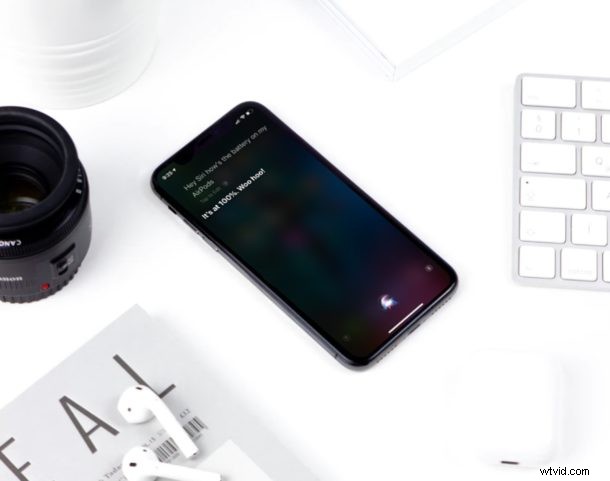
Want to use Siri to control your AirPods and AirPods Pro with just your voice? Thanks to Siri voice assistant, you can perform various tasks such as adjusting volume, checking the battery percent, finding directions and more, without having to take your iPhone out of the pocket.
AirPods are undoubtedly the most popular truly wireless headphones that are available today. One of the major reasons why AirPods has been hugely successful among Apple users is due to the fact that it works seamlessly across Apple devices like the iPhone, iPad and iPod Touch. Just like almost every other Apple product that’s available today, both the AirPods and AirPods Pro come with Siri built-in.
If you’re keen on taking advantage of the vast array of voice commands that Siri, read along to learn how you can use Siri voice controls with both the AirPods and AirPods Pro. You will obviously need to have AirPods or AirPods Pro paired with iPhone or iPad to have this functionality.
How to Use “Hey Siri” with AirPods and AirPods Pro
If you own the second generation AirPods or AirPods Pro, you’ll be able to summon Siri with just your voice. This is made possible with the help of the custom Apple H1 chip that powers these headphones. However, this feature needs to be first enabled on your iOS device before it can be used on your AirPods. So, simply follow the steps below.
- Open the “Settings” app on your iPhone, iPad or iPod Touch.

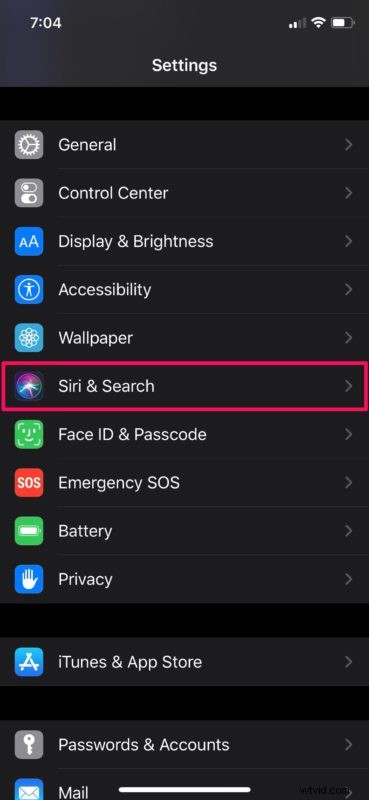
- In the Settings menu, scroll down and tap on “Siri & Search”.
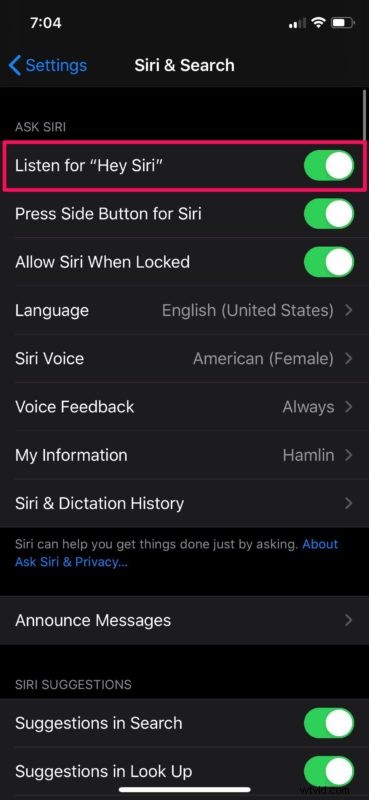
- As you can see here, the option to enable this feature is located right at the top. Tap on the toggle to turn on “Hey Siri”.
That’s all there is to it.
From now on, just say “Hey Siri” and then follow it up with questions like “How is the battery on my AirPods?” or “How do I get home from here?”.
You can also control your AirPods by saying “Turn down the volume” or “Skip to the next song”.
How to Manually Use Siri on AirPods
If you’re using the first generation AirPods or if you just don’t want to use “Hey Siri” and avoid that awkward moment in public, this procedure is for you. This varies depending on the AirPods you own, so simply follow the steps below.
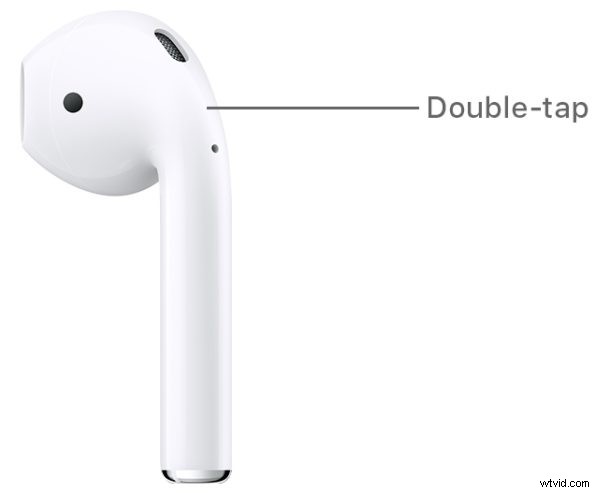
- If you’re using the first or second generation AirPods, you should be able to access Siri by double tapping on either of the AirPods.
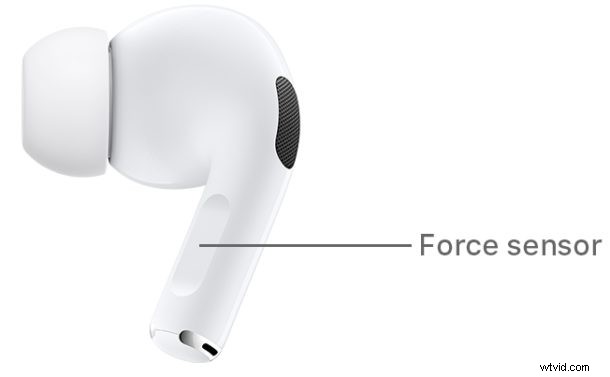
- If you’re using the newer AirPods Pro that feature a different design, you can set it to summon Siri when you press and hold the force sensor. By default, this action is used to switch between Noise cancellation and Transparency modes.
How to Use Announce Messages with Siri on AirPods
If you’re using the second generation AirPods or AirPods Pro that’s powered by the H1 chip, Siri can read out the text messages you receive, which comes in handy when you’re driving. This is a relatively new feature that was introduced alongside iOS 13.2 and later. So, make sure your iOS device is updated and simply follow the steps below to turn it on.
- Head over to the “Notifications” section within Settings as shown in the screenshot below.
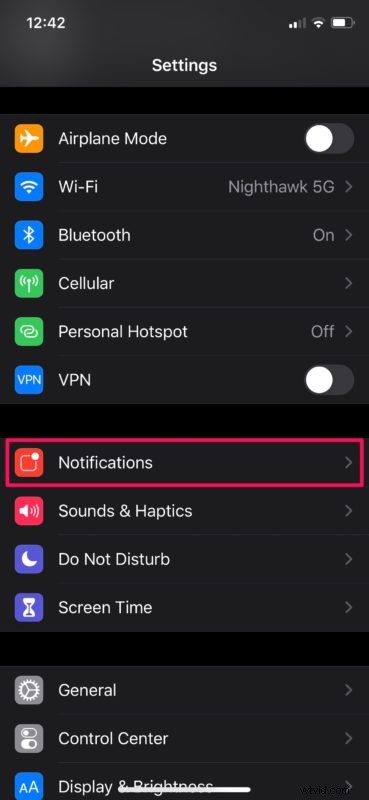
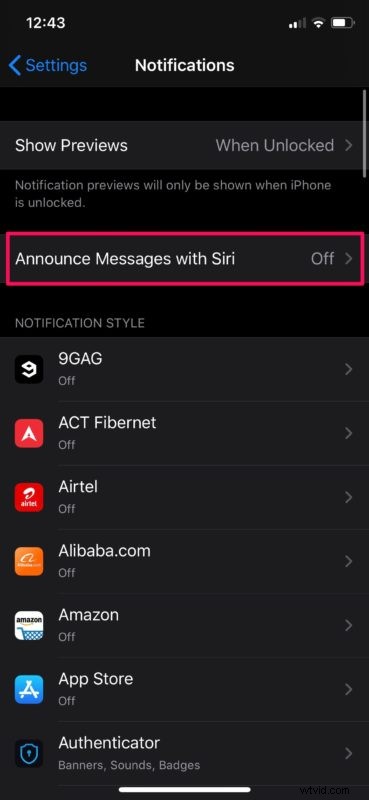
- Here, you’ll notice the setting located right above the list of apps. It’s disabled by default, so simply tap on “Announce Messages with Siri”.
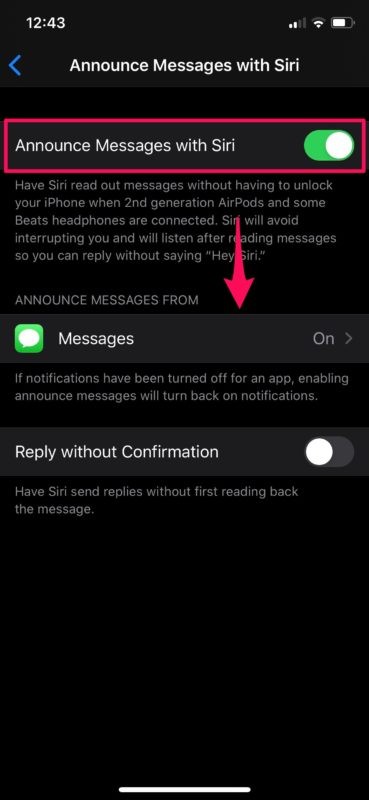
- Now, just use the toggle to turn this feature on. You also have the option to let Siri reply automatically to your incoming messages without confirmation.
Well, if you’ve come this far, it’s safe to say you’ve learned how to use Siri on your AirPods and AirPods Pro.
Despite the criticism it receives, Siri is still a really powerful voice assistant that’s an integral part of the Apple ecosystem. It’s available on almost every Apple device that’s available today in one way or the other.
Do you use a Mac? If so, you might also be interested in learning how you can use Siri voice commands with your macOS device. Unfortunately, if you’re using AirPods with an Android device or Windows PC, you certainly won’t be able to take advantage of voice controls at all, since Siri is limited to Apple devices.
Did you learn how to use Siri with your AirPods and AirPods Pro? What’s the voice command that you seem to use the most? Do you use Siri to read out your texts while driving? Make sure you let us know in the comment section down below.