
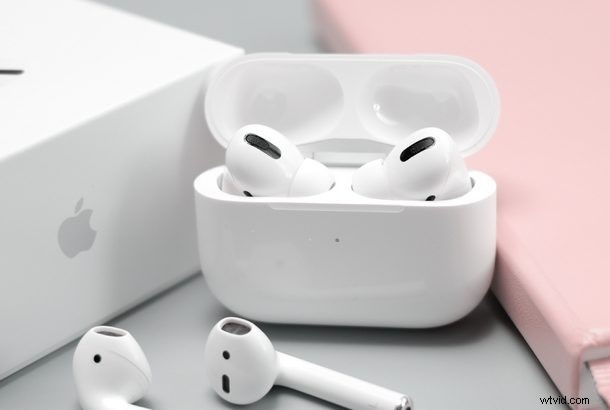
Did you know AirPods can be used as hearing aids of sorts? Thanks to a handy and little-known accessibility feature called “Live Listen”, you can use AirPods as hearing aids to boost the audio volume of sounds around you.
Apple’s AirPods have become the best selling wireless headphones worldwide in no time, they’re wildly popular and you see them frequently throughout daily life (you can grab a pair yourself on Amazon). You could take a walk down the street and you’d probably spot several people wearing them to listen to music, podcasts, talk on the phone, or interact with Siri. Their convenience and integration in the Apple ecosystem is hard to beat, as the seamless connectivity it brings to the table across Apple devices is what makes these pair of earbuds extra special. However, listening to music and audio is not the only thing AirPods can do, and there are some other really interesting tricks up their sleeve, and the Live Listen feature functioning as hearing aids is just one of them.
If you wanted to try this feature out for yourself with your pair of AirPods or AirPods Pro, you’ve come to the right place. In this article, we’ll be discussing how to use your AirPods as hearing aids using the Live Listen feature that’s built into your Apple device. Without further ado, let’s take a look at the procedure.
How to Use AirPods as Hearing Aids Using Live Listen
The Live Listen feature in iOS is an option that can be turned on and off right from the Control Center. However, this handy option is not immediately available by default, and therefore it needs to be added to the Control Center first. Simply follow the steps below to add this feature to your AirPods synced iPhone or iPad:
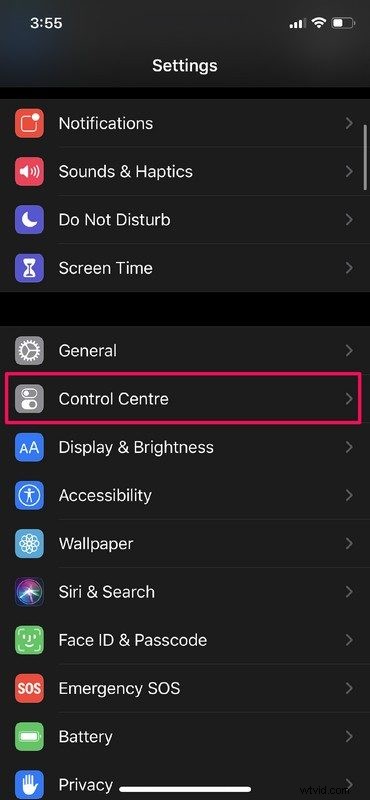
- Open Settings app, then scroll a little bit down and tap on “Control Center”.
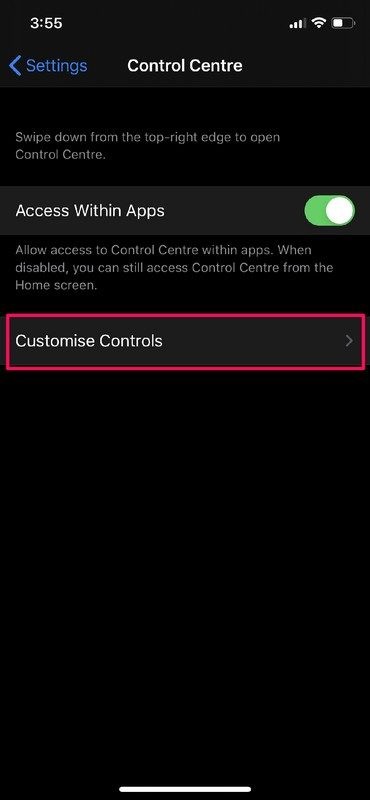
- Now, tap on “Customize Controls” to go to the dedicate menu that allows you to add and remove controls.
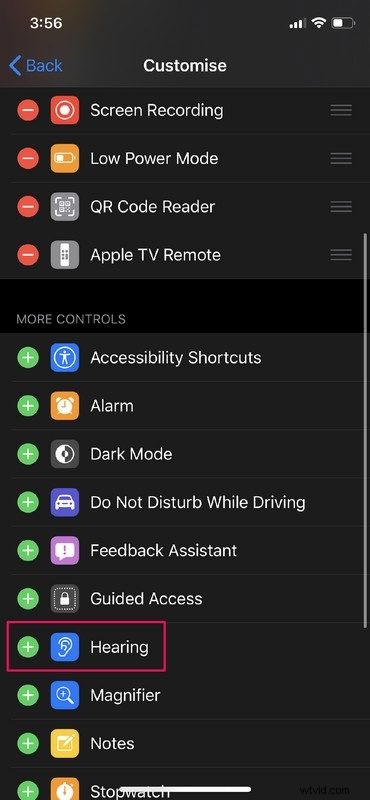
- Scroll down a little and you’ll notice an option called “Hearing” with the icon of an ear. Simply tap on the “+” icon right next to it in order to add Live Listen to the Control Center.
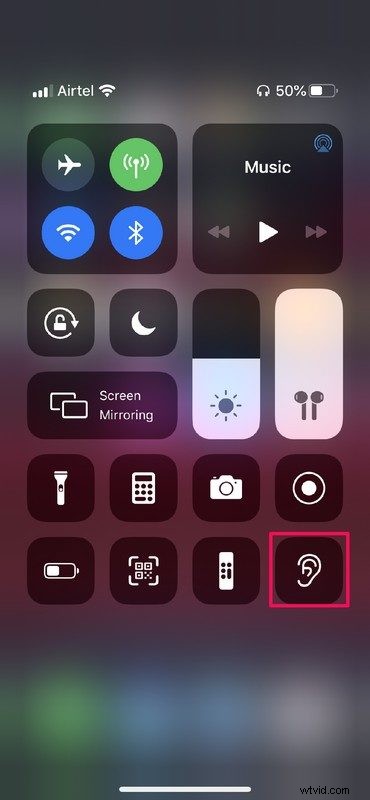
- Go to the Control Center by swiping down from the top-right edge of the screen if you’re using an iPhone X or later. If you’re using anything older, just swipe up from the bottom of the screen to access it. Now, you’ll notice the Live Listen icon at the bottom as shown in the screenshot below. Simply tap on the “ear” icon.
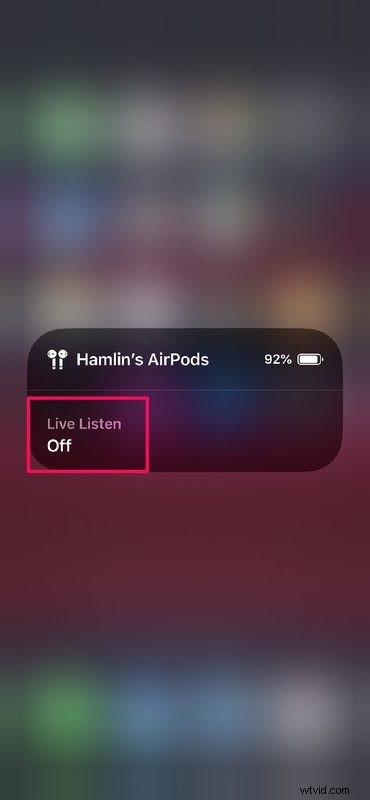
- Make sure your AirPods are connected to your device and tap on “Live Listen” to turn the functionality on.
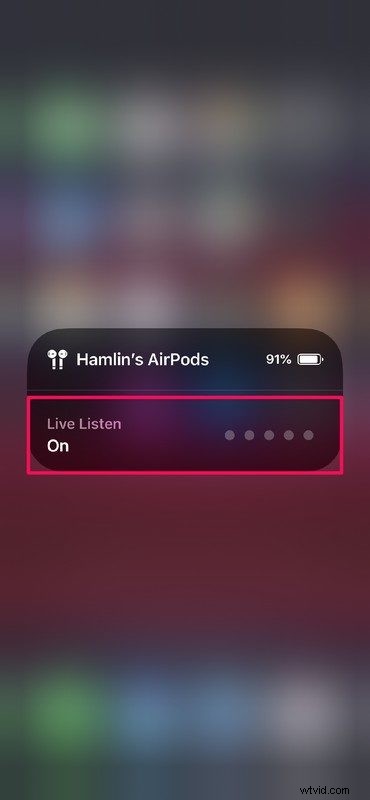
- Once Live Listen is on, you may feel like the ambient noise is sort of amplified and it might throw you off at first, especially if you’re in a loud environment as it boosts the surrounding volume.
- You can turn the Live Listen functionality off at any time by simply tapping on “Live Listen” again through Control Center on the iPhone or iPad.
That’s all there is to it, you can now feel like you have super-hearing capabilities just by wearing AirPods or AirPods Pro.
This is pretty much an accessibility feature that utilizes your devices microphone to listen to the environment and sends the amplified sound to your AirPods. So, if a user has trouble hearing people or certain things, simply place your iPhone next to whatever it is that you may want to hear, in order to listen to the boosted audio via your wireless earbuds from across the room.
With all of this being said, Apple has pointed out that AirPods are in no way trying to replace hearing aids, and they have advised users to consult a doctor if they have a serious difficulty when it comes to hearing. So while this feature may be useful and have many applications, don’t expect it to stand in for dedicated hearing devices.
If you’re using this Live Listen feature on AirPods Pro, you’ll want to be sure you already went through the AirPods Pro fit test to ensure the best physical fit. AirPods Pro have other unique and interesting features that standard AirPods don’t have, including noise cancellation and transparency modes, while most standard AirPods features exist on both the Pro and standard models, like using Siri, adjusting music and audio, or this Live Listen feature.
Technically speaking, this feature has actually been around since 2014, which allowed the iPhone and iPad to act as remote microphones for MFi-compatible hearing aids, but the feature was made available for AirPods much more recently.
What do you think about Apple’s Live Listen accessibility feature? Do you actually see yourself using this feature with a purpose, or did you just want to try and hear what it sounded like? Let us know your thoughts and opinions in the comments section down below, and don’t forget to browse through other AirPods articles too.