
Photoshop brushes are useful for all Photoshop users.
You can buy sets of brushes but there are also tons of free Photoshop brushes available.
In this article, I’ll show you how to install and use them.
What Are Photoshop Brushes
You don’t need to be an illustrator to use Photoshop brushes. There are sets available for all kinds of artists, from graphic designers to photographers.
Photoshop brushes also don’t have to be expensive. There are a lot of talented artists out there who’ve created their own set of brushes. Some of those artists share their brushes for free.
Just Google “free Photoshop brushes” and you’ll find a set that’s just right for you.

You can use brushes to paint simple lines and strokes but there’s more. With more advanced brushes, you can create intricate patterns and designs.
Create flower patterns, flare effects, lightning, fur or hair, and thousands more. The possibilities are limitless and you don’t have to be a Photoshop expert to use them. It’s super easy.
How to Install Free Photoshop Brushes
Once you’ve found the perfect set of free Photoshop brushes, it’s time to install them. Here’s how to do it.
Step 1: Download
Most likely, your new brushes will be packed in a zip file. Download the zip file and unpack it to a location of your choice.
Check the new folder. It should contain at least one .abr file. That’s a brush file.
Step 2: Install the Free Photoshop Brushes
There are two ways to install your new Photoshop brushes.
Drag the .abr file into the Photoshop window.
Or, go to Edit > Presets and select “Preset Manager”.
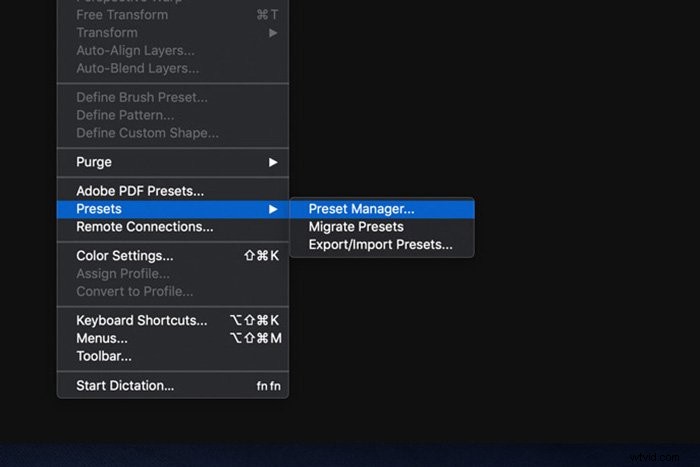
Make sure to select “Brushes” as your preset type and click the Load button.
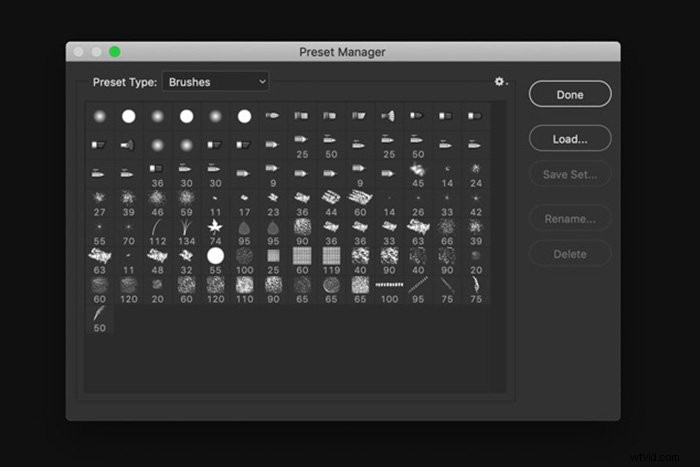
Locate the .abr file or files you’ve downloaded and select them. Click “Install”.
Step 3: Use Your Brushes
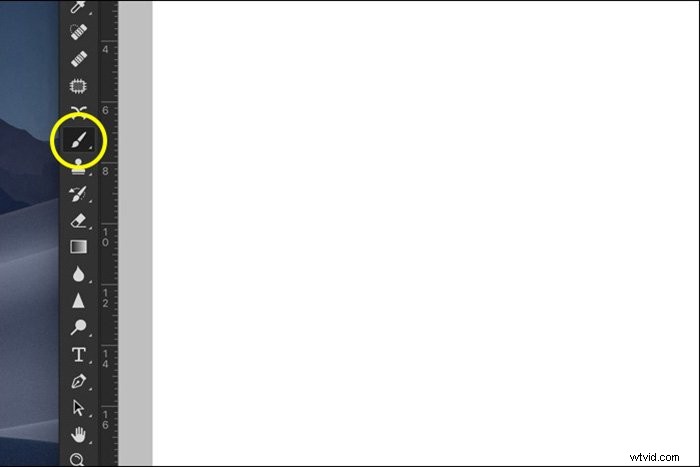
Click on the Brush tool from the toolbar and select any brush you want. You can also use shortcut “B”.
How to Use Free Photoshop Brushes
Using brushes in Photoshop is super easy. Once you’ve selected a brush, just start clicking. Depending on the brush, you can click once or drag and click to create strokes.
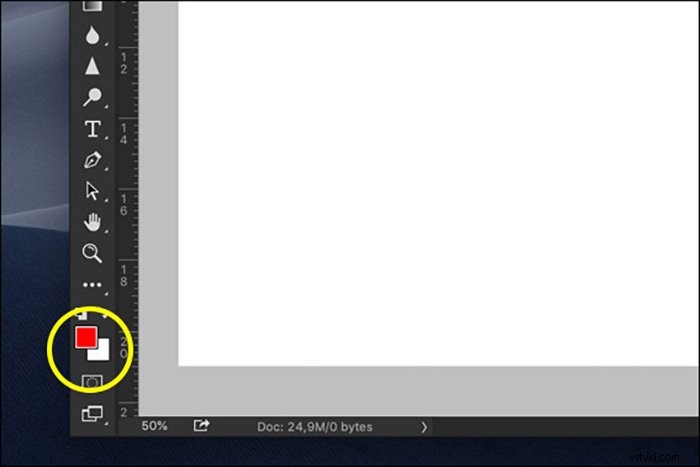
At the bottom of the toolbar, you can set the color for your brush.
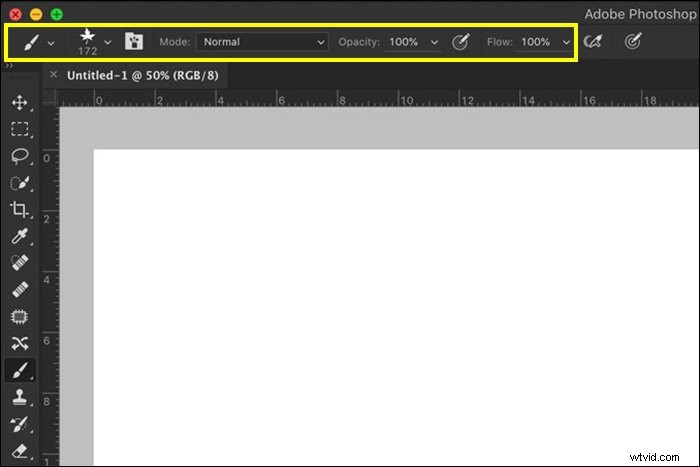
At the top of the toolbar, you’ll see the controls for your brush. You can set the size, mode, opacity, and flow of the brush.
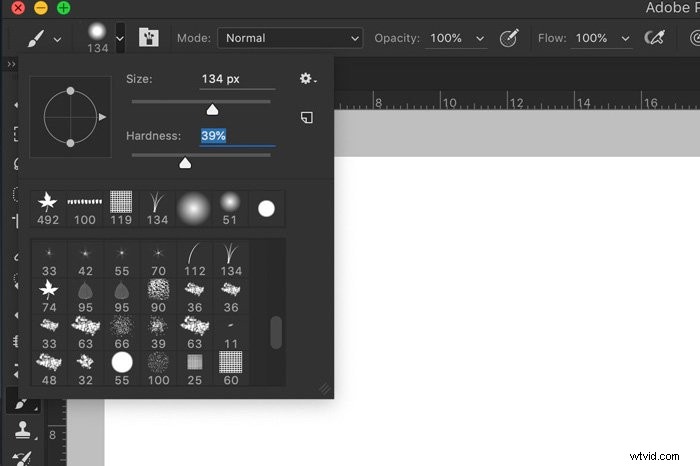
Depending on the type of brush, you can also set the hardness. To adjust the hardness, open the dropdown menu.
Some brushes have a fixed hardness that you can’t change.
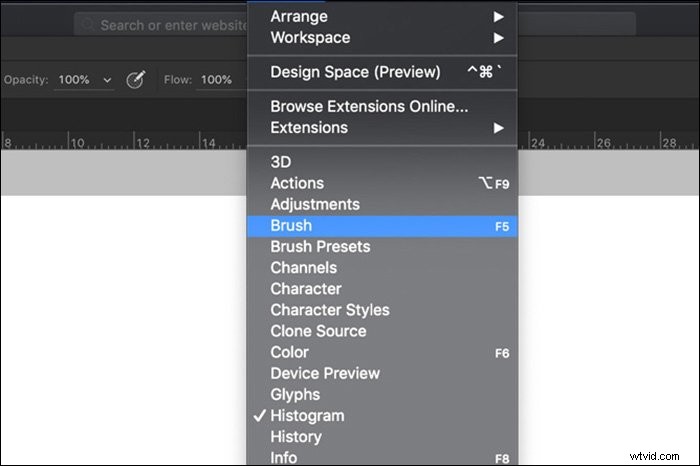
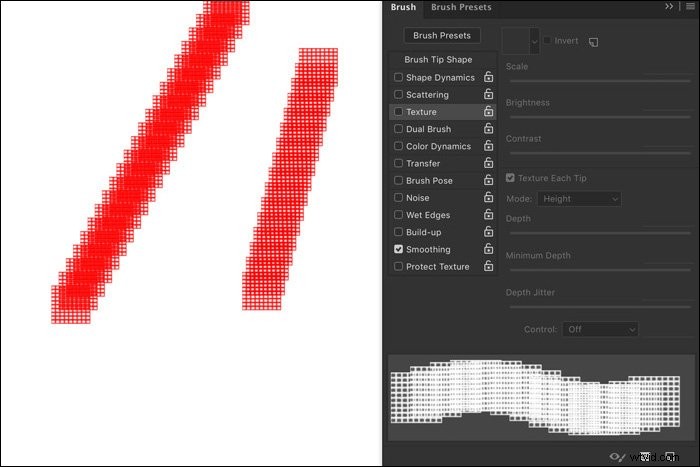
If you want to experiment, even more, open up the Brush Panel. Go to Window and Select “Brush”. Here, you can set noise, texture, wet edges, and a lot more.
Try out different settings to see the differences.
Conclusion
And that’s it. It’s easy to use brushes but it could take a while to master them. You can use free Photoshop brushes for all kinds of tasks.
Start drawing and create your next masterpiece or use a specific brush and masking for your photography.
Or, combine both graphics and photography to create something unique. The possibilities are limitless and you’ll definitely find a free Photoshop brush that you’ll like.
Learn how to use grids and guides in Photoshop, or how to create surreal levitation photography next!