
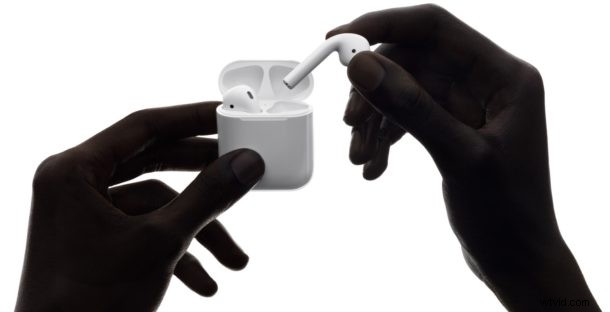
AirPods are the wireless earbud headphones from Apple which are enjoyed by many iPhone users. Much like iOS devices have firmware updates, so do AirPods, and you may be wondering how you can update AirPods firmware, and how to check and see if your AirPods are up to date.
Managing firmware updates on AirPods is simple, but it’s a bit different from other Apple products as there is no traditional software update menu. Read on to better understand how to update AirPods and how to check the current firmware version of AirPods.
Updating AirPods Firmware
AirPods Firmware will update automatically if they AirPods are stored within their case, near the synced iPhone, and the iPhone is connected to the internet. It just happens automatically when Apple pushes out an update, you don’t actively update the AirPods yourself.
The AirPod firmware update happens seamlessly and quietly in the background, and unlike updating iOS system software or an Apple Watch there is no direct “update now” button to manually trigger the AirPods software update.
If your AirPods haven’t updated to the latest version, be sure the iPhone or iPad is connected online (preferably to wi-fi), put the AirPods in the AirPod charging case for a moment, then pop open the lid. When the menu pops up on the iPhone just swipe it away as usual. Now close the lid on the case and wait a few minutes, if an update is available it should happen automatically sometime within 30 minutes or so.
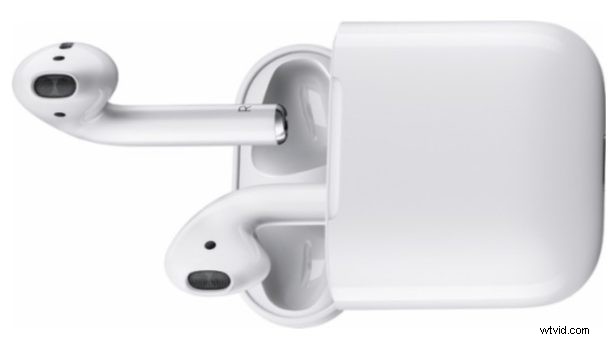
How to Check AirPods Firmware Version
Assuming the AirPods are actively synced to your iPhone or iPad, you can access an AirPods menu in the Settings app of iOS:
- Open the Settings app and go to “General” and then to “About”
- Choose ‘AirPods’ to see the AirPods firmware version
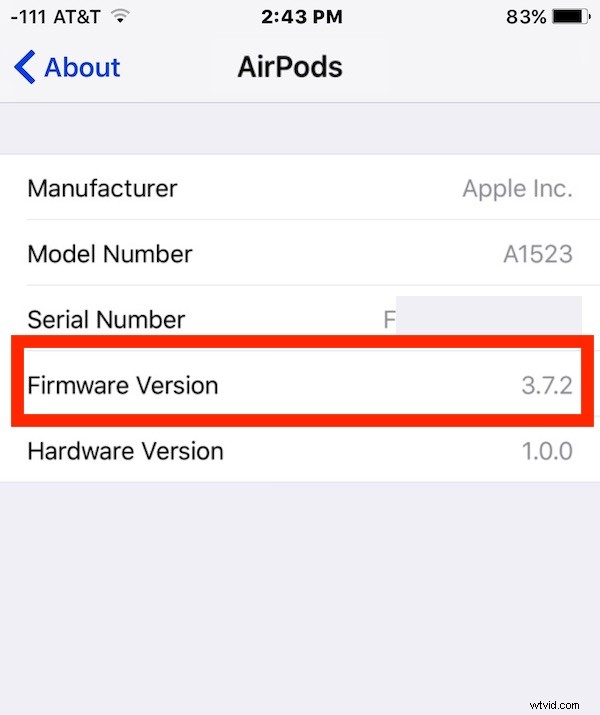
If you do not see the AirPods option in the About section then you likely don’t have the AirPods actively synced or paired to the iOS device.