

In order for a variety of Siri features to work, Siri must know who you are, and the more Siri knows about you the better some of those features work when activated from an iPhone or iPad.
For example, if Siri knows your home address then you can ask Siri to “give me directions home” from anywhere, and the virtual assistant will attempt to route a path home. Or if you found an iPhone and want to see who the owner is (and likewise want someone to be able to do the same if you ever lost your iPhone) then you must have your information set with Siri.
This tutorial will walk through the simple steps of informing Siri who you are by using your iPhone or iPad.
How to Set Your Personal Identifying Information with Siri on iOS
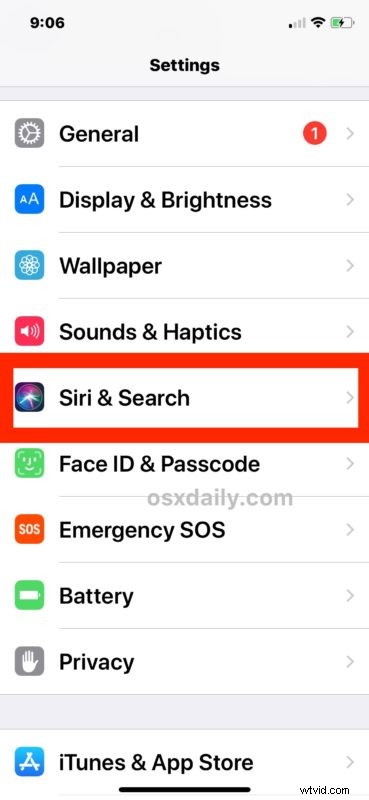
- Open the “Settings” app in iOS and go to “Siri & Search”
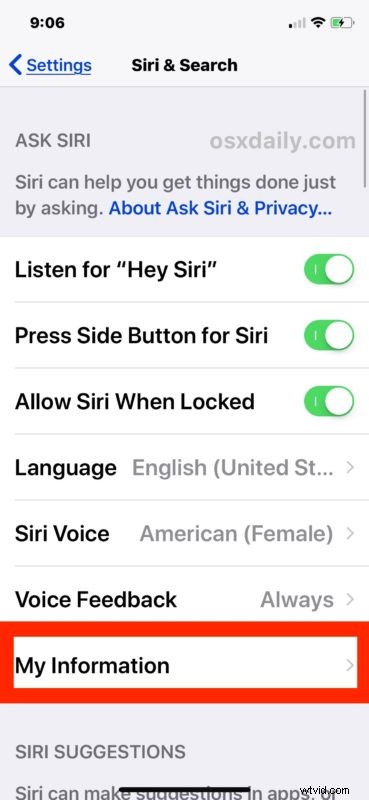
- Scroll down to find “My Information” and tap on that – if your name is listed next to this, then it’s likely already set properly
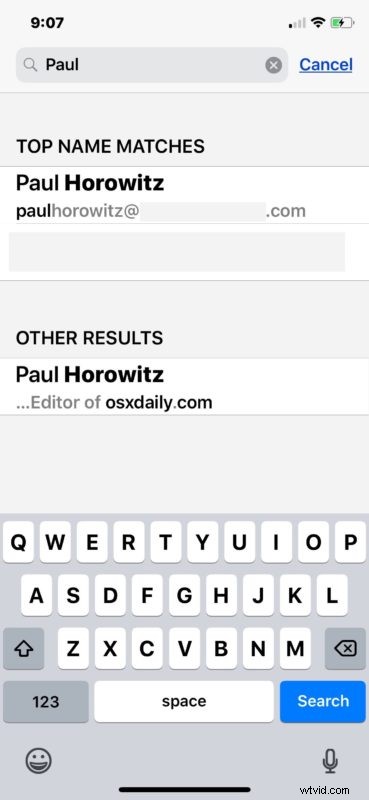
- Select your contact information from your Contacts address book, using the Search feature if necessary
You can confirm Siri has the proper personally identifying information by summoning and asking Siri “whose iPhone is this?” (but note as we discussed recently, asking Siri to identify an iPhone will temporarily disable Touch ID and Face ID and thereby require a passcode to unlock the device again).
Note you must have a personal contact card available for this to work. If somehow you do not have a personal contact card setup yet or available to select, then you should open the “Contacts” app and create one. Simply adding a new contact with your information like name, address, email, and phone number, is sufficient.
If you have an identifying contact card set for yourself but the information is incorrect, you’ll want to edit the card so that it is accurate and up to date, which can be done via the Contacts app as well.