
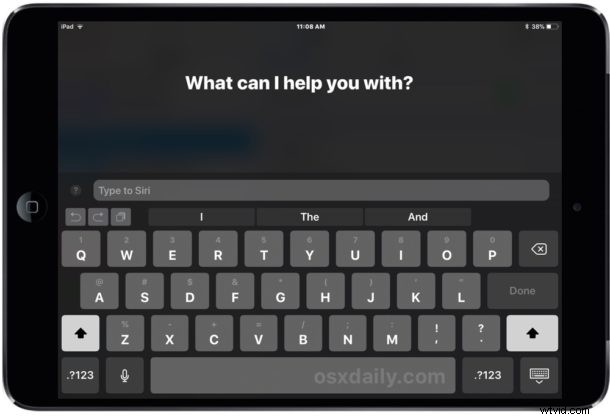
Type to Siri for iOS allows you to interact with Siri by typing text commands on an iPhone or iPad, using either the onscreen software keyboard or an external keyboard.
All of the Siri commands you’re used to using work through Type to Siri, it’s just the command entering process that is different as you quite literally type out a query or command and then Siri responds as usual.
Type to Siri on iPad and iPhone is an incredibly useful feature for myriad reasons, whether you just prefer to type, can’t use voice commands with Siri, have an accessibility setup where typing is more practical, or perhaps just because you like the idea of having a smart command line of sorts that is backed by a little virtual assistant.
Sound good? Then let’s turn on the Type to Siri feature in iOS so that you can use Siri with a keyboard on an iPad or iPhone.
How to Enable Type to Siri on iOS
Enabling Type to Siri is the same on iPhone and iPad, all you need is a modern version of iOS. Anything past iOS 11 or later will have the feature, here’s how you can turn on Type to Siri and use it:
- Open the “Settings” app in iOS
- Go to “General” and then choose “Accessibility”
- Select “Siri” from the accessibility settings
- Find the switch for “Type to Siri” and toggle it to the ON position
- Exit Settings
- Summon Siri as usual, then type in a Siri command like “what is the weather in London” or “remind me at 4pm to defrost chicken”

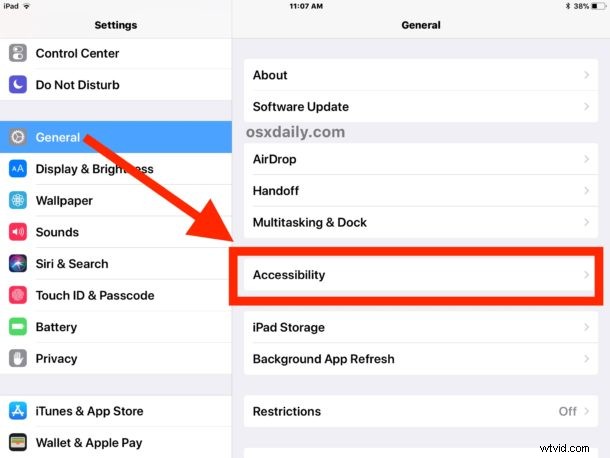
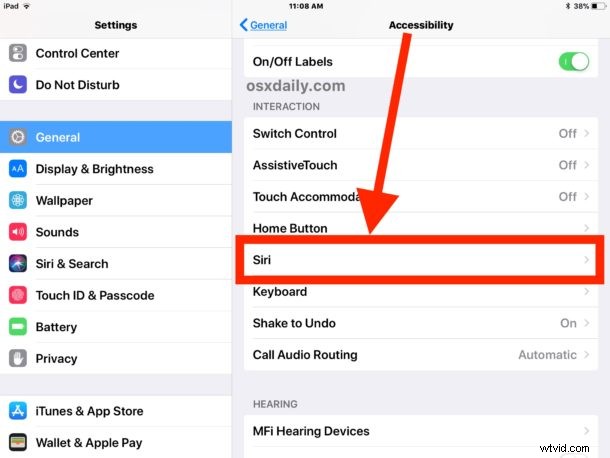
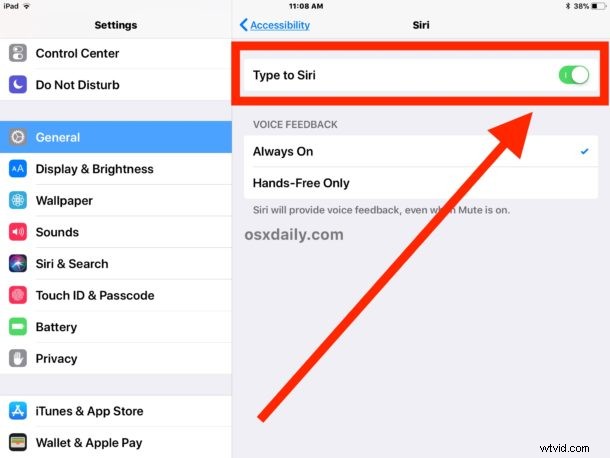
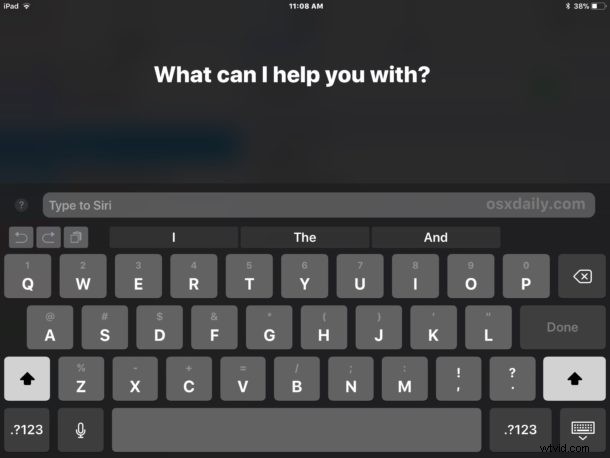
Moving forward you just access Siri as you normally would, but you type in the command rather than speak it*. Do note that Siri continues to speak feedback of commands to you, even if you use Type to Siri to enter the command.
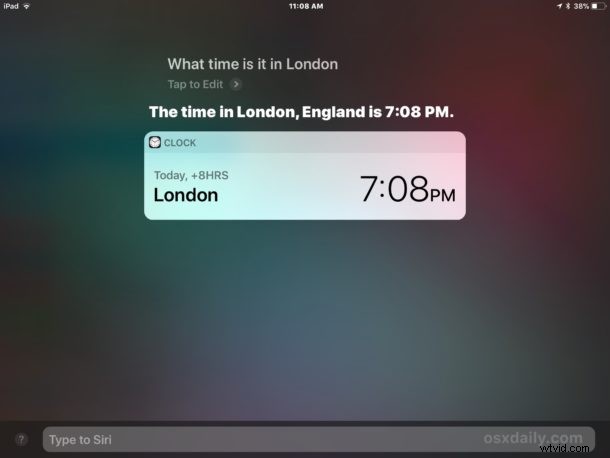
All of the regular Siri commands you’d use work just fine with Type to Siri, if you can say it with the regular voice-interaction for Siri then it will also work with Type to Siri. And yes, that includes all the goofy and funny Siri commands available too, but of course the most useful commands are going to be more practical, unless goofing off is considered practical anyway.
You could argue that Type to Siri is a bit more useful on the iPad than it is on iPhone, simply because the iPad is often used with a Bluetooth keyboard, an Apple Smart keyboard, and the bigger screen is a bit easier to type on too, but it’s certainly handy on iPhone too. By the way, if you’re a Mac user then you can also enable and use Type to Siri on the Mac too, assuming you’re running the most recent OS versions.
Can I still use voice Siri when Type to Siri is enabled in iOS?
* Yes you can still use voice Siri commands with Type to Siri, but at the moment it’s done with a little bit of a workaround.
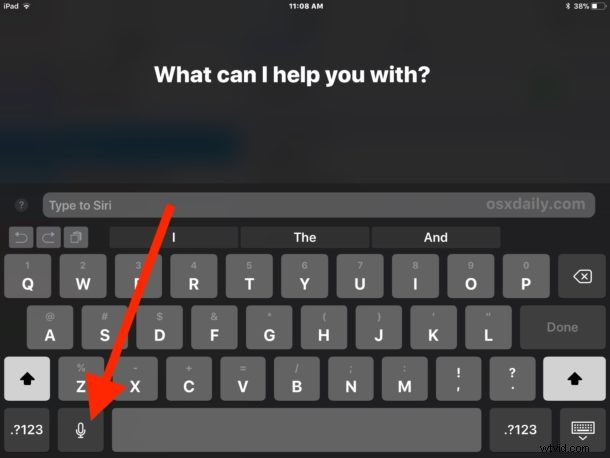
If Type to Siri is enabled and you want to issue a voice command to Siri, you must do so by summoning Siri as usual and then pressing the microphone button on the iOS keyboard first, which uses the Dictation feature to turn speech to text in iOS. Then just speak your command, and hit the Return key on the iOS keyboard. That’s all there is to it.
A few helpful tips for Type to Siri on iOS
- Use shortened language commands, for example use “weather London” rather than “what is the weather in London?”
- You can hold the ESC key on an external Bluetooth keyboard to mimic holding the Home button and summon Siri that way (holding Command + H with an Apple keyboard may work for this purpose too)
- If you like Type to Siri on iOS you’ll probably also like Type to Siri on Mac, so enable it!
If you know of any other helpful Type to Siri tricks for iPad or iPhone, share them with us in the comments below! And if you want some more Siri tips, we have plenty to browse through!